Some users have said that they are unable to access their Gmail account using the Mail app on their iPhone 18 Pro. Users have said they get an error message saying “Cannot Get Mail. The mail server ‘imap.gmail.com’ is not responding. Verify that you have entered the correct account info in Mail settings” when they attempt to check their emails in Mail. The Mailboxes screen also says “Account Error: Gmail”. In this article, I will help you troubleshoot if you are unable to receive or send email with a Gmail account set up on your iPhone. If Google Gmail isn’t working for you, there are a few potential issues that could be the cause.
This is an important problem. Unless you fix it, you won’t be able to send or receive emails with your Gmail account in the Mail app. Furthermore, you will not be able to open and read emails.
Check these first
You may want to review these quick steps first:
- Go to the Google Workspace Status Dashboard and make sure that there is not a Gmail outage.
- Quit the Mail app and open it again.
- Make sure that your Gmail password is correct. You can check this by opening gmail.com in Safari and check to see if you can log in.
- If you have other email accounts on your iPhone 18 Pro, check to see if those accounts are working.
Update your device
Ensure that your device has the latest version of iOS. When you update or upgrade your device, built-in apps like Safari, Mail or FaceTime will also be updated or upgraded. Updating your device is really easy. You can do so wirelessly. On your iPhone 18 Pro, go to Settings > General > Software Update.
Restart your device
Simply restart your device. This may fix your Gmail problem. This is easy to do and definitely worth a try. On your device, you can go to Settings > General > Shut Down to turn off your device.
And then to turn on your device, press and hold the side button until you see the Apple logo.
Check your Internet connection
Make sure your internet connection works properly on your iPhone. An unstable Internet connection may cause Gmail issues. Make sure that your device has a Wi-Fi connection or cellular-data connection. Please also note that if you are trying to access your Google account over cellular, ensure that Use Cellular Data is enabled for Mail. Go to Settings > Cellular or tap Mobile Data and then turn on Mail. You may also try these:
- Turn on Airplane Mode, wait a few seconds and turn it off.
- Restart your Wi-Fi router/modem.
Check your mail settings
The reason Gmail is not working on your iPhone 18 Pro could include a number of incorrect mail or fetch settings. This may be a setting issue. Apple has a mail support page. This page lets you verify your email settings. Here is how:
- Visit Apple mail support page.
- Find the “Mail Settings Lookup” section.
- Enter your Gmail account email.
- And then click the “Look up settings” button.
- You will be provided your mail settings.
- Go to Settings > Apps > Mail > Mail Accounts and manually review your settings.
Remove the Mail app and install again
If Gmail won’t load and Mail seems off, simply delete the Mail app and then download and install again. Here is how:
- Touch and hold the app on the Home Screen or in App Library. Tap Remove App, then tap Delete App. Tap Delete to confirm.
- Restart your device.
- Then open the App Store. Search for the Mail app. Download and install again.
Delete the Gmail account and add it again
If you are still having this problem, you may want to remove your email account from your iPhone and then add it to your device again. Before you do this, you should note these:
- This just removes the account from your device and will not delete your Gmail account. In other words, you can still access your Gmail account via a web browser.
- This will remove all emails from your device. But emails won’t be deleted from Gmail servers.
Here is how you can do this:
- On your iPhone 18 Pro, tap Settings > Apps > Mail > Mail Accounts > Select the Gmail account that is not working > Delete Account.
- After deleting, restart your device.
- Now go to Settings > Apps > Mail, then tap Mail Accounts and Add Account. Tap “choose from a list,” then select Google. You will be sent to Google to enter your username and password and follow the onscreen instructions.
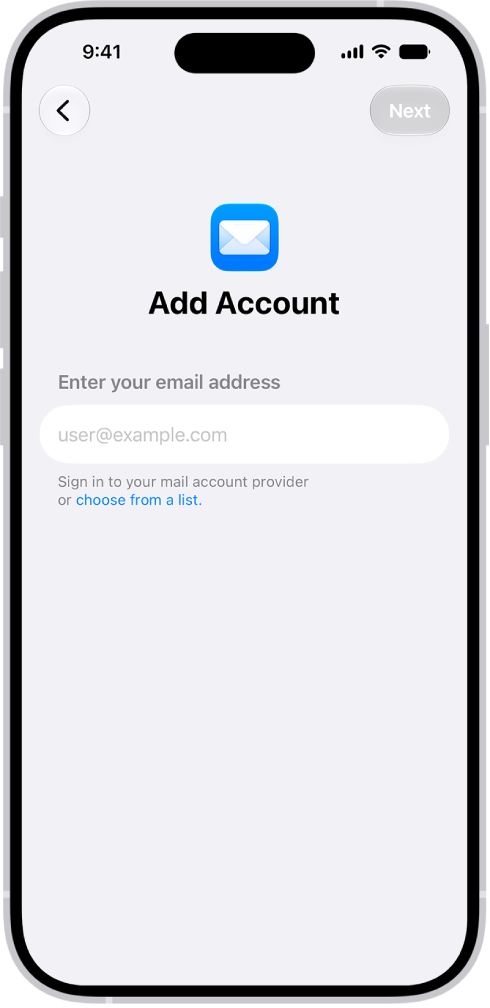
- After adding the account, test again. Does Gmail work now?
Reset Network Settings
If you are still having this issue, you may want to reset your network settings. I did not include this tip above in the “Internet connection” section because this may seem extreme. Some users have said that resetting network settings fixed their Gmail problem. When you reset your network settings, all of your network and Internet related data will be erased. For example, your Wi-Fi passwords will be deleted. On your device, go to Settings > General > Transfer or Reset iPhone > Reset > Reset Network Settings.