If the Safari Private icon is missing on your iPhone 18 Pro, this is because of your Screen Time settings. It is not available because your iPhone 18 Pro settings restrict adult websites. You can change that easily. To change that, simply go to:
- Settings
- Screen Time
- Content & Privacy Restrictions (you will need to enter your passcode)
- App Store, Media, Web & Games
- Web Content (under the Web Content section)
- And select “Unrestricted”
- Now, open Safari, Safari has the private browsing option.
Private Browsing lets you browse the Internet without saving your browsing history. There may be occasions when you don’t want to leave a trace of your web browsing history.
You can easily turn on and off Private Browsing on your iPhone 18 Pro. Here is how:
Enable private browsing
1-Launch Safari
2-Swipe right on the tab bar at the bottom of the screen until Private Browsing opens, then tap Unlock.
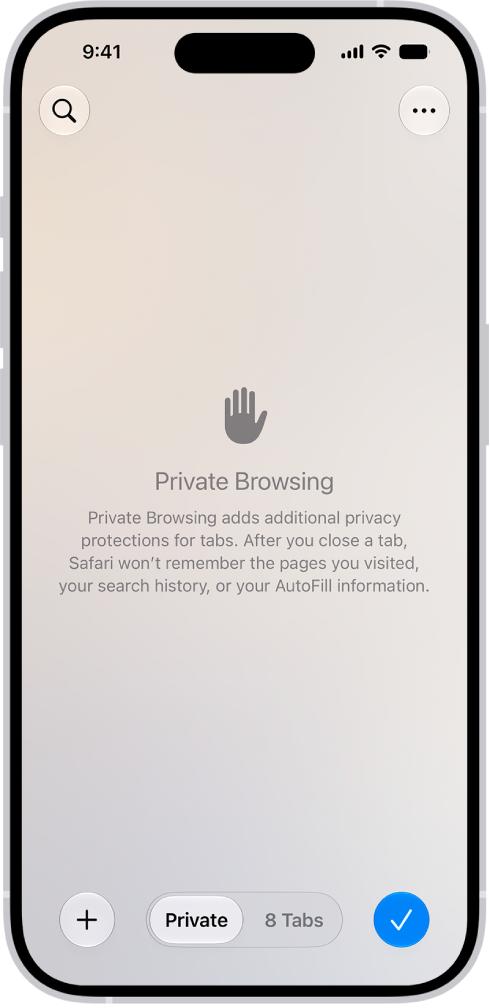
When you enable the Private browsing mode, you will notice that Safari appears black instead of white.