






Some users have run into a problem when they try to download apps from the App Store. They are prompted for their password, but when they enter it, they receive an error saying, “Verification Failed. Your Apple Account or password is incorrect.”
Affected users have stated that they have checked that their Apple Account and password are correct (by logging into iCloud.com, etc.), but they still receive this error. In this article, we’ll tell you what you can do to troubleshoot the issue.
How to fix “Verification Failed, your Apple Account or password is incorrect.”
Follow the suggestions here in order. After you try each suggestion, test if the problem has been resolved by trying to download an app from the App Store.
1. Check your Apple Account and password
If you haven’t already verified that your Apple Account and password are correct, you should do this first.
View the Apple Account on your iPhone 18 Pro
If you are signed in on your iPhone:
- Open the Settings app on your iPhone and tap on your Apple Account name at the top.
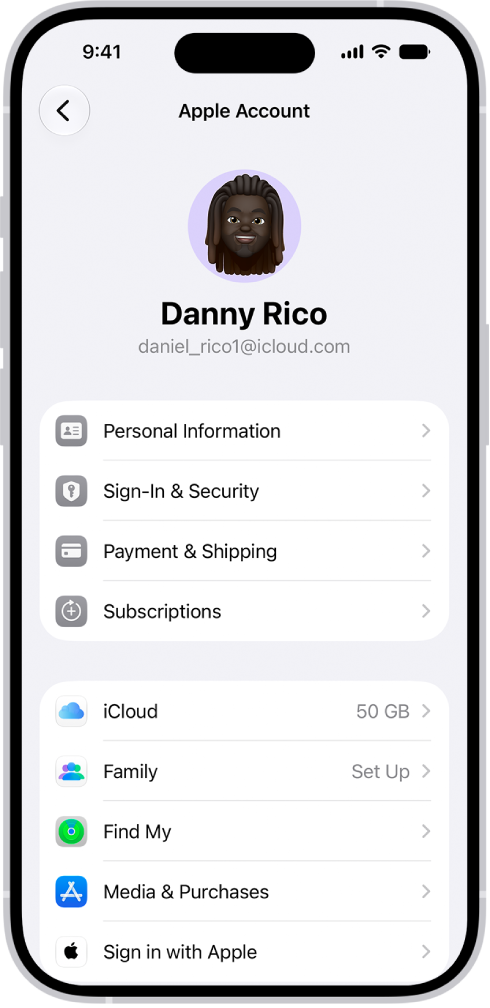
- Tap on Sign-In & Security. Make a note of your Apple Account email address.
Sign in on iCloud.com
- Open a browser and go to iCloud.com.
- Sign in with your Apple Account and password.
If your password is incorrect, you can reset your Apple Account password.
2. Restart your iPhone 18 Pro
- Simultaneously press and hold the side button and either volume button until the sliders appear, then drag the Power Off slider.

3. Force restart your iPhone 18 Pro
- Press and quickly release the volume up button. Press and quickly release the volume down button. Press and hold the side button. When the Apple logo appears, release the side button.

4. Backup, factory reset and restore
Make a backup of your iPhone 18 Pro
You can back up your device using iCloud or your computer.
Factory reset your iPhone
To factory reset your iPhone:
- Go to Settings > General > Transfer or Reset iPhone.
- Tap on Erase All Content and Settings. Enter your passcode or Apple Account password if asked.
- Wait for the process to finish.
Restore your iPhone from backup
After you have factory reset your device, you can restore it from the backup you made.
- If you are restoring from an iCloud backup, power on the phone, then choose Restore from iCloud Backup and follow the onscreen instructions.
- If you are restoring from a backup to your Mac or PC:
- Switch to the Finder on your Mac, or open the Apple Devices app on your PC. If your PC doesn’t have the Apple Devices app, or your Mac is using macOS Mojave or earlier, open iTunes instead.
- Connect your iPhone, then select your iPhone in the Finder or iTunes window.
- Select Restore Backup and choose your most recent backup.
- Click on Restore, then wait for the process to finish.
5. Set up as new
If the problem persists after restoring your iPhone from backup, you can try setting it up again as new. Follow the same instructions for factory resetting your device above, but choose Don’t Transfer Apps & Data when you set up your phone again.
If none of the above has worked for you, you can contact Apple Support for more help.











