Facebook-f Twitter
GeeksChalk Logo GeeksChalk Logo
Notification
  • Home
  • iPhone
  • iPad
  • Mac
  • Apple Watch
  • Pages
    • About Us
    • Contact Us
    • Advertise With Us
  • 🤩 Trending:
  • 100 new iOS 26 features for iPhone
  • 10 Best iOS 26 Tips & Tricks
  • iPhone 16: Everything We Know
  • iPhone 16 Pro: Everything We Know

GeeksChalk is the leading source for all things iPhone, Mac, iPad, Apple Watch, Vision Pro, and more

GeeksChalkGeeksChalk
  • Home
  • iPhone
  • iPad
  • Mac
  • Apple Watch
Search

Popular Post

iPhone 15 Pro in black titanium, white titanium, blue titanium, and natural titanium finishes.
iPhone

Apple CarPlay GPS Not Working, Showing Wrong Location: Fix

iPhone 14 Pro and iPhone 14 Pro Max are shown in gold.
iPhone

How to Fix iPhone not sending text messages to Android

Connect an iPhone to car Bluetooth
Troubleshooting

How to fix Bluetooth not working on iPhone after iOS 26 update

iPhone outline with an Apple logo
iPhone

Need to restore an iPhone backup? Here’s how

Follow US
Copyright © 2026 www.GeeksChalk.com
iPhone 18 Pro, burgundy finish, partial back exterior angled to show pro camera system in top left corner, 3 lenses, microphone, flash
GeeksChalk > Troubleshooting > Verification Failed in the App Store on iPhone 18 Pro

Verification Failed in the App Store on iPhone 18 Pro

Sign in at iCloud.com to check your Apple Account email and password if the App Store says "Verification Failed" on your iPhone 18 Pro or iPhone 18 Pro Max.

Last updated: September 28, 2026 6:31 am
By Tom Griffin - Executive Editor
Share
2 Min Read

Some users have run into a problem when they try to download apps from the App Store. They are prompted for their password, but when they enter it, they receive an error saying, “Verification Failed. Your Apple Account or password is incorrect.”

Affected users have stated that they have checked that their Apple Account and password are correct (by logging into iCloud.com, etc.), but they still receive this error. In this article, we’ll tell you what you can do to troubleshoot the issue.

How to fix “Verification Failed, your Apple Account or password is incorrect.”

Follow the suggestions here in order. After you try each suggestion, test if the problem has been resolved by trying to download an app from the App Store.

1. Check your Apple Account and password

If you haven’t already verified that your Apple Account and password are correct, you should do this first.

View the Apple Account on your iPhone 18 Pro

If you are signed in on your iPhone:

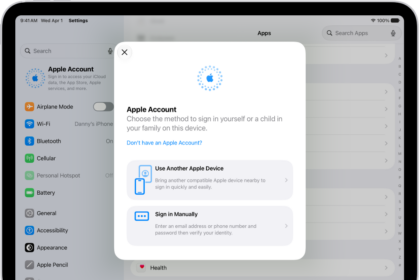
  1. Open the Settings app on your iPhone and tap on your Apple Account name at the top.
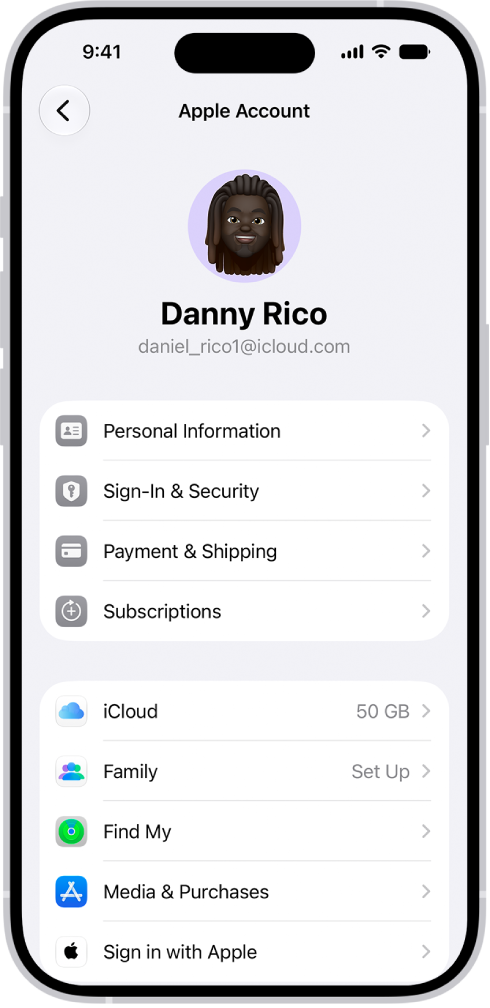
    The Apple Account Settings shown with a list of options including personal information, subscriptions, Find My, and more.

  2. Tap on Sign-In & Security. Make a note of your Apple Account email address.

Sign in on iCloud.com

  1. Open a browser and go to iCloud.com.
  2. Sign in with your Apple Account and password.

If your password is incorrect, you can reset your Apple Account password.

2. Restart your iPhone 18 Pro

  • Simultaneously press and hold the side button and either volume button until the sliders appear, then drag the Power Off slider.

    An illustration of iPhone with arrows pointing to the side button on the upper right and a volume button on the upper left.

3. Force restart your iPhone 18 Pro

  • Press and quickly release the volume up button. Press and quickly release the volume down button. Press and hold the side button. When the Apple logo appears, release the side button.

    An illustration of iPhone with arrows pointing to the side button on the upper right and the volume up and volume down buttons on the upper left.

4. Backup, factory reset and restore

Make a backup of your iPhone 18 Pro

You can back up your device using iCloud or your computer.

Factory reset your iPhone

To factory reset your iPhone:

  1. Go to Settings > General > Transfer or Reset iPhone.
  2. Tap on Erase All Content and Settings. Enter your passcode or Apple Account password if asked.
  3. Wait for the process to finish.

Restore your iPhone from backup

After you have factory reset your device, you can restore it from the backup you made.

  • If you are restoring from an iCloud backup, power on the phone, then choose Restore from iCloud Backup and follow the onscreen instructions.
  • If you are restoring from a backup to your Mac or PC:

    1. Switch to the Finder on your Mac, or open the Apple Devices app on your PC. If your PC doesn’t have the Apple Devices app, or your Mac is using macOS Mojave or earlier, open iTunes instead.
    2. Connect your iPhone, then select your iPhone in the Finder or iTunes window.
    3. Select Restore Backup and choose your most recent backup.
    4. Click on Restore, then wait for the process to finish.

5. Set up as new

If the problem persists after restoring your iPhone from backup, you can try setting it up again as new. Follow the same instructions for factory resetting your device above, but choose Don’t Transfer Apps & Data when you set up your phone again.

If none of the above has worked for you, you can contact Apple Support for more help.

TAGGED:App StoreApple AccountiPhone 18 Pro
ByTom Griffin
Executive Editor
Follow:
Tom Griffin is the editor-in-chief at GeeksChalk where he oversees all of site’s evergreen content to ensure it’s up to date with the latest information. Hailing from London in the UK, he has over seven years of experience in the tech journalism space and holds a degree in English Literature. In his spare time, Tom can found checking out the latest video games, immersing himself in his favorite sporting pastime of football, and petting every dog he comes across in the outside world.
Leave a Comment Leave a Comment

Leave a Reply Cancel reply

Your email address will not be published. Required fields are marked *

Recent News Flash

iPhone 18 Pro, burgundy finish, partial back exterior angled to show pro camera system in top left corner, 3 lenses, microphone, flash

Not Enough Space to Transfer a Backup to iPhone 18 Pro

The front of a burgundy iPhone 18 Pro is displayed next to a rear-facing burgundy iPhone 18 Pro Max.

iPhone 18 Pro Not Showing Up in Finder on Mac? Here’s Why

A burgundy iPhone 18 Pro with coordinating case is paired with a magenta Crossbody Strap.

Notes Disappeared on iPhone 18 Pro? How to Recover Them

iPhone 18 Pro in glacier is paired with the Clear Case.

Wordle Shows a Blank Page on iPhone 18 Pro? Here’s the Fix

Trending Now

An iPhone 16 in hand with a blue gradient background  

How to Sign Up for the Apple Beta Software Program

iOS 27

Here are my favorite iOS 27 Photos features

Hand holding iPhone 17, brilliant Super Retina XDR display, with ProMotion up to 120Hz, Ceramic Shield 2 front coating, Dynamic Island  

How to set up a Hotmail account on iPhone and iPad

Explore More

Recommended For You

iPhone 18 Pro Max, iPhone 18 Pro, a hand holds each model

Can’t Transfer Photos From iPhone 18 Pro to Windows? Fix

iPhone 18 Pro is displayed in black, silver, glacier, and burgundy.

Notifications Disappearing From iPhone 18 Pro Lock Screen

The front of a burgundy iPhone 18 Pro is displayed next to a rear-facing burgundy iPhone 18 Pro Max.

Google Unusual Traffic Error on iPhone 18 Pro? How to Fix

iPhone 18 Pro and iPhone 18 Pro Ma iPhone 18 Pro, back exterior, burgundy color (dark red)

iPhone 18 Pro Unable to Download App From The App Store? Fix

GeeksChalk Logo GeeksChalk Logo
  • Home
  • Contact Us
  • Advertise
  • Our Staff
  • Editorial Guidelines
  • Terms
  • Privacy
  • Accessibility
  • Copyright
  • About Us
  • Fact Checking Policy
  • Correction Policy
  • Ethics Policy
  • Ownership Policy
Copyright © 2026 www.GeeksChalk.com
Welcome Back!

Sign in to your account

Username or Email Address
Password

Lost your password?