You may sometimes see an Apple Card error message saying “Unexpected Error”. You may run into this issue when:
- you want to add or re-add your Apple Card to your Apple device.
- you want to download or export your statements or transactions in any format.
You may experience this issue on your iPhone 18 Pro or iPhone 18 Pro Max. This article lists several steps to explain how you can fix this Apple Card problem.
Update your iPhone 18 Pro
Ensure that your device is running the latest version of iOS software. On your device, go to Settings > General > Software Update. Your device will check for updates. If there is an update, tap Update Now and then follow the onscreen instructions.
After updating your device, again open the Wallet app. Does this problem occur?
Apple Card status
This problem may be a temporary issue because the Apple Card servers may be experiencing issues. Go to Apple’s System Status page and check that the Apple Card servers are up and running. If they are not working, this means that the only thing you can do is to wait for Apple to address the issue.
Force restart your device
Force restarting your device may fix this problem and you can start downloading your transactions or add your card. To do this, follow these steps:
- Press and release the volume up button and then press and release the volume down button.
- Then, press and hold the side button (if you see the power off slider, ignore it) until you see the Apple logo. Then you may release the side button.

After force-restarting your iPhone 18 Pro, test your problem.
Download statements online
If you are unable to download your statements in the Wallet app due to this Unexpected error issue, you may also try downloading them online. This online service lets you download your PDF statements. Here is how you can do this:
- Visit the http://card.apple.com web site.
- Click the Sign in button. You will need your Apple Account and password to sign in. Enter it.
- Click Statements.
- Select a month and then click the Download link.
Contact Apple and Goldman Sachs Bank
Apple Cards are issued by Goldman Sachs Bank. Apple and Chase announced on January 7, 2026 that Chase will become the new issuer of Apple Card, with an expected transition in approximately 24 months. During this transition, Apple Card users can continue to use their card as they normally do. You may want to contact Apple and Goldman Sachs Bank. You may want to contact both of them. You can easily chat with an Apple Card specialist. You can also call Apple Card support. Here is how:
- Open the Wallet app on your iPhone 18 Pro.
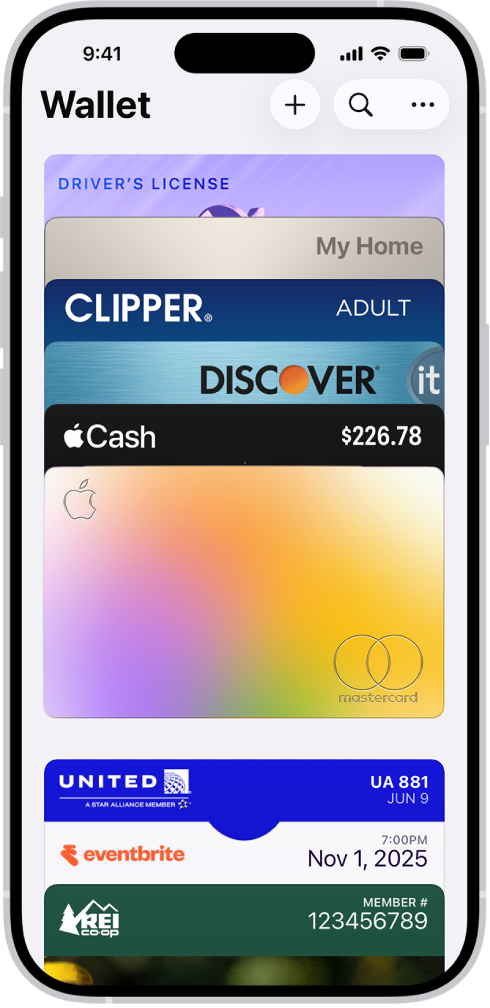
- Tap the three-dot icon (top-right corner of the screen).
- Then select Message or Call.
You can also directly call Goldman Sachs Bank. Its number is 1-877-255-5923.