Several users have said that their external microphone is not working properly on the iPhone 18 Pro or iPhone 18 Pro Max. You may experience the following problems when you are having external microphone issues:
- Your external microphone isn’t detected
- Others cannot hear you
You may want to use an external microphone for various reasons. For example, external microphones can be better than your device’s internal mic. This is why a lot of users have external mics because an external mic may offer better sound quality.
In this article, I will show how you can troubleshoot and resolve external microphone issues.
Before you do anything, update to the latest version of iOS. You can update your iPhone 18 Pro by going to Settings > General > Software Update.
Check to see if the microphone is working
You may be having a hardware problem. It is possible that your external microphone is disconnected, broken, or not working. Here is how you can test your mic.
- On your iPhone 18 Pro, open the Voice Memos app.
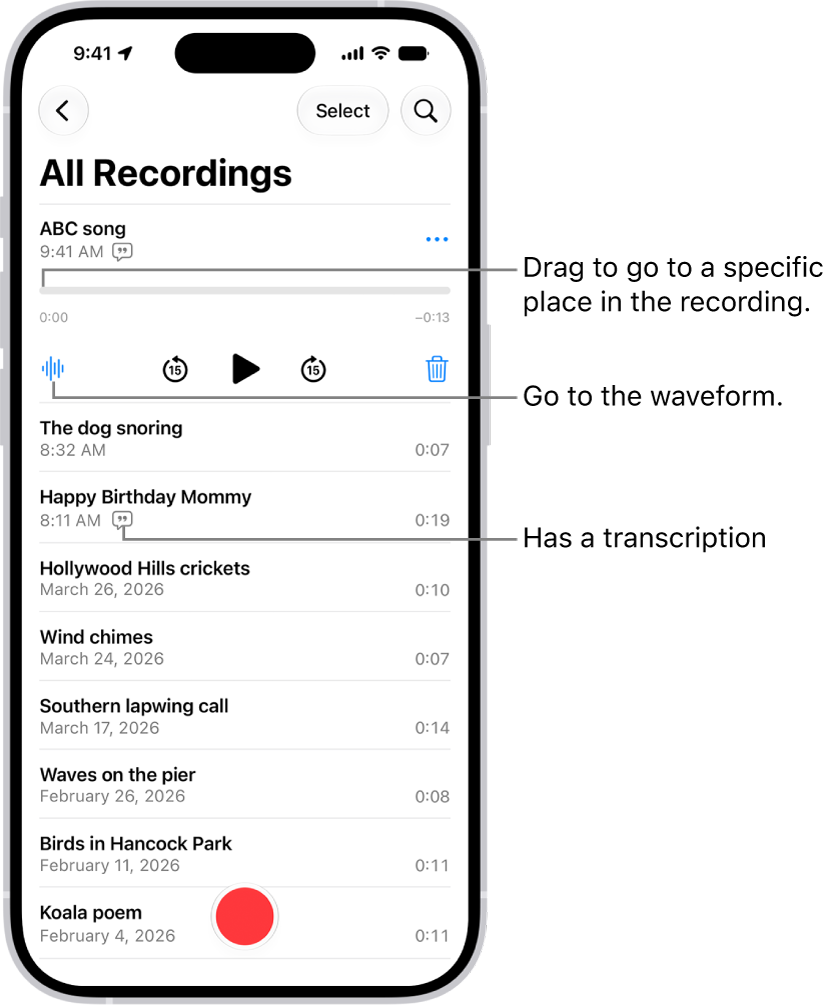
- Click the red Recording button.
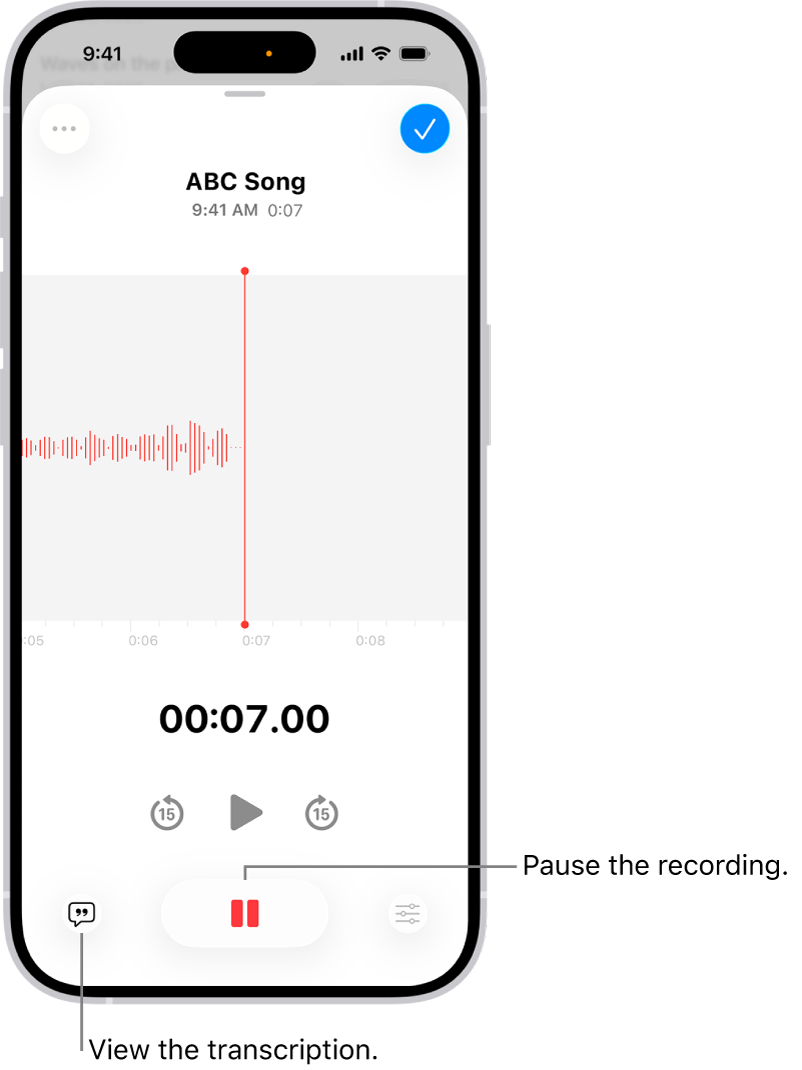
- Speak at the microphone to see the sound level indicator.
- You can figure out if your mic is sending audio input.
If you suspect that your external microphone is not sending audio input, please try the following:
- Ensure that it’s securely and correctly connected to your iPhone 18 Pro.
- Even if the connection looks secure, disconnect it and then plug it back in.
- If this is a Bluetooth microphone, turn on Airplane Mode, wait 10 seconds and turn it off.
- Unpair the microphone by going to Settings > Bluetooth > [tap the (i) info icon] > Forget This Device. Then pair again by going to Settings > Bluetooth.
If you are still having issues:
- Does your microphone have a Mute button? Ensure that this button is not active.
- Check the mic cable for damage.
- Use a flashlight and take a look at the port of your iPhone 18 Pro, if you see any debris, dust, lint, or dirt, get a toothbrush (or a toothpick) and GENTLY try to clean the port.
- Contact its manufacturer for further help.
Restart
Restart your device and then test your microphone. Here is how you can restart your device:
- Simultaneously press and hold the side button and either volume button until the sliders appear, then drag the Power Off slider.

Third-party apps
Is your external microphone working as expected except when using certain apps? If you have microphone problems using third-party apps such as Zoom, you may need to give your apps permission to use it. For example, others may not hear you on Zoom or WhatsApp calls. Or, sometimes, the external microphone may not work when you create a live stream on Facebook. You can use Facebook Live to broadcast from your iPhone devices so that you can engage with your audiences in real-time.
- To let apps access the microphone, on your device, go to Settings > Privacy & Security > Microphone. And ensure that the app is turned on.
You may also want to restart the app and update the app. Here is how:
Restart the app:
- Open the most recently used apps screen:
- Go to your Home screen and swipe up from the bottom of the screen.

- Go to your Home screen and swipe up from the bottom of the screen.
- Find the app, you may swipe left or right.
- Swipe upward quickly on the app’s icon to close it.
- Now open the app again and test your microphone again.
Update the app:
On your device, launch the App Store app and then tap your profile icon. Tap App Updates, then tap Update next to apps you want to update, or tap Update All.
A workaround
If you are still having this problem too, please try the following workaround, if you are having this problem only with a specific app:
- Unplug your mic. Make sure it is disconnected.
- Open the app first, start your activity that requires the mic. For example, if this is the Facebook app, start the Facebook Live video.
- Then connect your mic. It may work now.
And lastly, you may also want to contact the app’s developer for further help.