After updating to the latest iOS version, many iPhone 18 Pro users noticed something frustrating: Visual Lookup — the feature that identifies plants, animals, landmarks, and more — stopped working. The familiar “i” icon is still there in the Photos app, but it doesn’t show any additional info or recognition like it used to.
If this sounds familiar, then this article is for you. Users with various iPhone models, including the latest ones, have reported the issue. The good news? There are some reliable fixes you can try.
Before you do anything, make sure your iPhone 18 Pro is updated to the latest version of iOS: Go to Settings > General > Software Update.
Visual Lookup lets you learn more about what’s in your photos — whether it’s a famous landmark, a type of flower, a dog breed, or even a dish of food. It can also suggest recipes based on food pictures, giving you more than just a name. To use Visual Lookup, open a photo or pause a video on the frame you’re interested in. If you see the Info (“i”) button with a star icon on it — like a pawprint for animals, a leaf for plants, or a fork and knife for food — that means your iPhone has recognized something and Visual Lookup is ready to use.
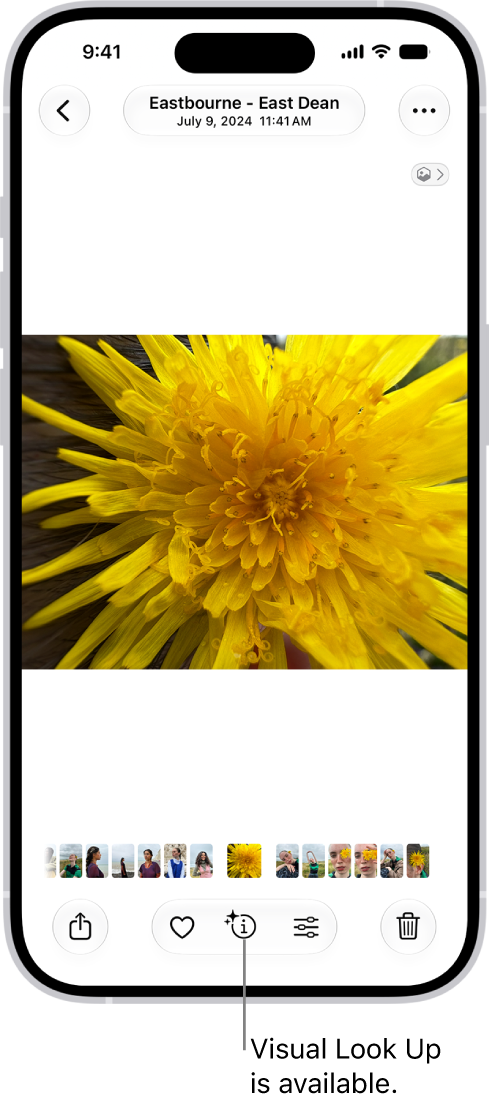
If you only see the Info icon, this indicates Visual Lookup could not identify the object.
1. First: Check “Show Related Content” Setting
This is the most common fix, and it’s surprisingly easy to miss. After the update, the setting that powers Visual Lookup might have been turned off. Here’s what to do:
- Open the Settings app.
- Scroll down and tap Search (look for it in the main list as a setting — not in the search bar).
- Turn on Show Related Content.
- Once this setting is enabled, force-quit the Photos app and reopen it. In some cases, you’ll need to restart your iPhone 18 Pro for the change to take effect.
Many users reported that this alone solved the problem — instantly restoring the Visual Lookup feature.
2. Visual Lookup Only Works on Certain Photos
Even with the correct settings, Visual Lookup doesn’t work on every image. Here’s what we’ve seen:
- It works best on photos you’ve taken yourself, not on saved or downloaded images from elsewhere, like the Internet.
- Photos must have clear, recognizable subjects like animals, plants, or landmarks.
- Some users say older photos that used to work now no longer trigger Visual Lookup — a likely side effect of the iOS update.
3. Language and Region Settings Matter
Visual Lookup is only supported in certain languages and regions. If your phone is set to an unsupported language, the feature might simply disappear.
4. Restart or Reset If Needed
If toggling “Show Related Content” doesn’t bring Visual Lookup back, try these next steps:
- Restart your iPhone 18 Pro.
- Turn the setting off (Show Related Content, see the first step above), restart your phone, then turn it back on again.
- Reset People & Pets suggestions by going to: Settings > Apps > Photos > Reset People & Pets Suggestions. This may help several users bring back Visual Lookup.