If you’re looking for an easy way to identify plants and flowers without flipping through a taxonomy book, your iPhone 18 Pro has a built-in tool that can help. Apple has integrated machine learning into the Photos app, allowing it to recognize objects, animals, landmarks, books, and plants using a feature called Visual Lookup—no need for third-party apps.
Using Visual Lookup is simple. Open the Photos app and select an image with a clearly defined subject, like a flower. If the Info (“i”) or Leaf icon at the bottom of the screen has a small star over it, tap it. This means that Visual Lookup is available. Then, tap the small icon in the center of the photo to access search results and information from the web.
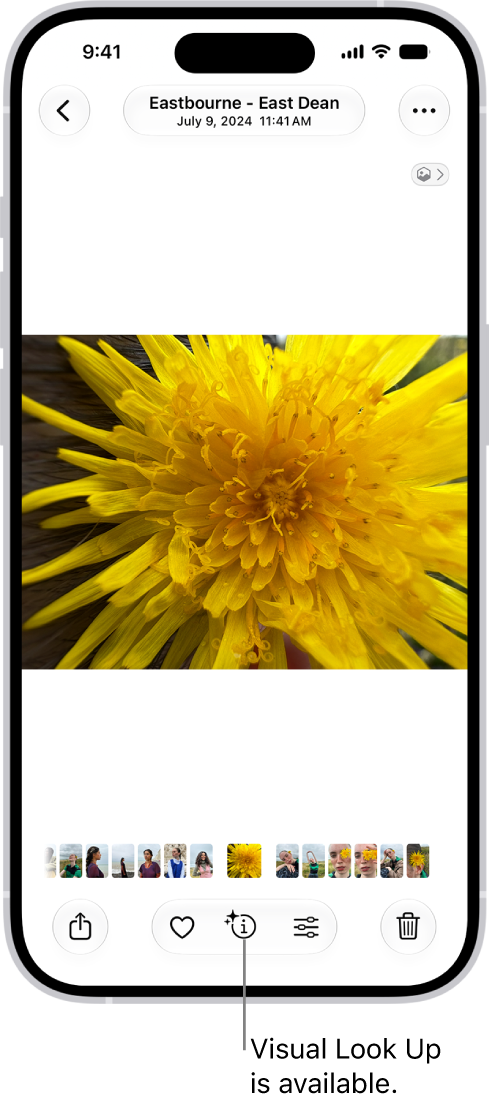
However, this feature doesn’t always work as expected. Yesterday, I took photos of some plants, planning to use Visual Lookup to identify them later. But when I tapped the Info button, the option to recognize the leaves wasn’t available—not just on the new photos but also on older ones where it had previously worked. Even though the results weren’t always perfect, they were at least helpful. Now, the feature isn’t showing up at all.
If Visual Lookup isn’t identifying plants in your photos, try these troubleshooting steps:
1. Check If “Show Related Content” Is Enabled
A common reason Visual Lookup might not work is that related content is disabled in your settings. To fix this:
- Open Settings on your iPhone.
- Go to Search.
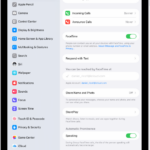
- Find Show Related Content and make sure it’s turned on.
This setting allows the Photos app to use AI-generated results in certain collections, such as Memories and suggested photos. If disabled, some content recommendations and lookup results may not appear.
2. Ensure Enhanced Visual Search Is Enabled
Another important setting to check is Enhanced Visual Search, which improves recognition accuracy. To verify that it’s turned on:
- Open Settings on your iPhone.
- Go to Apps > Photos > Search.
- Look for Enhanced Visual Search and ensure it is turned on.
Enabling Enhanced Visual Search allows your iPhone to compare recognized locations in your photos with Apple’s global index of landmarks. This feature enhances Visual Lookup, helping you identify famous buildings, landscapes, and other notable places more accurately.
3. Ensure You Have an Internet Connection
While Visual Lookup uses on-device intelligence, it also relies on online data for accuracy. If you’re in an area with poor or no internet connectivity, the feature may not show results. Try switching to Wi-Fi or cellular data and checking again.
4. Restart Your iPhone 18 Pro
A simple restart can resolve temporary software glitches. If Visual Lookup isn’t working, try turning your iPhone off and back on.
5. Update to the Latest iOS Version
Apple continuously improves Visual Lookup with iOS updates. If your iPhone 18 Pro isn’t running the latest version, updating it might resolve the issue.
- Go to Settings > General > Software Update and check if an update is available.
6. Test with Different Photos
If Visual Lookup isn’t working on a specific image, try using a different one with a clearer subject. The feature works best when the plant or flower is well-lit and distinct from the background.