






Some Apple Watch users have reported that the Watch app crashes on their iPhone 18 Pro immediately after opening and that their Watches are no longer syncing with their iPhone 18 Pro. These issues have been reported by Apple Watch users with iPhone 18 Pro and iPhone 18 Pro Max. This article will outline steps for troubleshooting this problem and give you the solution which has worked for most of the users experiencing this problem with the Watch app on iPhone 18 Pro or iPhone 18 Pro Max.
The problem is described as having the following features:
- Watch app crashes upon opening.
- Watch app cannot be deleted.
- Apple Watch can’t see the iPhone (not connected).
- When users reset their watch, it can’t pair with their iPhone 18 Pro.
The biggest problem this issue is causing is that, with the Watch app not working, the Apple Watch doesn’t sync to the iPhone 18 Pro. This means that users are not getting their calls, messages, and notifications on their watches. It also means that, because the Apple Watch is not syncing, its data is not being saved to the iPhone 18 Pro. Many people purchased an Apple Watch, at least in part, because they wanted the fitness/health tracking features available on the Apple Watch.
In this article, we will go through some general troubleshooting tips. We will then outline the solution that has worked for most users.
General Troubleshooting Tips
We recommend you start here for a few reasons:
- There could be different causes for different users’ Watch app issues.
- The first, most basic troubleshooting tips are, for the most part, the simplest to do.
- It can help eliminate other issues which might complicate the solution to your Watch app problem.
Restart iPhone 18 Pro and Apple Watch
Restart iPhone 18 Pro
- Turn off your iPhone:
- Press and hold the side button and a volume button, then drag the slider to the right.

- You can also go to Settings > General > Shut Down.
- Press and hold the side button and a volume button, then drag the slider to the right.
- Turn on your iPhone: Hold down the side button until the Apple logo appears.
Restart Apple Watch
- Press and hold the side button until the sliders appear. The side button is the flat one, the one that sticks out is called the Digital Crown.
- Tap the Power button at the top right, then drag the Power Off slider to the right.
- Press and hold the side button until the Apple logo appears to turn your watch back on.
Update iPhone 18 Pro and (if possible) Apple Watch
Install the latest updates.
- iPhone 18 Pro: Go to Settings > General > Software Update.
- Apple Watch: On your watch Settings > General > Software Update.
Unpair/Re-pair Apple Watch (if Possible)
Unpair Apple Watch with Watch app
Probably can’t do this if your problem is like what other users are describing. If it is possible, however, unpairing using your iPhone makes a backup of your watch first – it is the only way to force a backup of your Apple Watch.
- Open the Watch app on your iPhone.
- Select My Watch near the bottom of your screen, then tap All Watches at the top of your screen.
- Tap the info button next to your watch.
- Tap Unpair Apple Watch.
Delete Watch app from iPhone
If you were able to successfully unpair your Apple Watch from your iPhone 18 Pro, you should be able to remove the Watch app. Just press and hold on the Watch app icon, tap Remove App, select Delete App, then choose Delete from the menu.
Re-Pair Apple Watch
- Turn on your Apple Watch by pressing and holding the side button.
- Bring your iPhone and watch near each other and an Apple Watch pairing screen will appear on your iPhone. Tap Continue.
- Follow the onscreen instructions to pair and set up your Apple Watch.
Solution Which Has Worked for Many
The following has worked for many users. This solution is, however, not without its troubles:
- You will need to take the time necessary to perform all of the steps.
- You may need to spend time recovering data, settings, apps for your iPhone.
- Your Apple Watch data since your watch was last able to sync with your iPhone is lost after performing these steps.
- Backup your iPhone to iCloud.
- Go to Settings and tap on your Name.
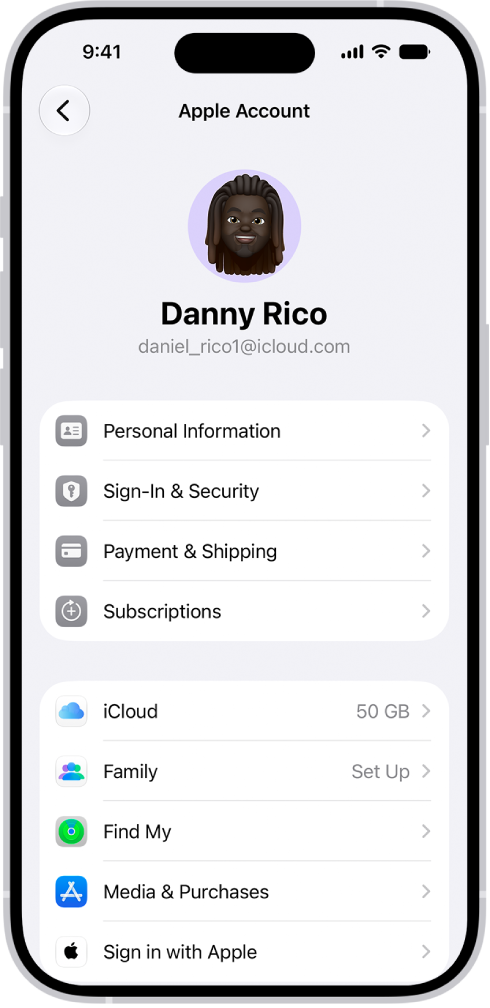
- Select iCloud, then scroll down and select iCloud Backup.
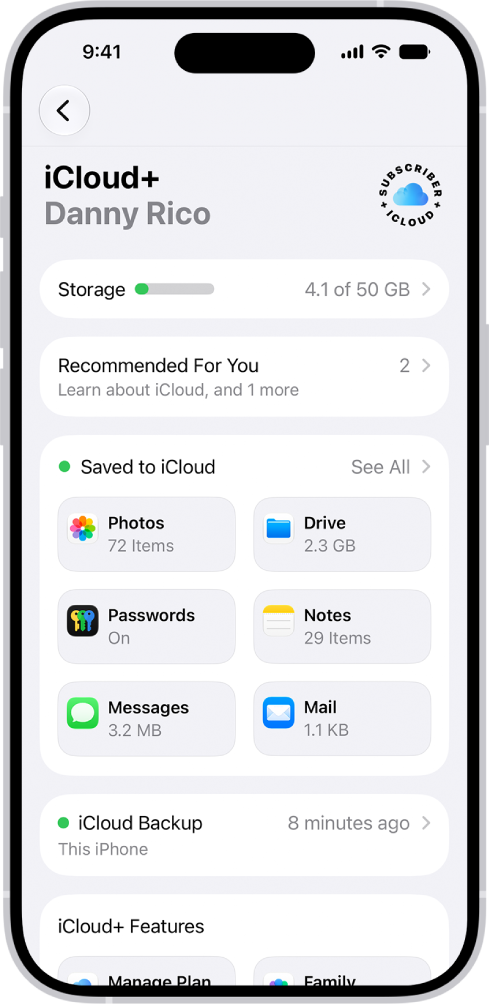
- Tap on Back Up Now.
- Go to Settings and tap on your Name.
- Reset your Apple Watch.
- On your Apple Watch, open the Settings app.
- Tap General, then tap Reset.
- Tap Erase All Content and Settings.
- Enter your password.
- If you have a cell plan, choose to keep your cell plan.
- Tap Erase All to confirm. Your watch will be reset to factory settings.
- If possible, also do a local backup to your Mac or PC as this will allow you to fully restore your iPhone.
- Connect your iPhone to your computer via USB cable.
- Switch to the Finder on your Mac, or open the Apple Devices app on your PC. If your PC doesn’t have the Apple Devices app, or your Mac is using macOS Mojave or earlier, open iTunes instead.
- In Finder or iTunes, select your device, then click the General tab.
- You will want to encrypt the backup so it will include your Apple Watch Health and Activity Data. Click Back Up Now.
- Reset and Restore your iPhone from backup.
- Reset: Go to Settings > General > Transfer or Reset iPhone > Reset > Erase All Content and Settings.
- Restore: This will depend on if you are restoring from an iCloud or from a local backup of your iPhone. When you are setting up your iPhone again, there will be onscreen prompts and instructions for restoring your iPhone.
- Delete the Watch app from your iPhone. You can either:
- Press and hold on the Watch app icon, tap Remove App, select Delete App, then choose Delete from the menu.
- Or go to Settings > General > iPhone Storage. Tap the Search icon in the bottom of your screen and type watch in the search field. Tap on Watch, then select Delete App.
- Download and install the Watch app. You can find it in the App Store.
- Pair your Apple Watch with your iPhone 18 Pro.
- Turn on your Apple Watch by pressing and holding the side button.
- Bring your iPhone and watch near each other and an Apple Watch pairing screen will appear on your iPhone. Tap Continue.
- Follow the onscreen instructions to pair and set up your Apple Watch.
Finally, if the above tips have failed to resolve the problem for you, you can contact Apple Support for further help.











