This article can help if you don’t see notifications on your Apple Watch. More specifically, this article explains how you can fix when Apple Watch stops receiving notifications from your iPhone 18 Pro or iPhone 18 Pro Max that it’s paired with. Following the tips below will fix common notification problems. For example, this article will help you when Apple watch:
- Does not show incoming calls including FaceTime calls.
- Does not ring when you receive calls.
- Does not alert (e.g., vibrate) incoming messages.
- Does not show contact names on incoming calls.
Apple Watch notification problems
Please try each step below. And after each step check to see if notifications start working.
If you don’t get notifications on your Apple Watch, before you do anything, make sure that your Apple Watch is connected. You can check your Apple Watch connection in Control Center on your watch. Press the side button to open Control Center on Apple Watch. Make sure that Bluetooth and Wi-Fi are enabled on your paired iPhone 18 Pro.
Notifications appear on your Apple Watch or iPhone, but not both. If your iPhone is unlocked, you get notifications on your iPhone instead of your Apple Watch. If your iPhone is locked or asleep, you get notifications on your Apple Watch, unless your Apple Watch is locked.
1. Restart your Apple Watch and your iPhone. Restarting your devices may bring the notifications back. Here is how:
- Restarting your Apple Watch: Press and hold the side button until the sliders appear. Tap the Power button, then drag the Power Off slider. Wait until your watch turns off. Then press and hold the side button until the Apple logo appears.
- Restarting iPhone:
- Press and hold the volume up (or down) and the side button together until you see the slider. Then slide the slider. To turn your phone back on, press and hold the side button until you see the Apple logo.

- Press and hold the volume up (or down) and the side button together until you see the slider. Then slide the slider. To turn your phone back on, press and hold the side button until you see the Apple logo.
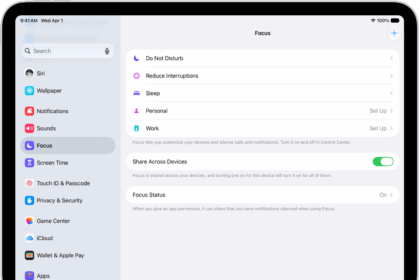
2. There is an iOS feature called Do Not Disturb. This feature can be used to silence alerts and notifications. If this feature is enabled, your Apple Watch will not receive notifications from your iPhone 18 Pro. On your phone, you can go to Settings > Focus > Do Not Disturb to adjust your settings.
Press the side button to open Control Center on Apple Watch. To turn off a Focus, tap the Focus control in Control Center.
Another related setting is Cover to Mute. This also silences incoming alerts or notifications on the device. To turn it off, go to the Settings app on Apple Watch, then tap Gestures.
3. Do notifications work on your iPhone 18 Pro? For example, does your iPhone ring when you get a call? Do you get text notifications on your phone?
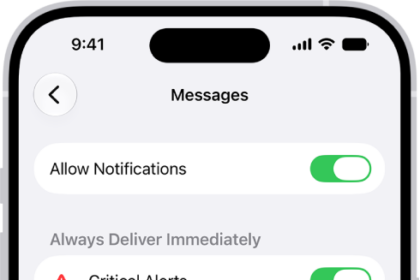
To see your notifications settings, go to Settings > Notifications.
Another important note is that your Apple Watch notifications settings mirror your iPhone notifications settings. You can change this setting as well by going to:
- Open the Apple Watch app > My Watch > Notifications > Phone and make sure that Mirror My Phone is selected.
Please note that your phone must be connected to a Wi-Fi or cellular network to receive notifications. If you are having network connection problems, you may try the following:
- Turn on Airplane Mode on your iPhone 18 Pro, wait a few seconds, and then turn it off.
- Reset your network settings by going to Settings > General > Transfer or Reset iPhone > Reset > Reset Network Settings. (note that this will erase your network settings).
4. Make sure that software on your Apple Watch and on your iPhone is up to date.
- iPhone: Go to Settings > General > Software Update.
- Apple Watch: Settings > General > Software Update. You can also update your watch using your iPhone by going to the Apple Watch app > My Watch > General > Software Update.
5. If you are having notifications problems with Contacts on your Apple Watch, you may need to refresh the contacts data on your Watch. The reported problem is that Apple Watch is displaying phone numbers for incoming calls, instead of the contact names, even when the callers are in your address book. Here is how:
- On your iPhone, open the Apple Watch app, and then go to My Watch > General > Reset > and tap Reset Sync Data. Be patient. This may take a few minutes.