Several users have said that they are unable to set up Face ID and receive the following error message:
Face ID is not available. Try setting up Face ID later.
Some users have further complained that Face ID stopped working after updating their iPhone and they run into this issue when they want to set up Face ID again.
With Face ID, you can unlock your iPhone 18 Pro by looking at your device. You can also use it to pay for items via Apple Pay. If you can’t use Face ID, then you won’t be able to use your face to authenticate your identity.
This article lists several tips to fix the iPhone 18 Pro Face ID “not available” error.
Update
Ensure that your device has the latest version of iOS. You can check if you are running the latest version or not by going to Settings > General > Software Update. And if there is an update, follow the onscreen instructions to update your device.
After updating your device, try setting up Face ID on your iPhone again.
Restart
Restarting your device may fix this problem. Simply restart and then try again. Here is how you can restart your device:
Simultaneously press and hold the side button and either volume button until the sliders appear, then drag the Power Off slider.

Please note that you can also shut down your iPhone 18 Pro by going to Settings > General > Shut Down.
Reset Face ID
Reset Face ID and then set up again. Here is how you can do this:
- On your iPhone, go to Settings > Face ID & Passcode.
- Enter your passcode (if you have a passcode).
- Tap Reset Face ID.
This will remove all your current Face ID settings. Then follow these steps to set up again:
- Again go to Settings > Face ID & Passcode. And enter your passcode.
- Tap Set Up Face ID.
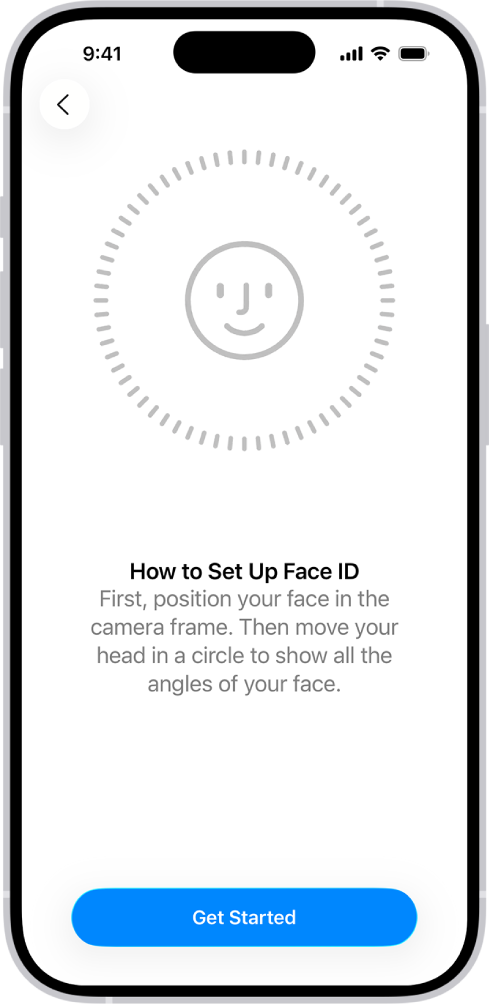
- Follow the onscreen instructions.
Force restart
Force restart your iPhone 18 Pro. This is also called a soft reset. This will not erase anything. This is very similar to a restart.
Press and quickly release the volume up button. Press and quickly release the volume down button. Press and hold the side button. When the Apple logo appears, release the side button.

If you are still having issues, you may have hardware issues. You may want to contact Apple Support.