Several iPhone 18 Pro users have reported that they unexpectedly receive one of the following error messages:
“Authentication Required. To access this site, you need to log in to this area on iosapp.itunes.apple.com:80. Password will be sent in the clear”
Or
“iosapp.itunes.apple.com:80. Password will be sent in the clear”
Or
“appldnld.apple.com:80”
These messages ask you to enter your username (not your Apple Account) credentials also it says “password will be sent in the clear” This means that your password will be sent unencrypted and insecurely.
From the users’ reports, it seems that:
- this popup appears unexpectedly
- this error message keeps popping up
- it is impossible to close it (won’t go away)
- pressing cancel does not help, does not resolve the problem
iPhone Popup Error Fixes
The first thing we should mention is that you do not need to worry. Your phone is not affected with a virus or other malware and you have not been hacked.
- A website may cause this. This could be caused by a website that would redirect to this. This can be resolved by removing the website data. That way it can be refreshed. This can be done by going to Settings > Apps > Safari > Advanced > Website Data > Remove All Website Data.
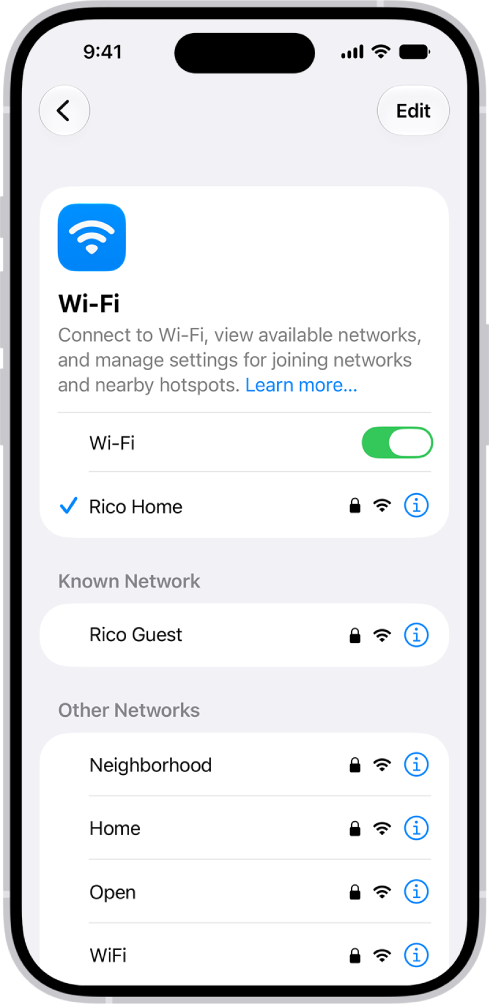
- A wireless extender may cause this. If you have one, your iPhone may be trying to connect to it which may cause this error message. Turn off the extender then, on your iPhone 18 Pro, go to Settings > Wi-Fi and tap the extender Wi-Fi and then tap Forget This Network and restart your device.
- Force restart your device: Press and quickly release the volume up button. Press and quickly release the volume down button. Press and hold the side button. When the Apple logo appears, release the side button.

- Make sure that your iPhone 18 Pro has the latest version of the iOS software. To update go to Settings > General > Software Update
- If you are using a VPN or a proxy server, turn it off and try again.
- If nothing above works, restore from backup. Make sure to go to Settings > [your name] > iCloud > iCloud Backup and check to see if you have a recent backup. If not, back up your device manually by going to Settings > [your name] > iCloud > iCloud Backup, then tap Back Up Now. Then go to Settings > General > Transfer or Reset iPhone > Erase All Content and Settings. This will delete all data but do not worry you have a backup. Your device will restart and the setup assistant will help you set up your device. When you see the “Apps and Data” screen, tap Restore from iCloud Backup.