On iPhone, you can control how FaceTime handles calls from unknown numbers and suspected spam. Screening gets more information from callers before the call comes through, and with Silence Unknown Callers, calls from unknown numbers are sent to voicemail. FaceTime Spam filters calls identified as spam, too.
Screen unknown FaceTime audio calls
To get more information from callers before the call comes through, you can screen FaceTime audio calls from unknown numbers.
Silence or filter FaceTime calls
- Start the Settings app on your iPhone.
- Tap Apps, then tap FaceTime.
- Do any of the following:
- Silence unknown callers: Turn on Silence Unknown Callers. Calls from unknown numbers are silenced, sent to voicemail, and displayed on the Recents list. Incoming calls will continue to ring from people in your contacts, recent outgoing calls, and Siri Suggestions.
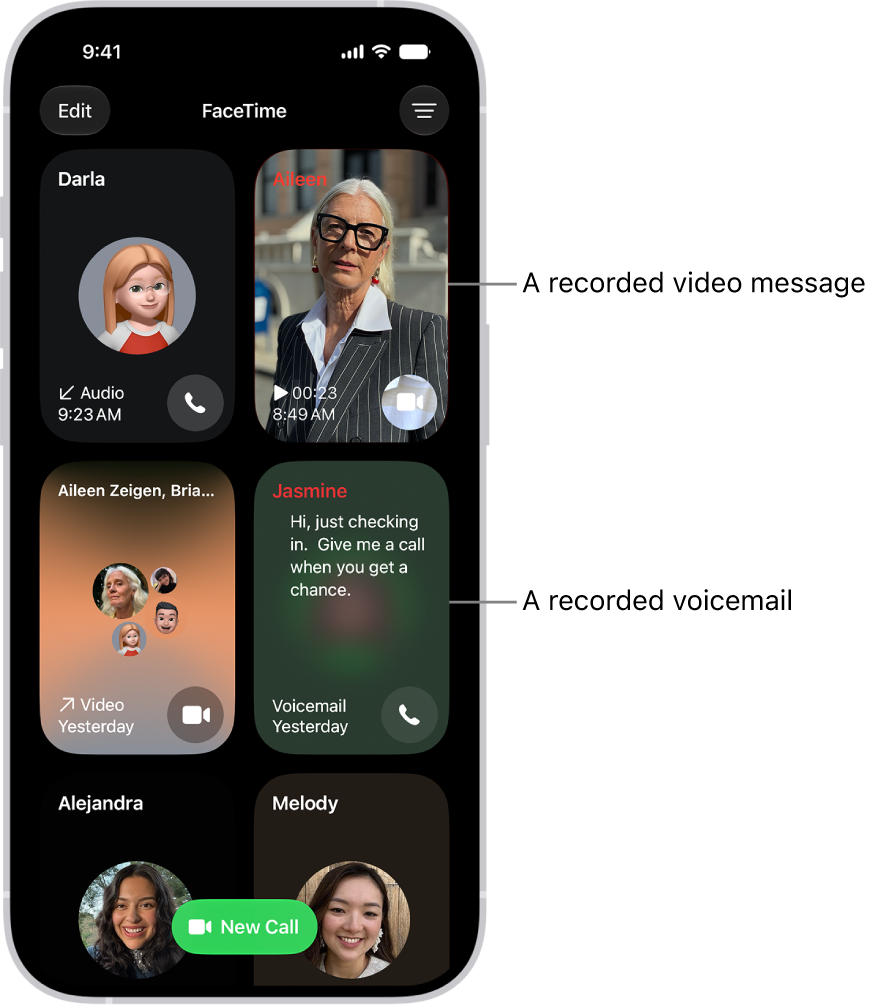
- Filter calls from unknown numbers: Turn on Unknown Callers. Missed calls and voicemails from unknown numbers are moved to the Unknown Callers list in your call history (tap the Filter button to see the list).
- Filter calls identified as spam: Turn on FaceTime Spam. Spam calls are silenced and moved to the Spam list in your call history (tap the Filter button to see the list).