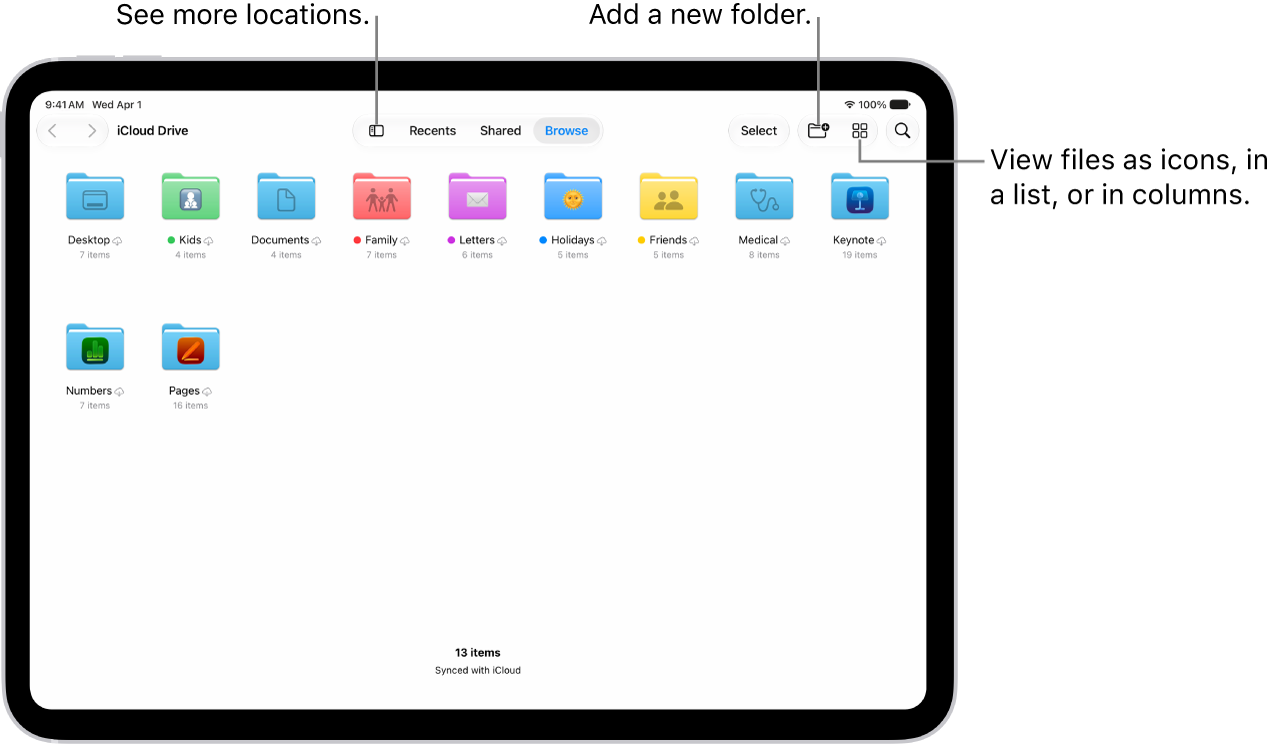
On iPad, in the Files app, you can find and view your documents, images, and other files that you downloaded from the internet or your mail app. Your downloaded files are in Downloads in the sidebar, and you can check on a file that’s still downloading in Safari.
- Open the Files app on your iPad.
- Tap Browse or the Sidebar button at the top of the screen. Tap Downloads in the sidebar to see your downloaded files.
Note: When your downloaded files don’t show up, go to the Safari app on your iPad and tap the Downloads button, where you can check the status of a downloading file or quickly access downloaded files; read our guide, Manage downloads.