The Safari app brings the internet to your iPad. You can browse the web from your start page, bookmark websites to revisit later, and keep your browsing activity private with Private Browsing, where the tabs you open don’t appear in History. You can also remove cookies and clear your history.
The Safari start page gives you easy access to your Favorites, Reading List, Suggestions, and more. Removing cookies and clearing the cache also undoes permissions you granted websites to use your location or send you notifications.
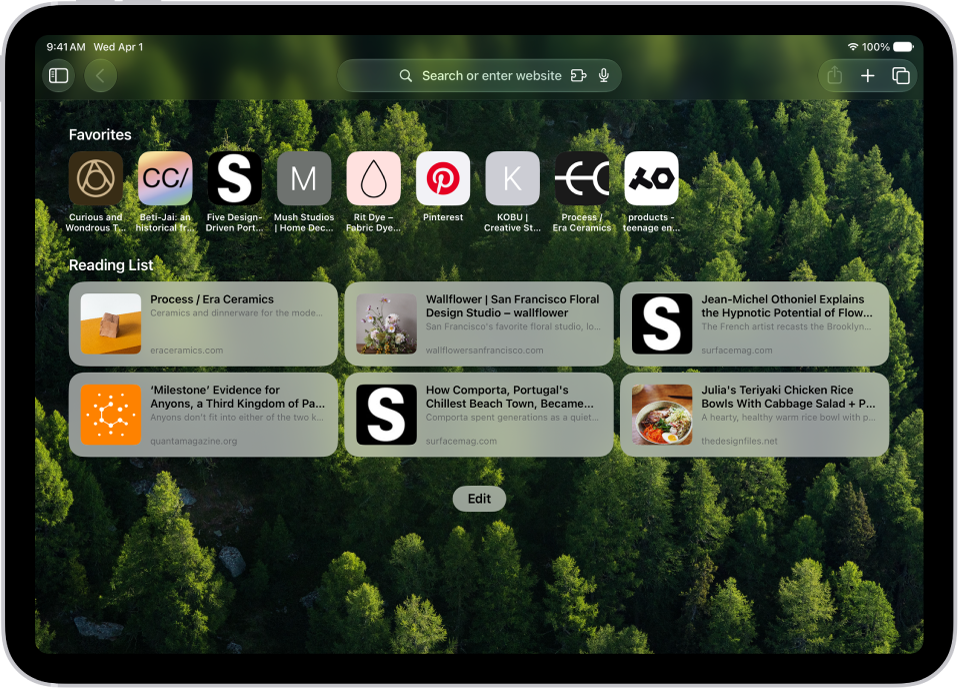
Start browsing here
The Safari start page is the place to start browsing and customize your preferences, with easy access to your Favorites, Reading List, Suggestions, and more. Open the Safari app, or tap the Tabs button, then tap the Add button to open a new start page.
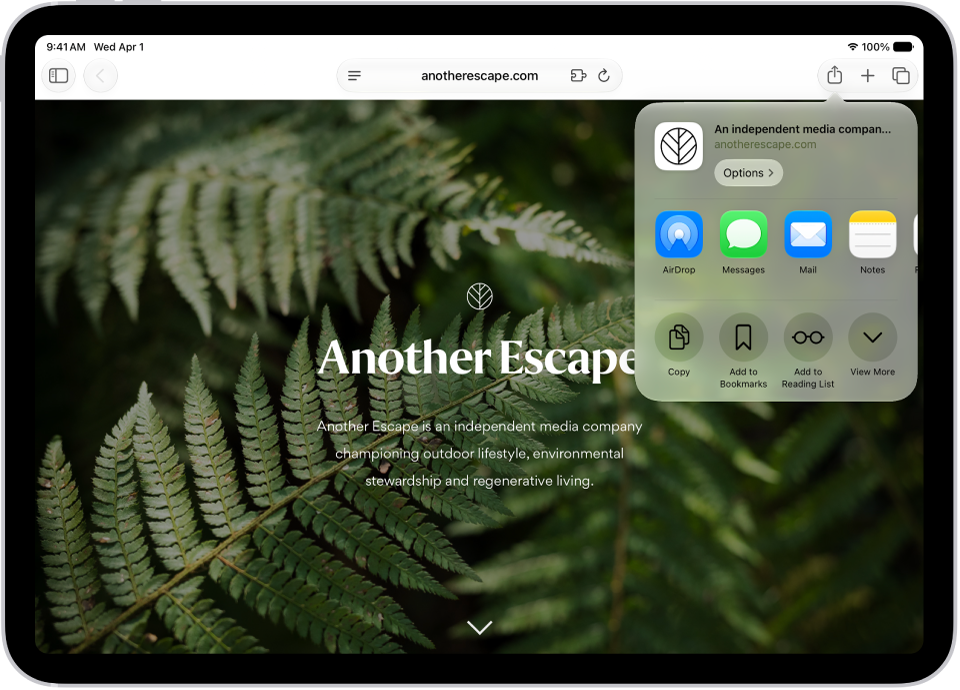
Bookmark a website
Save a website to revisit later. Tap the Share button to the right of the search field, then tap Add to Bookmarks.
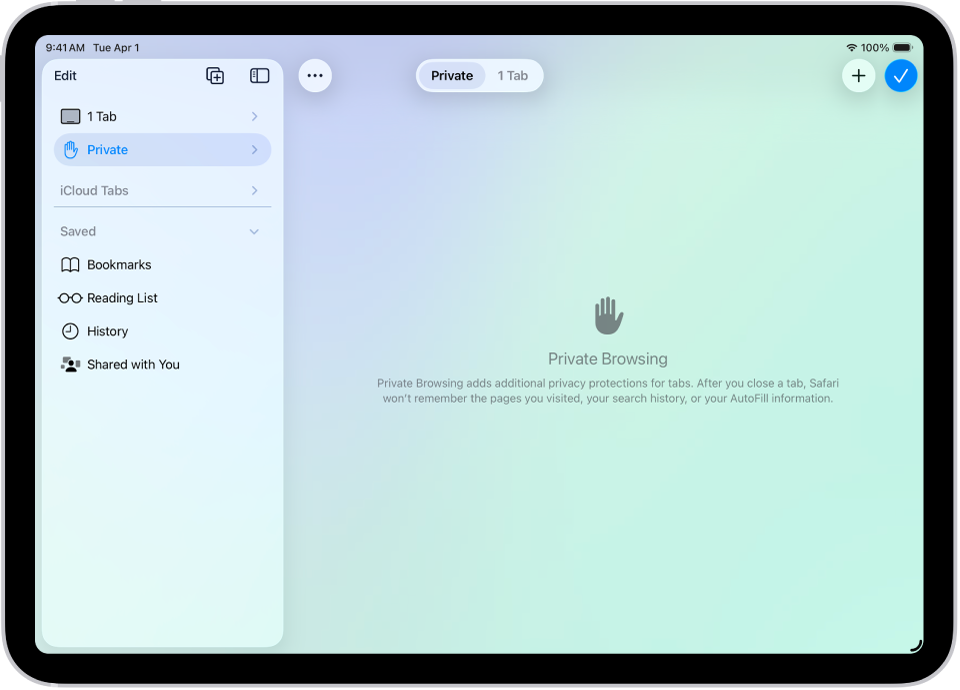
Browse privately
Keep your browsing activities to yourself. When you use Private Browsing, the tabs you open don’t appear in History on iPad or in the list of tabs on your other devices. Tap the Show Sidebar button, then tap Private.

Remove cookies and clear your cache
Remove cookies and clear the cache on your iPad to undo permissions you granted to websites to use your location (or send you notifications) and to erase your browsing history. Tap the Show Sidebar button, tap History, tap the More button, then tap Clear.
Note: Clearing your browsing history in Safari doesn’t clear any browsing histories kept independently by websites you visited, or your browsing history in other apps.
If you’re browsing with Safari, these guides can help: