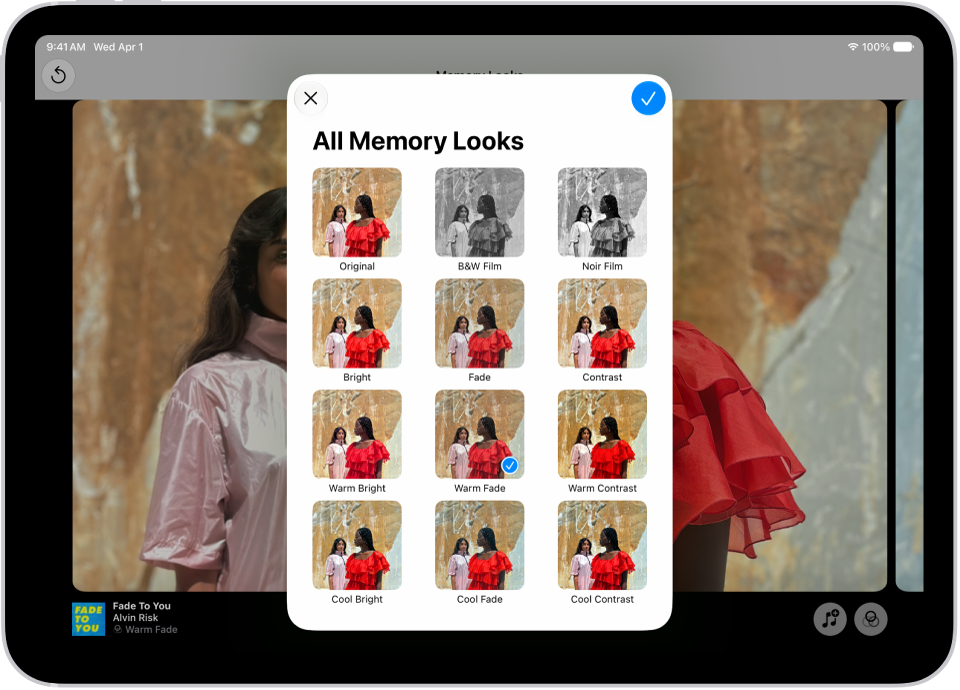
On iPad, view each memory in your Memories collection as a movie that’s set to music. All the collections and albums you have in the Photos app can also be viewed as a memory movie that you can edit to make more personal.
With Apple Intelligence, you can create a custom memory movie of the story you want to see. While one plays, you can pause it, mute it, go backward or forward, or close it.
Note: Apple Intelligence on iPadOS 27 or later is available on an Apple Intelligence-enabled iPad mini (A17 Pro) and iPad models with M1 or later. Apple Intelligence is not available in all languages or regions. Usage limits may apply.*
Play a memory movie
- Open the Photos app on your iPad.
- Tap Collections.
- Swipe left under Memories to scroll through a selection of your memories, or tap Memories to view them all.
- Tap the Play button in the bottom-right corner of a memory to play it.
- As the memory movie plays, you can do any of the following:
- Pause: Tap the screen and tap the Pause button.
- Go backward or forward: Swipe left or right. Or tap the screen. Slide the frames at the bottom of the screen left or right.
- Mute: Tap the screen, then tap the Mute button.
- Close a memory: Tap the screen and tap the Close button.
Want to customize the memory movie? See our guide, Personalize your memory movies.
Play a memory movie from an album or collection
All the albums and collections you’ve got in the Photos app can be viewed as memory movies.
- Open the Photos app on your iPad.
- Tap Collections.
- Select an existing album or collection. Tap the Play button to watch the photos and videos as a memory movie.
For customizing the memory movie, see our article, Personalize your memory movies.
Create a memory movie with Apple Intelligence
Right in Photos, you can make a custom memory movie of any story you want to see. After you type a description, Apple Intelligence finds the best photos and videos, sets them to music, and crafts a storyline with unique chapters and a narrative arc.
- Open the Photos app on your iPad.
- Tap Collections, tap Memories, and tap Create.
- Enter a description of the movie you want to create and then tap the Close button.
*Apple Intelligence is available with Siri and device language set to Chinese (Simplified), Chinese (Traditional), Danish, Dutch, English, French, German, Italian, Japanese, Korean, Norwegian, Portuguese, Spanish, Swedish, Turkish, or Vietnamese. Some features may not be available in all regions or languages. Some devices may not be available in all regions. Siri AI is available in beta in iOS 27, iPadOS 27, macOS 27, watchOS 27, and visionOS 27 and requires an Apple Intelligence–enabled device set to a supported language. Available in English to start. Siri AI will not be initially available in the EU on iOS, iPadOS, and watchOS. Certain Apple Intelligence features that rely on server-side models are subject to daily usage limits, including but not limited to Siri AI, Intelligent Photo Editing Tools, Image Playground, and AFM 3 Cloud models in Shortcuts. Daily limits may vary by feature, request complexity, system demand, system policies, and other factors. Expanded access to such features will be available for a fee in the future. Use of these features is subject to the Apple Intelligence Terms and Conditions.
See also