How to lock PDFs in Preview on iPad

You can lock PDFs in Preview on iPad with a password to keep others from editing or deleting your work.

By Tom Griffin - Executive Editor
0 Min Read

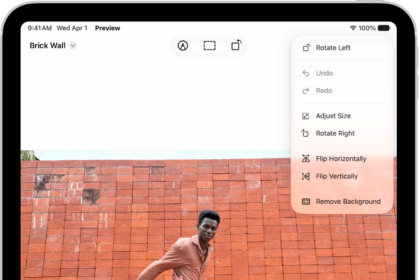
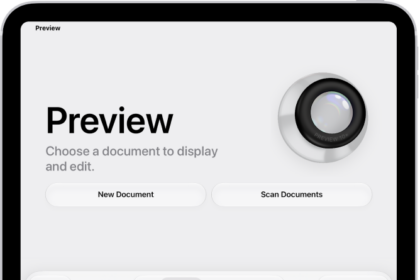
On iPad, you can lock a PDF document with a password to prevent others from editing or deleting your work. You just lock it in the Preview app, and to keep a copy that’s not password-protected, you can duplicate it first. You can also open and view PDFs and images in Preview.
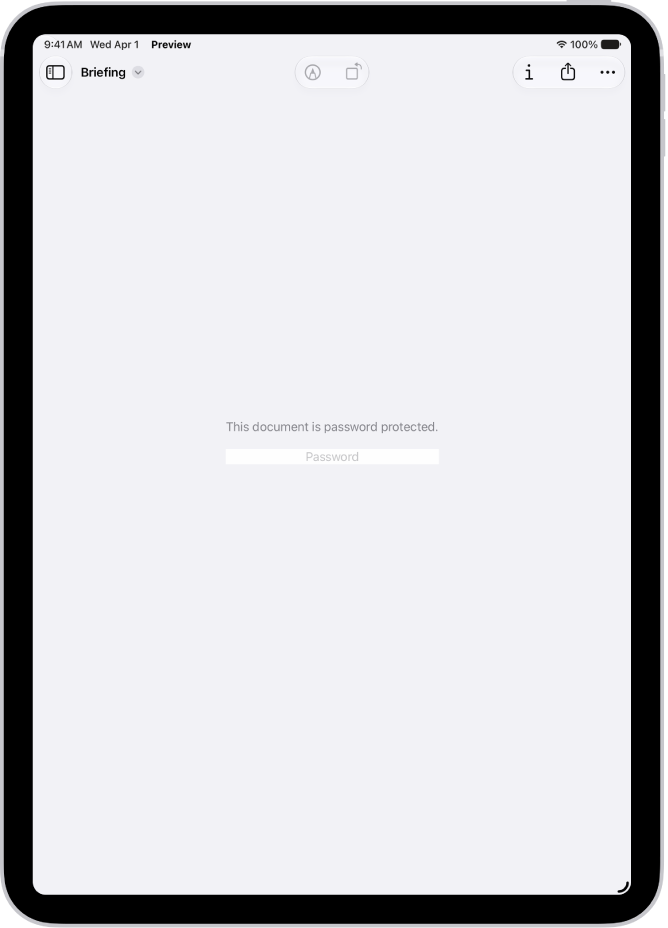
Screenshot of lock options.

  1. Go to the Preview app on your iPad.
  2. Open a PDF.

    Important: To keep a copy that’s not password-protected, tap the Actions Menu button, then tap Duplicate.

  3. Tap the Actions Menu button next to the filename and tap Lock.
  4. Turn on Require Password. Enter the same password in the Password and Verify fields.
  5. Tap Done.

See also

TAGGED:
Executive Editor
Follow:
Tom Griffin is the editor-in-chief at GeeksChalk where he oversees all of site’s evergreen content to ensure it’s up to date with the latest information. Hailing from London in the UK, he has over seven years of experience in the tech journalism space and holds a degree in English Literature. In his spare time, Tom can found checking out the latest video games, immersing himself in his favorite sporting pastime of football, and petting every dog he comes across in the outside world.
Leave a Comment