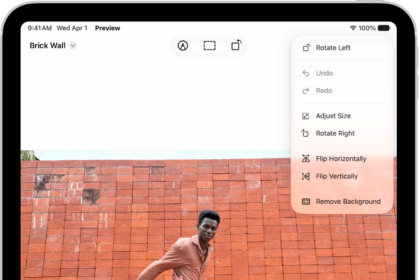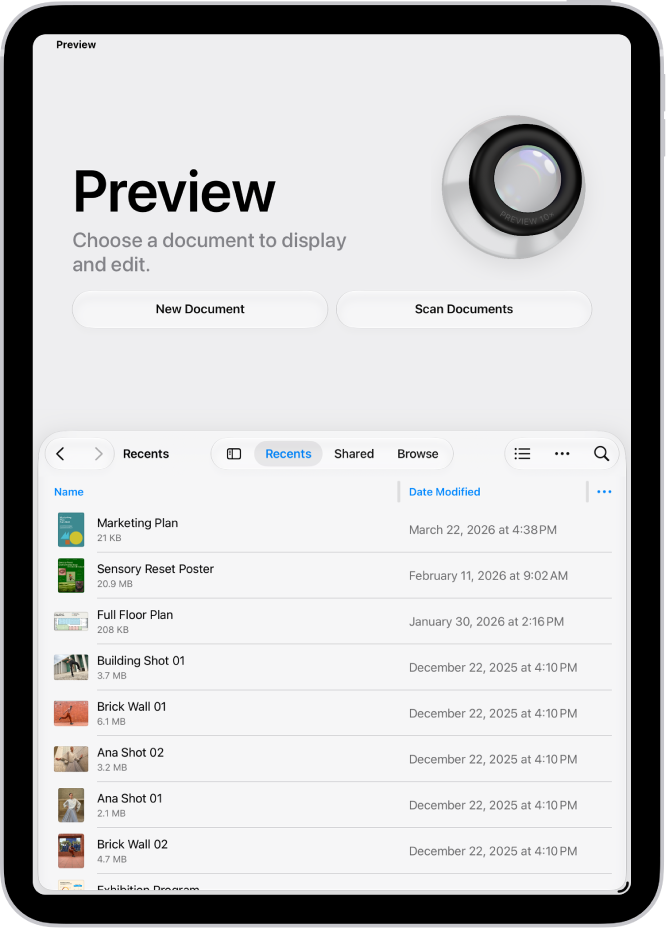
On iPad, you can scan a document to create a PDF in the Preview app. iPad automatically captures the page, or you can capture the scan yourself instead of automatically, and you can scan additional pages. You can crop, rotate, or adjust the coloring of the scan, and add, delete, or move PDF pages in Preview, too.
- Go to the Preview app on your iPad.
- Tap Scan Documents.
- Position the iPad camera so the text or document appears on the screen.
iPad automatically captures the page. To capture the scan yourself instead of automatically, tap Auto (the label changes to Manual), then tap the Shutter button.
- Repeat the step above to scan additional pages.
- Tap the thumbnails at the bottom of the screen to crop, rotate, or adjust the coloring of the scan.
- Tap the Done button when you’re finished scanning.
See also