How to print PDFs or images in Preview on iPad

You can print PDFs or images in Preview on iPad from the Actions Menu by selecting a printer.

By Abigail Shilets - Staff Writer
0 Min Read

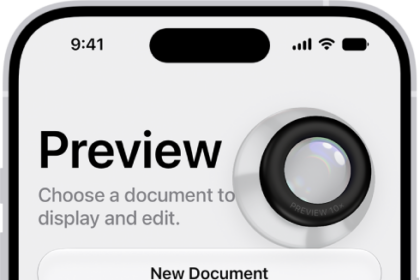
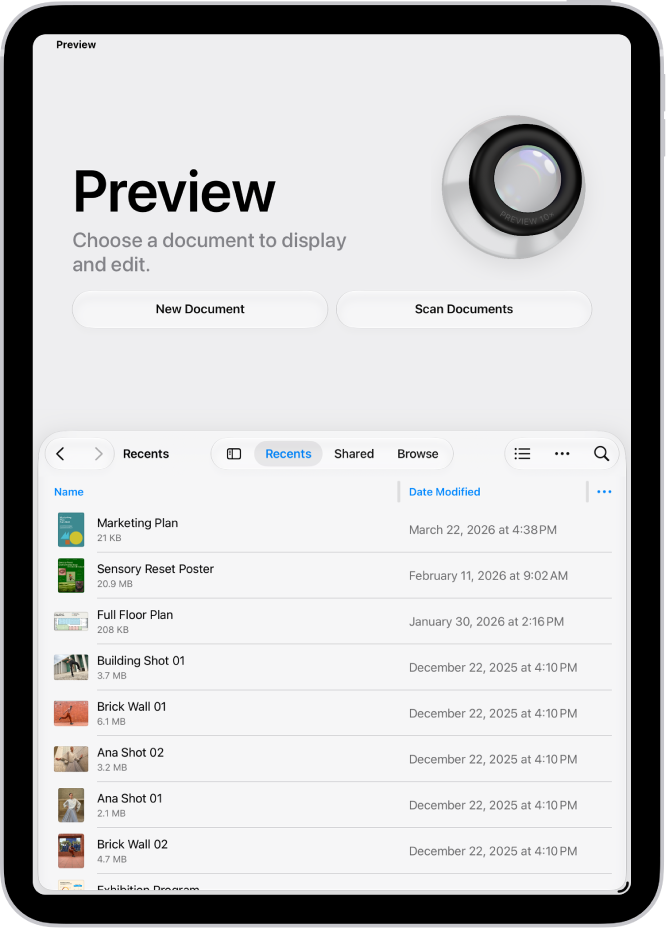
You can print a PDF or image from the Preview app on your iPad. You just open a PDF or image, select a printer, and print it, and you can also annotate a PDF or image or manage PDFs and images in Preview.

  1. Go to the Preview app on your iPad.
  2. Open a PDF or image.
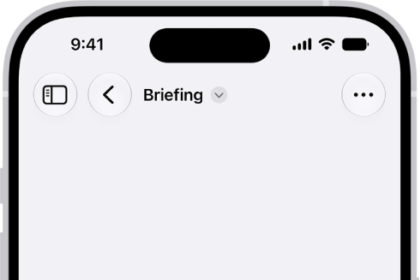
  3. Tap the Actions Menu button next to the filename. Then tap Print.
  4. Select a printer, then tap the Print button.

See also

TAGGED:
Staff Writer
Follow:
Abigail is a staff writer for GeeksChalk based in Pennsylvania. She covers news, how-tos, and user guides for iPhone, iPad, Mac, and Apple Watch. Before becoming a writer Abigail studied computer science at University and also worked at Apple for more than two years. When not creating masterpiece for GeeksChalk, you can usually find Abigail hiking, climbing, or otherwise unplugged.
Leave a Comment