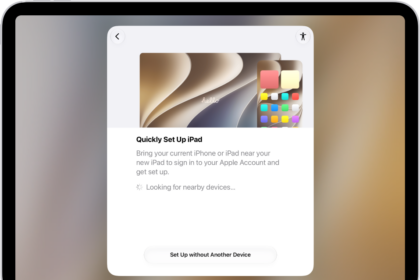
On iPad, with the Mail app, you can send, receive, and organize messages from all your email accounts in one place. You can add accounts from different email services, like iCloud, Exchange, or Gmail, write and send a new message, and reply to an email, delete it, and more while you’re reading it.
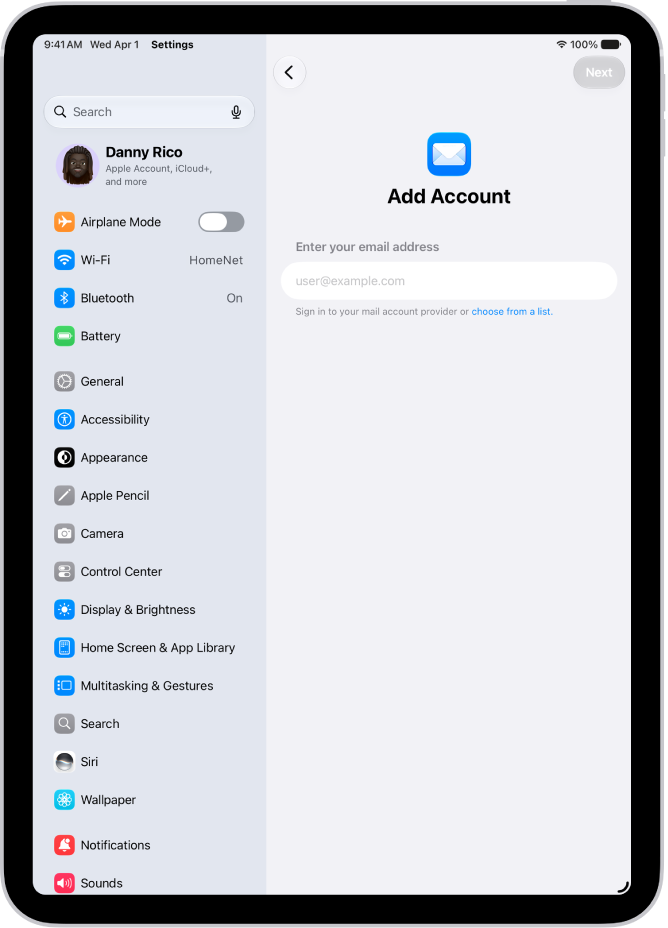
Add an email account
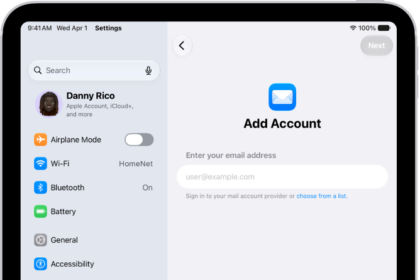
You can add all your email accounts from different email services—like iCloud, Exchange, or Gmail (Google). To add an account, go to Settings > Apps > Mail. Tap Mail Accounts, then tap Add Account.
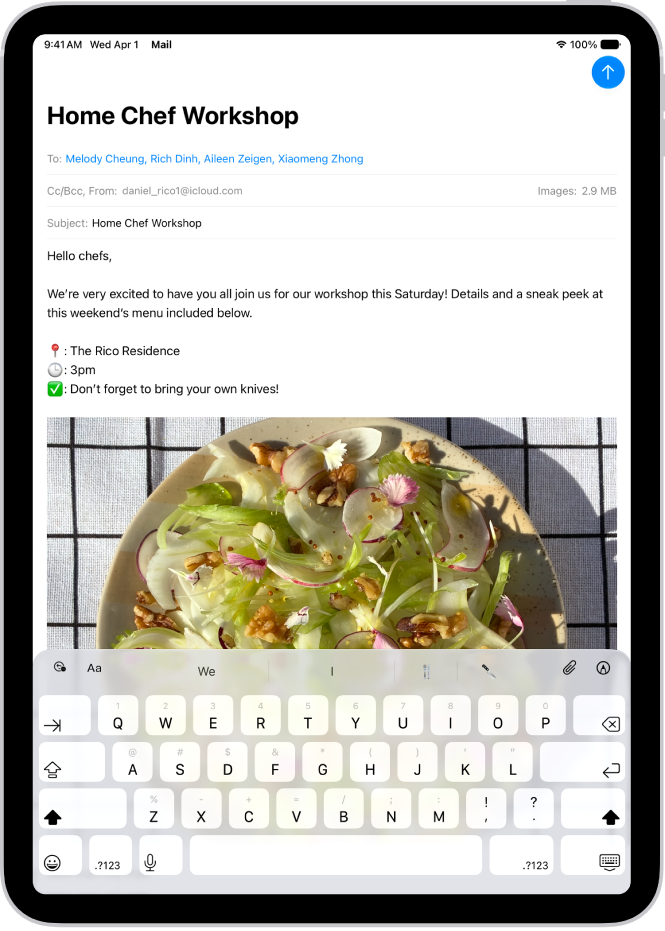
Send an email
Tap the Compose button to start a new email message. Add a recipient, subject, and your text, then tap the Send button to send your message.
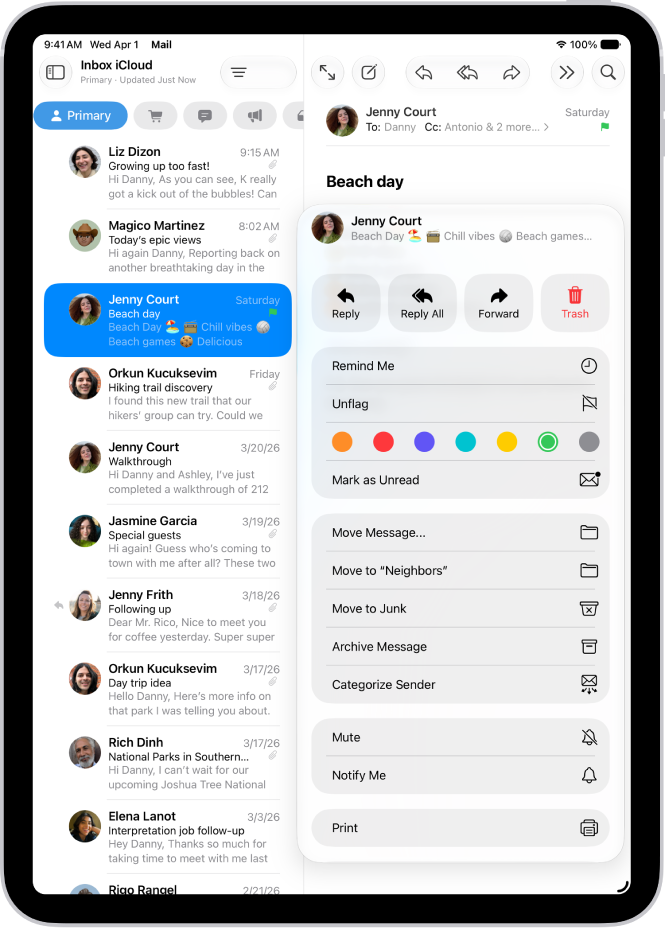
Reply to an email message, delete it, and more
You can perform many actions on an email message while viewing it. Open the message, then tap the More Actions button in the bottom-right corner to open the actions menu.
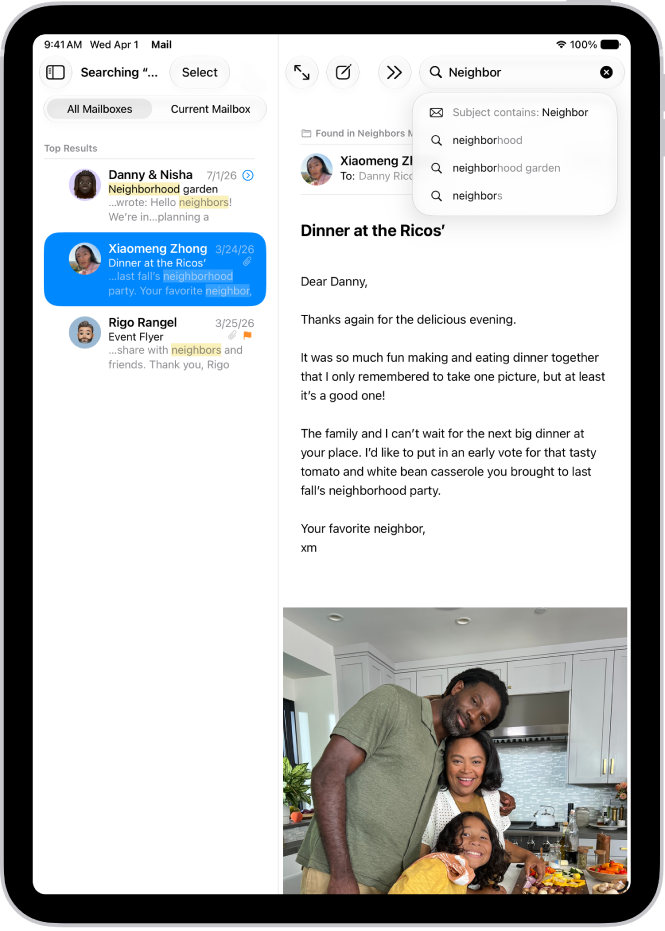
Find emails fast
You can easily find emails using the search feature in Mail. Tap the Search button to reveal the search field. Tap a suggestion to narrow your search to a specific timeframe or to filter by attributes like flagged or unread.
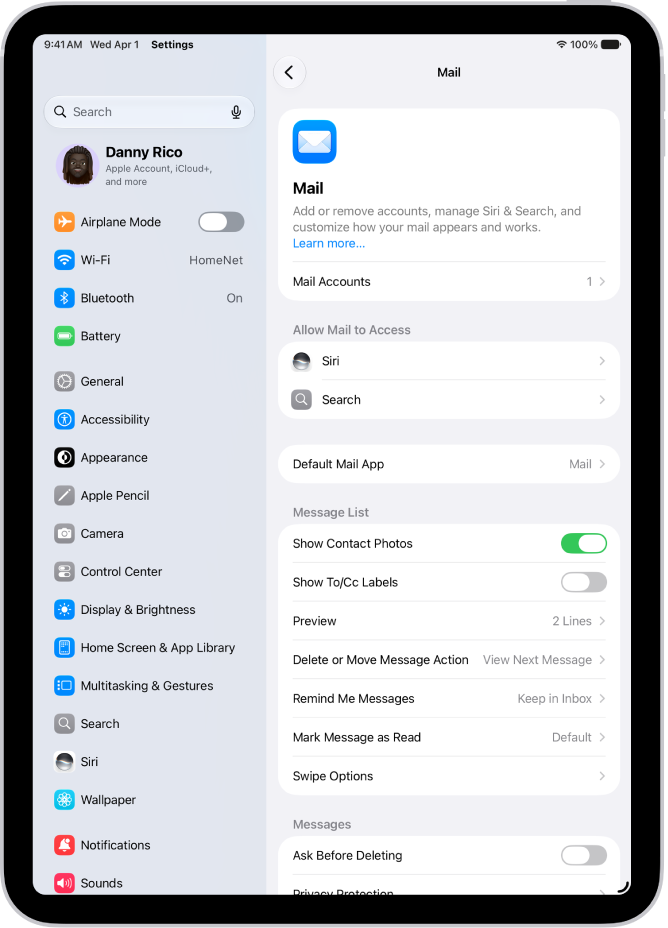
Change Mail settings
You can customize your email signature, change your swipe options, and more in Mail settings. Go to Settings > Apps > Mail.
For more help with Mail, these guides have you covered: