Apple Pencil unlocks a whole new iPad experience, letting you edit, draw, mark up, and annotate in the apps you use every day. You can write in any text area and have your words turn into typed text, gather ideas in Freeform, and quickly take and mark up a screenshot to give clear feedback on a team project.
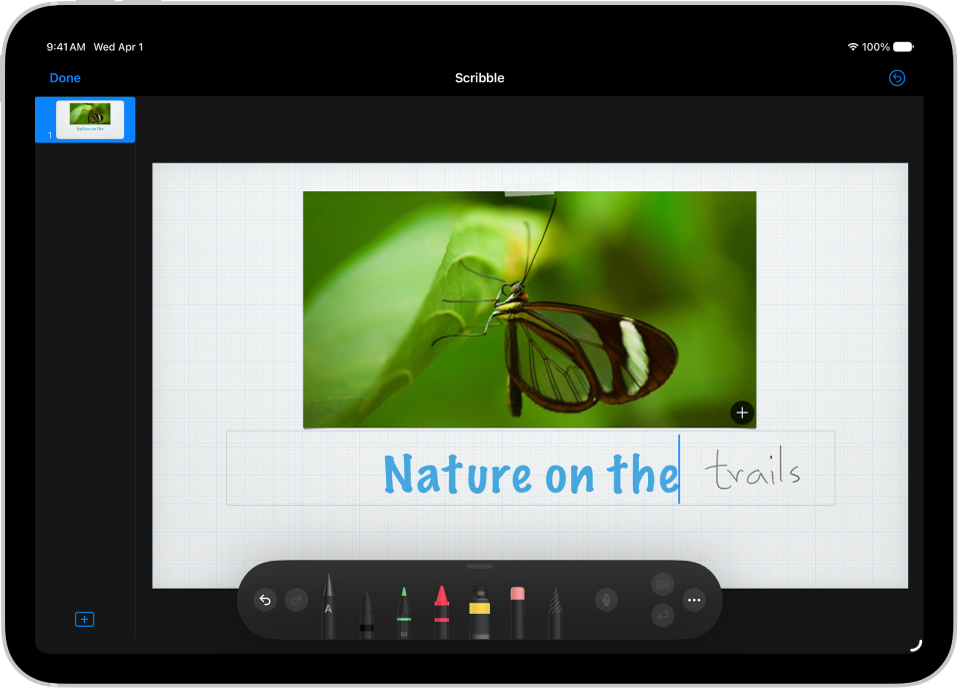
Turn handwriting into typed text
You can write with Apple Pencil in any text area, and your words automatically transform to typed text. Your handwriting is converted to text directly on your iPad, so your writing stays private. Go to Settings, tap Apple Pencil, then turn on Scribble.
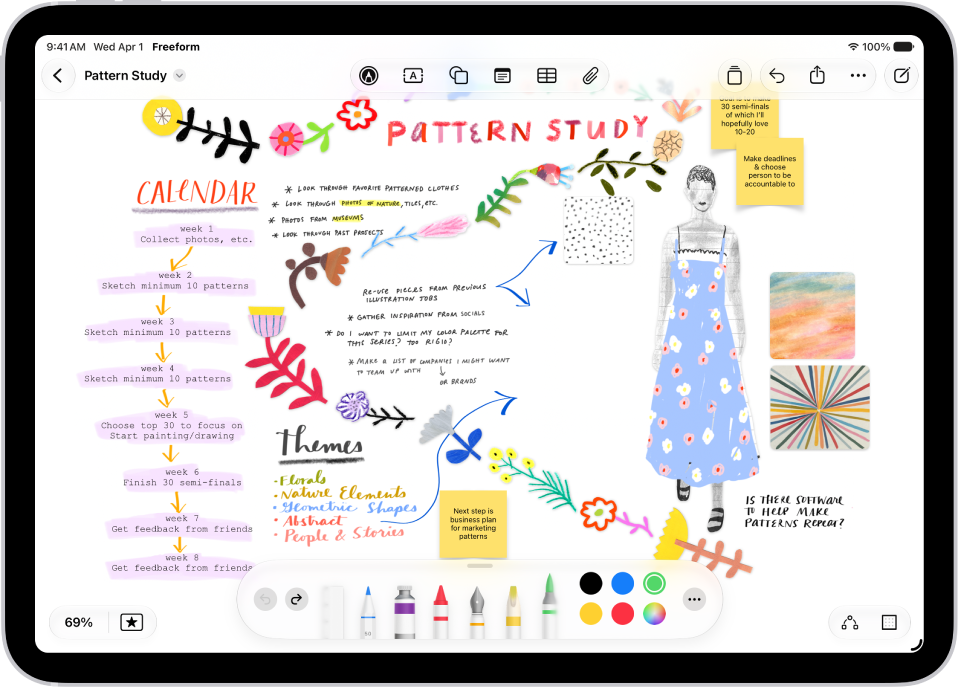
Gather ideas in Freeform
The Freeform app provides a flexible canvas where you can see and share your ideas all in one place. You can diagram new projects, brainstorm your next big idea, or draw together with a friend over FaceTime. To create a board, tap the New Board button, then start drawing with Apple Pencil. Use tools like the watercolor brush, calligraphy pen, and highlighter to express your ideas on a board—the only limit is your imagination.
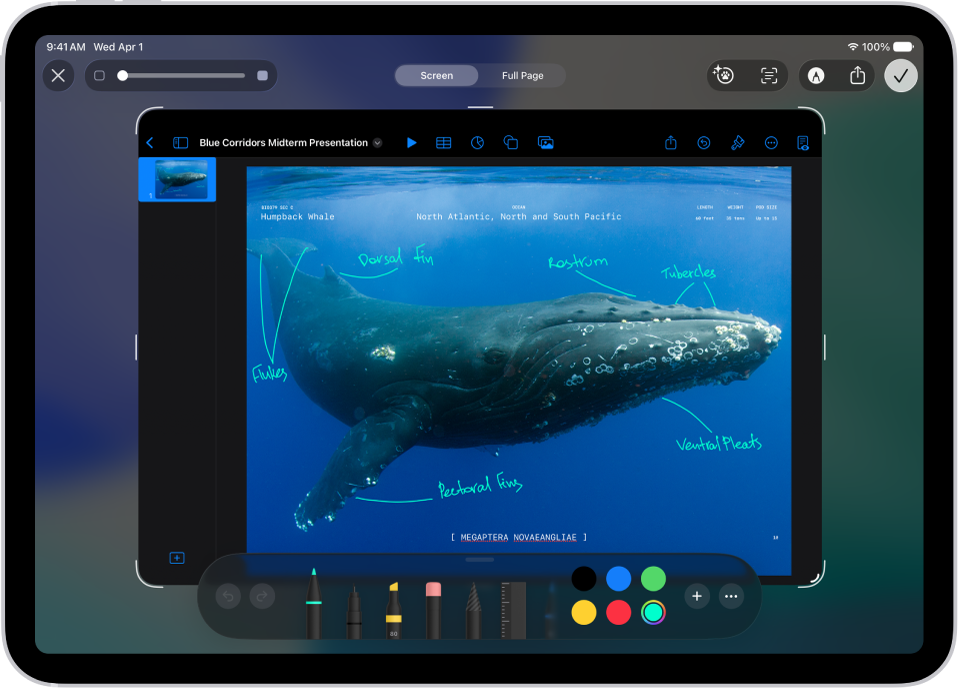
Mark up a screenshot
Quickly take and mark up a screenshot so you can give clear feedback on a team project. To take a screenshot, swipe Apple Pencil from the bottom-left corner of iPad, then use the drawing tools to add your thoughts. Tap the Share button to share your feedback.
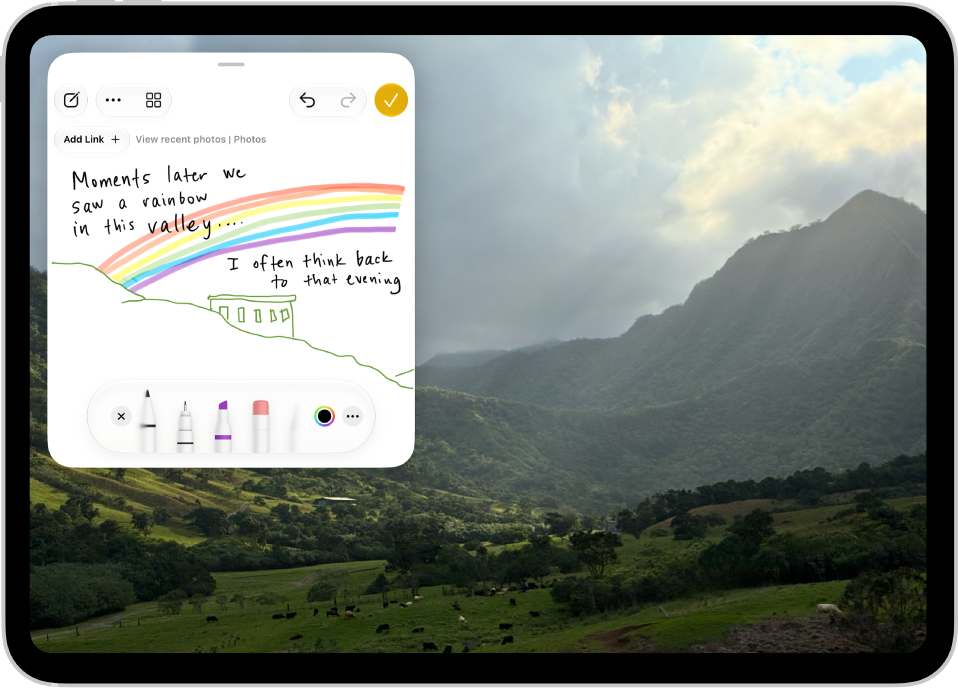
Write a quick note
With Quick Note, you can jot down ideas and add links, no matter what you’re doing on your iPad. Swipe Apple Pencil from the bottom-right corner of iPad, tap the note, then start writing.
For more ways to put Apple Pencil to work, these guides are a good next stop:
- Create Quick Notes on iPad
- Get started with Freeform on iPad
- Enter text with Scribble
- Take a screenshot on iPad
- Use Markup to add text, shapes, signatures, and more to documents
According to Apple, the availability of features may vary depending on your language and country or region.