Your AirPods have controls built right in. Besides controlling audio from the apps you use with your AirPods, you can use controls directly on your AirPods to do things like pause and resume playback, skip tracks, answer calls, and use Siri.
Newer models go a step further. If you have AirPods 4, AirPods 5, AirPods Pro 2, AirPods Pro 3, or AirPods Max 2, you can use head gestures to accept or decline calls and open or dismiss notifications, without using your voice or hands.
Here’s what you need to know about the controls and gestures on your AirPods.
Adjust controls and gestures for AirPods
To adjust the controls, wear your AirPods and do any of the following:
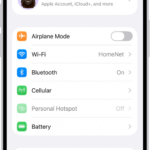
- iPhone or iPad: Go to the Settings app, tap the name of your AirPods near the top of the screen, then adjust the controls (if you don’t see the controls, first tap Controls & Gestures).
- Mac: Go to the System Settings app, click your AirPods in the sidebar (you may need to scroll down), then adjust the controls (if you don’t see the controls, first click Controls & Gestures).
AirPods 1 and 2 controls
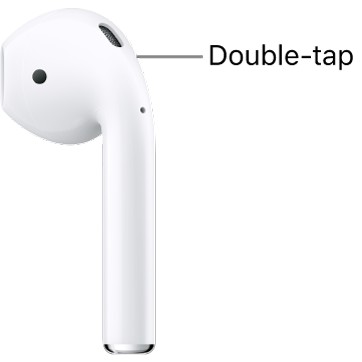
You can control your AirPods with a double tap at the top of the stem. For example, when you get an incoming call, double tap to answer. You can also set each of your AirPods to do one of the following with a double tap:
- Play and pause audio content.
- Play the next track.
- Go back to the previous track.
- Activate Siri.
See Change settings for AirPods or AirPods Pro.
AirPods 3 controls
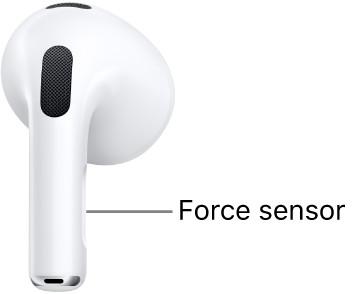
There’s a force sensor on the stem of both AirPods 3, which you can use to do any of the following:
- Play and pause audio: Press the stem. To resume playback, press it again.
- Play the next track: Double-press the stem.
- Play the previous track: Triple-press the stem.
- Answer a call: When you receive a call, press the stem.
- Activate Siri: Press and hold the stem, then ask questions, control apps, and more.
AirPods 4 and AirPods 4 (ANC) controls and gestures
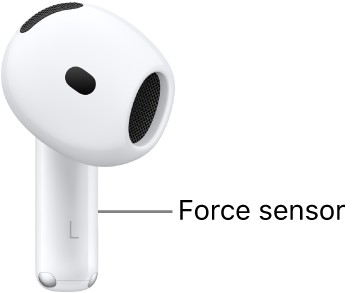
AirPods 4 have a force sensor on the stem that can do any of the following:
- Play and pause audio: Press the stem. To resume playback, press it again.
- Play the next track: Double-press the stem.
- Play the previous track: Triple-press the stem.
- Answer a call: When you receive a call, press the stem.
- Switch between Active Noise Cancellation, Transparency mode, and Adaptive Audio: On AirPods 4 (ANC) only, you can set either of your AirPods to perform this action when you press and hold the stem. See Change settings for AirPods or AirPods Pro.
- Start Live Translation: On AirPods 4 (ANC) only, press and hold the stem on both AirPods at the same time to start Live Translation. See Translate in-person conversations with AirPods.
- Activate Siri: You can set either of your AirPods to perform this action when you press and hold the stem. See Use Siri with AirPods.
Use head gestures to respond to Siri
- Accept a call or reply to notifications and messages: Nod your head up and down.
- Decline a call or dismiss notifications and messages: Shake your head side to side.
Note: Announce Calls and Announce Notifications must be on so you can use head gestures to respond to Siri. Check out our article, Use Siri to announce calls or notifications, for help.
AirPods 5 controls and gestures
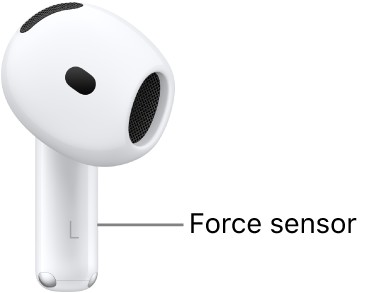
With AirPods 5, the force sensor on the stem can handle any of the following:
- Play and pause audio: Press the stem. To resume playback, press it again.
- Play the next track: Double-press the stem.
- Play the previous track: Triple-press the stem.
- Answer a call: When you receive a call, press the stem.
- Switch between Active Noise Cancellation, Transparency mode, and Adaptive Audio: You can set either of your AirPods to perform this action when you press and hold the stem. See Change settings for AirPods or AirPods Pro.
- Start Live Translation: Press and hold the stem on both AirPods at the same time to start Live Translation. See Translate in-person conversations with AirPods.
- Activate Siri: You can set either of your AirPods to perform this action when you press and hold the stem. See Use Siri with AirPods.
Use head gestures to respond to Siri
- Accept a call or reply to notifications and messages: Nod your head up and down.
- Decline a call or dismiss notifications and messages: Shake your head side to side.
Note: Before head gestures can respond to Siri, Announce Calls and Announce Notifications need to be on. For details, see our article, Use Siri to announce calls or notifications.
AirPods 5 with Wireless Charging Case controls and gestures
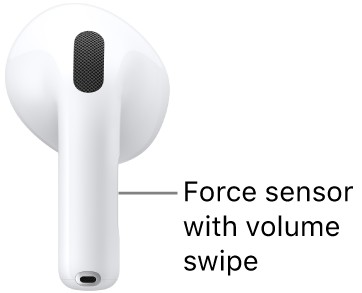
With the force sensor with volume swipe on the stem of AirPods 5 with Wireless Charging Case, you can do any of the following:
- Play and pause audio: Press the stem. To resume playback, press it again.
- Play the next track: Double-press the stem.
- Play the previous track: Triple-press the stem.
- Answer a call: When you receive a call, press the stem.
- Adjust volume: Lightly swipe up or down on the stem.
- Switch between Active Noise Cancellation, Transparency mode, and Adaptive Audio: You can set either of your AirPods to perform this action when you press and hold the stem. See Change settings for AirPods or AirPods Pro.
- Start Live Translation: Press and hold the stem on both AirPods at the same time to start Live Translation. See Translate in-person conversations with AirPods.
- Activate Siri: You can set either of your AirPods to perform this action when you press and hold the stem. See Use Siri with AirPods.
Use head gestures to respond to Siri
- Accept a call or reply to notifications and messages: Nod your head up and down.
- Decline a call or dismiss notifications and messages: Shake your head side to side.
Note: To respond to Siri with head gestures, Announce Calls and Announce Notifications must be on. Read our guide, Use Siri to announce calls or notifications.
AirPods Pro 1 controls
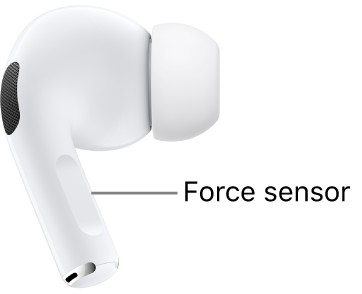
On both AirPods Pro 1, there’s a force sensor on the stem that can do any of the following:
- Play and pause audio: Press the stem. To resume playback, press it again.
- Play the next track: Double-press the stem.
- Play the previous track: Triple-press the stem.
- Answer a call: When you receive a call, press the stem.
- Switch between Active Noise Cancellation and Transparency mode: You can set either of your AirPods to perform this action when you press and hold the stem. See Change settings for AirPods or AirPods Pro.
- Activate Siri: You can set either of your AirPods to perform this action when you press and hold the stem. See Use Siri with AirPods.
AirPods Pro 2 controls and gestures
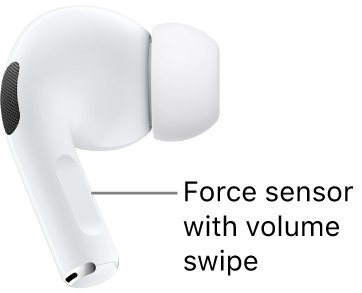
With the force sensor with volume swipe on the stem of both AirPods Pro 2, you can do any of the following:
- Play and pause audio: Press the stem. To resume playback, press it again.
- Play the next track: Double-press the stem.
- Play the previous track: Triple-press the stem.
- Answer a call: When you receive a call, press the stem.
- Adjust volume: Lightly swipe up or down on the stem.
You can also turn on Personalized Volume to automatically adjust the volume based on listening preferences and your environment. See Use Personalized Volume or Conversation Awareness.
- Switch between Active Noise Cancellation, Transparency mode, and Adaptive Audio: You can set either of your AirPods to perform this action when you press and hold the stem. See Change settings for AirPods or AirPods Pro.
- Start Live Translation: Press and hold the stem on both AirPods at the same time to start Live Translation. See Translate in-person conversations with AirPods.
- Activate Siri: You can set either of your AirPods to perform this action when you press and hold the stem. See Use Siri with AirPods.
Use head gestures to respond to Siri
- Accept a call or reply to notifications and messages: Nod your head up and down.
- Decline a call or dismiss notifications and messages: Shake your head side to side.
Note: Announce Calls and Announce Notifications have to be on for head gestures to respond to Siri. If they aren’t, check out our article, Use Siri to announce calls or notifications.
AirPods Pro 3 controls and gestures
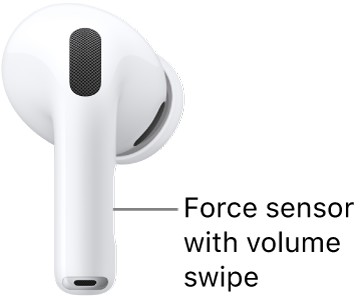
With the force sensor with volume swipe on the stem of both AirPods Pro 3, you can do any of the following:
- Play and pause audio: Press the stem. To resume playback, press it again.
- Play the next track: Double-press the stem.
- Play the previous track: Triple-press the stem.
- Answer a call: When you receive a call, press the stem.
- Adjust volume: Lightly swipe up or down on the stem.
You can also turn on Personalized Volume to automatically adjust the volume based on listening preferences and your environment. See Use Personalized Volume or Conversation Awareness.
- Switch between Active Noise Cancellation, Transparency mode, and Adaptive Audio: You can set either of your AirPods to perform this action when you press and hold the stem. See Change settings for AirPods or AirPods Pro.
- Start Live Translation: Press and hold the stem on both AirPods at the same time to start Live Translation. See Translate in-person conversations with AirPods.
- Activate Siri: You can set either of your AirPods to perform this action when you press and hold the stem. See Use Siri with AirPods.
Use head gestures to respond to Siri
- Accept a call or reply to notifications and messages: Nod your head up and down.
- Decline a call or dismiss notifications and messages: Shake your head side to side.
Note: You’ll need to turn on Announce Calls and Announce Notifications to respond to Siri with head gestures. For the steps, read our guide, Use Siri to announce calls or notifications.
AirPods Max 1 controls
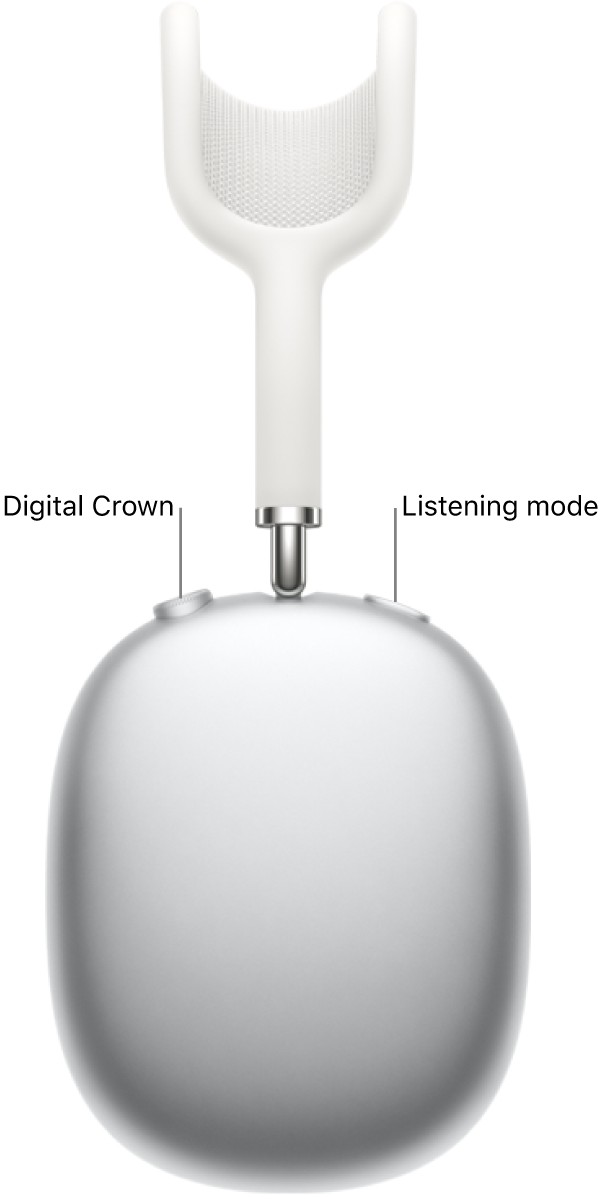
The Digital Crown and the listening mode button, both on the right headphone, let you control audio, phone calls, and FaceTime calls and activate Siri.
Control audio content
You can do any of the following with the Digital Crown and listening mode button:
- Play and pause audio content: Press the Digital Crown. To resume playback, press it again.
- Play the next track: Double-click the Digital Crown.
- Play the previous track: Triple-click the Digital Crown.
- Adjust the volume: Turn the Digital Crown.
- Switch between Active Noise Cancellation and Transparency mode: Press the listening mode button. See Change settings for AirPods Max.
Control phone and FaceTime calls
When you receive a call, the Digital Crown can do any of the following:
- Answer a call: Press the Digital Crown.
- Decline an incoming call: Double-click the Digital Crown.
- Answer a second incoming call and put the first call on hold: Press the Digital Crown.
- Switch between two active calls: Double-click the Digital Crown to end the current call and switch to the other call.
- Decline a second incoming call: Double-click the Digital Crown.
- End a call: Double-click the Digital Crown. See Change settings for AirPods Max.
- Mute or unmute a call: Press the Digital Crown. See Change settings for AirPods Max.
For more on calls, check out our article, Make and answer calls with AirPods Max.
Activate Siri
- Activate Siri: Press and hold the Digital Crown, wait for a chime, then ask questions, control apps, and more.
AirPods Max 2 controls and gestures
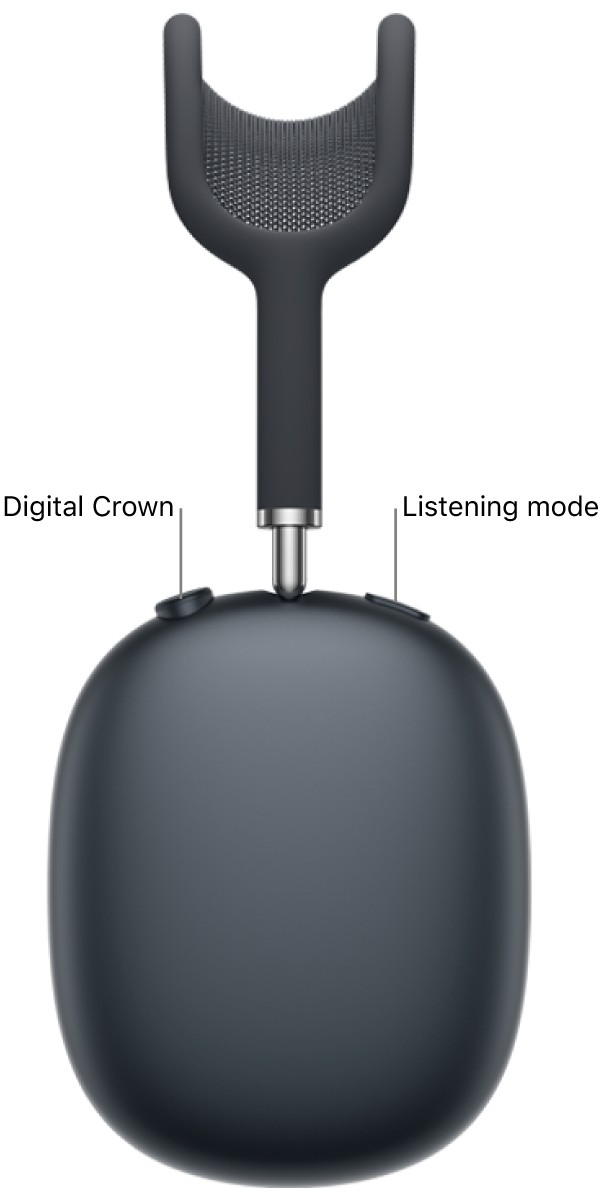
You’ll find the Digital Crown and the listening mode button on the right headphone, and you can use them to control audio, phone calls, and FaceTime calls, or to activate Siri.
Control audio content
The Digital Crown and listening mode button let you do any of the following:
- Play and pause audio content: Press the Digital Crown. To resume playback, press it again.
- Play the next track: Double-click the Digital Crown.
- Play the previous track: Triple-click the Digital Crown.
- Adjust the volume: Turn the Digital Crown.
You can also turn on Personalized Volume to automatically adjust the volume based on listening preferences and your environment. See Use Personalized Volume or Conversation Awareness.
- Switch between Active Noise Cancellation, Transparency mode, and Adaptive Audio: Press the listening mode button. See Change settings for AirPods Max.
- Start Live Translation: Press and hold the listening mode button. See Translate in-person conversations with AirPods.
Control phone and FaceTime calls
When a call comes in, the Digital Crown lets you do any of the following:
- Answer a call: Press the Digital Crown.
- Decline an incoming call: Double-click the Digital Crown.
- Answer a second incoming call and put the first call on hold: Press the Digital Crown.
- Switch between two active calls: Double-click the Digital Crown to end the current call and switch to the other call.
- Decline a second incoming call: Double-click the Digital Crown.
- End a call: Double-click the Digital Crown. See Change settings for AirPods Max.
- Mute or unmute a call: Press the Digital Crown. See Change settings for AirPods Max.
You can read our guide, Make and answer calls with AirPods Max, to learn more about handling calls.
Activate Siri
- Activate Siri: Press and hold the Digital Crown, wait for a chime, then ask questions, control apps, and more.
Use head gestures to respond to Siri
- Accept a call or reply to notifications and messages: Nod your head up and down.
- Decline a call or dismiss notifications and messages: Shake your head side to side.
Note: Head gestures won’t respond to Siri until you turn on Announce Calls and Announce Notifications. To do that, see our article, Use Siri to announce calls or notifications.
This guide is for iOS 27, iPadOS 27, macOS 27, tvOS 27, watchOS 27, or later.
See also