You can use your AirPods 2, AirPods 3, AirPods 4, AirPods 5, AirPods Pro, or AirPods Max to listen to messages from your iPhone or iPad. When your device is locked and your AirPods are connected to it, Siri can read the message when it arrives.
You can also reply. After using Siri to read a message, you can respond with your voice, and you’re asked for confirmation before it’s sent, unless you choose to send replies without waiting.
Here’s how to have Siri announce your messages on your AirPods, how to reply, and how to dismiss them.
Turn on Announce Notifications for Messages
Once you turn on Announce Notifications, Siri can announce and read your messages.
- Open the Settings app on your iPhone or iPad.
- Tap Notifications, and make sure Announce Notifications is turned on.
- Below Announce Notifications From, tap Messages. Then turn on Announce Notifications.
Reply to a message
After using Siri to read a message, say something like “Reply that’s great news.”
Your message is repeated, and you’re asked for confirmation before it’s sent.
Reply without waiting for confirmation
Siri repeats what you said in apps where you can send a reply, like the Messages app, then asks for confirmation before sending it. If you’d rather skip that, you can choose to send replies without waiting for confirmation.
- iPhone or iPad: Go to the Settings app, then tap Notifications. Tap Announce Notifications, then turn on Reply Without Confirmation.
- Apple Watch: Go to the Settings app, then tap Siri. Tap Announce Notifications, then turn on Reply Without Confirmation.
Dismiss notifications from Siri
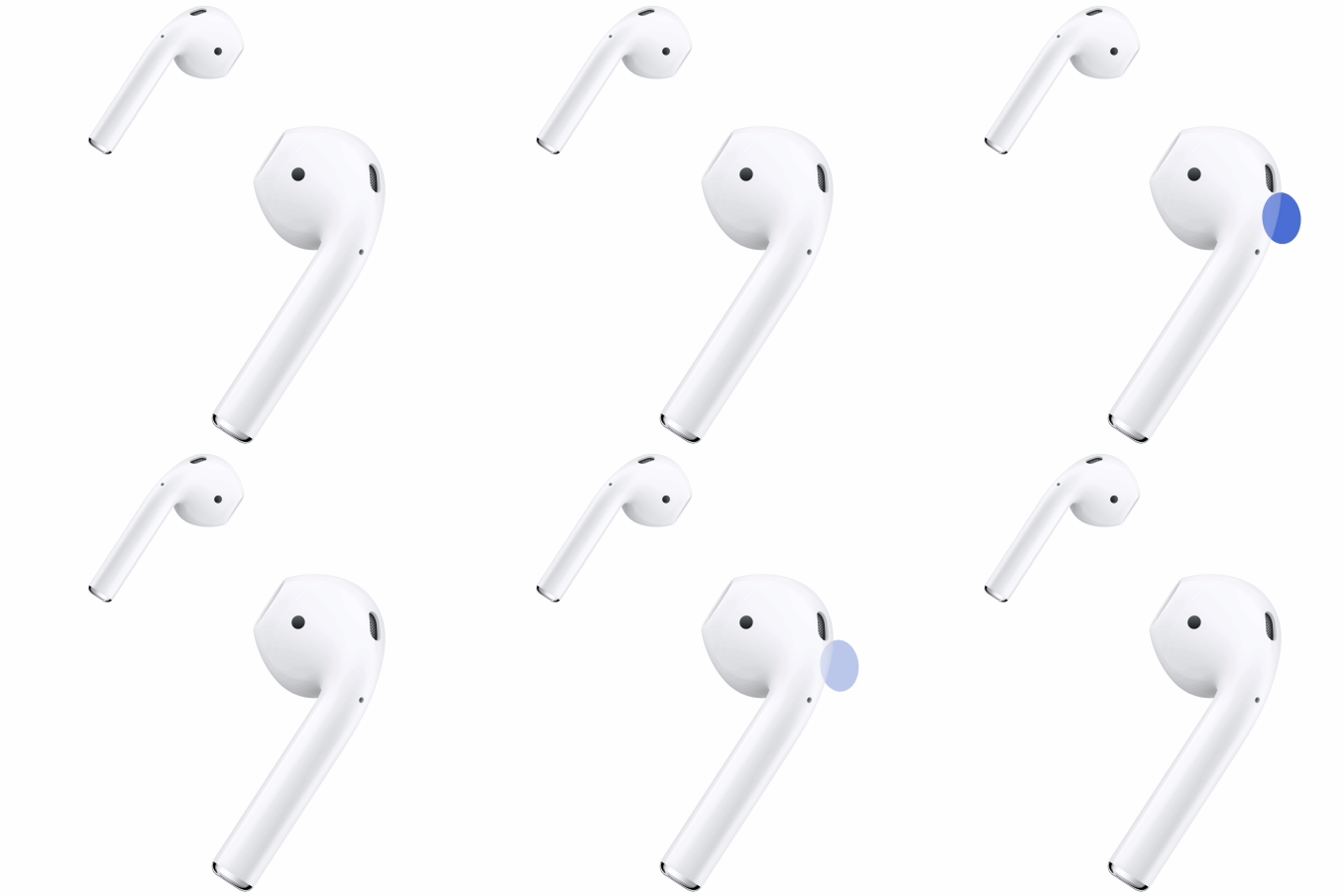
- AirPods 2: Say something like “Stop” or “Cancel,” or double-tap either of your AirPods.
- AirPods 3, AirPods 4, AirPods 5, or AirPods Pro 1: Press the force sensor.
If you have AirPods 4 or AirPods 5, you can also shake your head side to side to dismiss the notification. See AirPods 4 and AirPods 4 (ANC) controls and gestures.
- AirPods 5 with Wireless Charging Case, AirPods Pro 2, or AirPods Pro 3: Press the force sensor with volume swipe.
You can also shake your head side to side to dismiss the notification. See AirPods Pro 2 controls and gestures or AirPods Pro 3 controls and gestures.
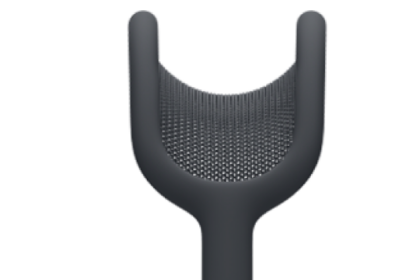
- AirPods Max: Press the Digital Crown.
With AirPods Max 2, you can also shake your head side to side to dismiss the notification. See AirPods Max 2 controls and gestures.
This guide is for iOS 27, iPadOS 27, macOS 27, tvOS 27, watchOS 27, or later.
See also