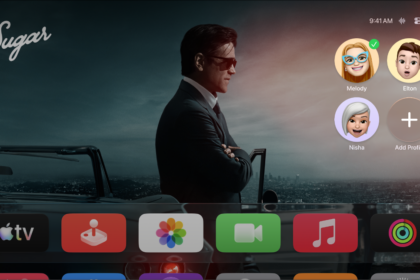
On Apple TV 4K, with SharePlay, you can watch movies, shows, music videos, and supported live sports events with friends and family while on a FaceTime call together. On Apple TV 4K (2nd generation or later), you’re able to start it right from FaceTime on your TV. Playback stays in sync on every device on the call.
Already watching on an iPhone, iPad, or Mac? You can send it to Apple TV 4K and enjoy what you’re watching on the big screen.
Here’s how to start SharePlay from FaceTime on your Apple TV 4K, and how to move what you’re watching between devices.

SharePlay access depends on which model of Apple TV 4K you have:
- Apple TV 4K (2nd generation or later): Start a FaceTime call in the FaceTime app on Apple TV 4K with an iPhone or iPad as a Continuity Camera, then begin watching a movie, show, music video, or supported live sports event.
- Apple TV 4K HD or 4K (1st generation): Start a FaceTime call on your iPhone, iPad, or Mac (requires iOS 15.1, iPadOS 15.1, and macOS Ventura 13.0, or later), then begin watching a movie, show, music video, or supported live sports event.
Since everyone on the call can control playback from their devices, and it starts in sync for all of them, you can laugh, cry, scream, or sigh at the same time as your friends.
Note: Apple TV (includes Friday Night Baseball, Major League Soccer, or both in some countries and regions, and Formula 1 in the U.S.), Apple TV channels, and some apps that support SharePlay require a subscription. To watch a movie, TV show, or live sports event together, every participant needs to have access to the content on their own device, through either a subscription or purchase. Each device must meet the minimum system requirements. SharePlay may not support the sharing of some movies, TV shows, or live sports events across different countries or regions. FaceTime, some FaceTime features, and other Apple services may not be available in all countries or regions.
Start SharePlay from FaceTime on Apple TV 4K
With Apple TV 4K (2nd generation or later), you can start SharePlay while you’re on a FaceTime call.
- Do one of the following:
- Start a FaceTime call on Apple TV 4K.
- Transfer a FaceTime call to Apple TV 4K.
- Do one of the following:
- Press the Back button or the Menu button on your remote to go to the Home Screen.
The FaceTime call appears in Picture in Picture mode.
- In the FaceTime app on Apple TV 4K, show playback controls, select the More button, select SharePlay, then choose a suggested app that supports FaceTime.
- Press the Back button or the Menu button on your remote to go to the Home Screen.
- Go to a movie, show, or supported live sports event you want to watch together, select Play, and then select SharePlay (if it appears) to confirm.
The video plays in sync on Apple TV 4K and on all the devices on the FaceTime call. Everyone can use playback controls on their respective devices to play, pause, rewind, or fast-forward in real time.
- During SharePlay, press the TV button on the remote. Do any of the following:
- Change the layout: Select the Layout button. Choose Picture in Picture, Split View, Full Screen, or Move.
- Hide the FaceTime call: Select the Hide button. To show the FaceTime call again, press the TV button on the remote.
- End the call: Select the End button.
- To end the TV show or movie you’re watching while continuing the FaceTime call, press the Back button or the Menu button on your remote. Then select End for Everyone or End Only for Me.
Send what you’re watching during SharePlay on another device to Apple TV 4K
Already watching on an iPhone, iPad, or Mac during SharePlay, whether it’s a movie, show, music video, or supported live sports event? You can send it to an Apple TV 4K on the same network and enjoy it on the big screen.
Quick tip: If someone else is signed in as the current profile on Apple TV 4K, this option sends items to Apple TV 4K during SharePlay.
- Start a FaceTime call on an iPhone, iPad, or Mac.
- On the iPhone, iPad, or Mac, open a video streaming app that supports SharePlay (such as the Apple TV or Music app), select a video, and then tap or click the Play button.
- Do any of the following:
- On an iPhone or iPad: In the streaming app, tap the AirPlay icon (or open Control Center and tap the AirPlay icon). Then select the Apple TV 4K you want to use for watching. Enter the verification code if prompted.
- On a Mac: Move the pointer to show playback controls in the streaming app, click the AirPlay icon, and then select the Apple TV 4K that you want to use for watching. Enter the verification code if prompted.
Everyone on the FaceTime call sees the video play in sync, on Apple TV 4K and on their own devices, and each person can use playback controls to play, pause, rewind, or fast-forward in real time.
Note: SharePlay notifications and Control Center controls on Apple TV 4K aren’t available when you stream from a Mac or from some iOS or iPadOS apps.
Move video during SharePlay on Apple TV 4K to another device
If there’s an active FaceTime call on another device during SharePlay, you can move what you’re watching on Apple TV 4K to that device.
- Press and hold the TV button on the remote to open Control Center and select the SharePlay tab.
- Select the Move button and select Move to [device name] to continue watching on the device with the active FaceTime call.
Note: If SharePlay isn’t in Control Center on Apple TV 4K, you can stop it with the SharePlay controls on your iPhone, iPad, or Mac.
Subscription required for Apple TV, which in some countries and regions may include some or all of the following: Friday Night Baseball, Major League Soccer (MLS), and Formula 1®. Not all features and content are available in all countries or regions, or on all Apple TV hardware models. Apple TV subscription does not include third-party branded subscription services or content available for rental or purchase in the Apple TV app.
See also