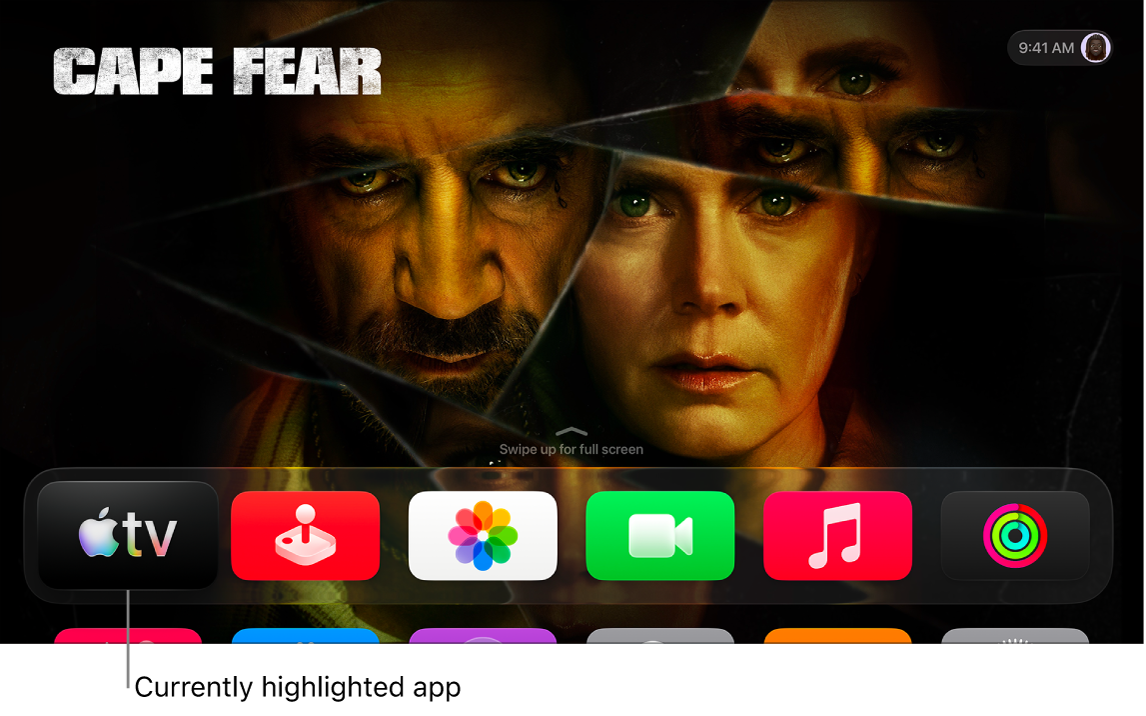
The Home Screen on Apple TV 4K provides easy access to your apps. You can rearrange apps by changing their order, placing your favorites in the top row, or creating folders for groups of apps. Your favorite apps in the top row show a preview of what’s in the app when they’re highlighted.
And with One Home Screen, you can keep the same appearance and apps on every Apple TV 4K associated with the same Apple Account.
Rearrange apps
- On the Apple TV 4K Home Screen, go to an app. Press and hold the clickpad or touch surface on your remote.
- Select Edit Home Screen.
- Use the clickpad or touch surface to drag the app to a new location on the Home Screen.
Tip: Place your favorite apps on the top row of the Home Screen so that when they’re highlighted, you see a preview of what’s in the app. Swipe up to see the preview in full screen.
- To save the new arrangement, press the center of the clickpad or touch surface.
Create a folder for apps
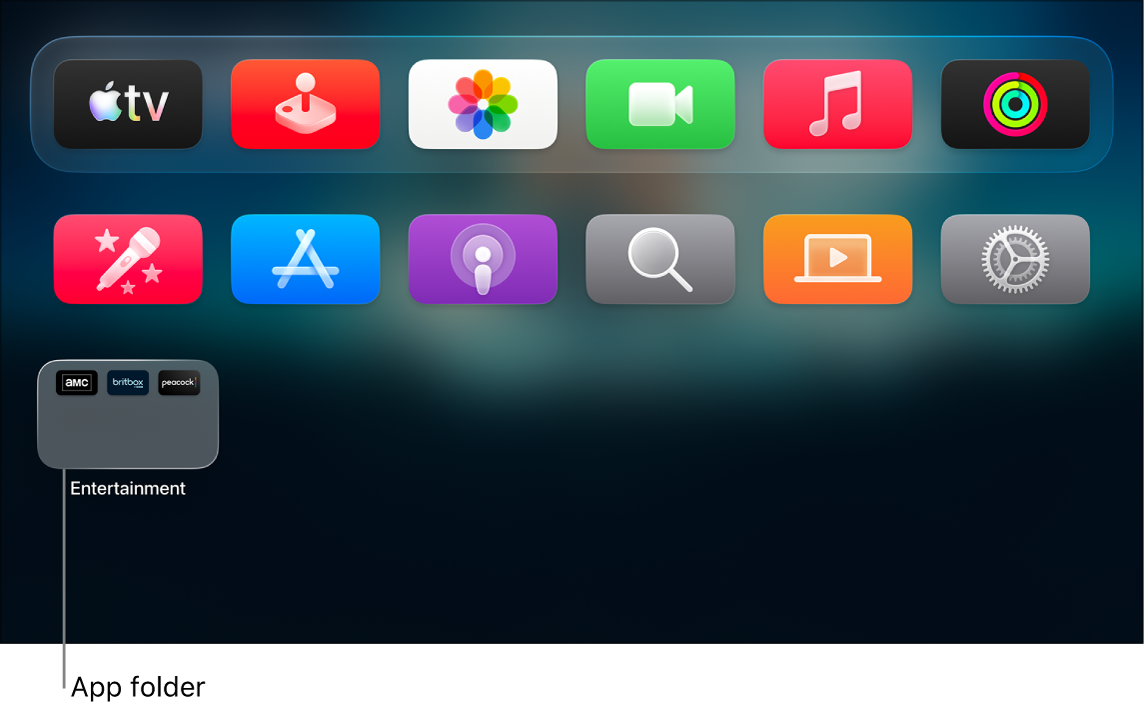
Folders are a way to organize apps. You could store all of your streaming apps in an Entertainment folder, for instance.
- On the Apple TV 4K Home Screen, go to an app. Press and hold the clickpad or touch surface on your remote.
- Select Move to > New Folder.
- To change the name of the new folder, select the folder name at the top of the screen, enter a custom name, and select Done.
- Press the Back button or the Menu button on your remote to return to the Home Screen.
Rename a folder
- On the Apple TV 4K Home Screen, go to a folder and then press and hold the clickpad or touch surface on your remote.
- Select Rename Folder.
- Enter a new name for the folder, then select Done.
- Press the Back button or the Menu button on your remote to return to the Home Screen.
Move an app into a folder
- On the Apple TV 4K Home Screen, go to an app. Press and hold the clickpad or touch surface on your remote.
- Select Move to > [name of folder].
Delete a folder
To delete a folder, move all of its apps back to the Home Screen.
- On the Apple TV 4K Home Screen, go to an app in a folder and press and hold the clickpad or touch surface on your remote.
- Select Move to > Home Screen.
- Repeat the above steps for each app in the folder.
The folder is deleted when you remove the last app from it.
- To save the new arrangement, press the clickpad center or touch surface.
Keep the Home Screen up to date across multiple Apple TV 4K devices
If more than one Apple TV 4K is associated with the same Apple Account, One Home Screen keeps the same appearance and apps on each device. So it’s easy to switch between Apple TV 4K devices in the bedroom and the living room, for example.
- On the Apple TV 4K Home Screen, go to Settings.
- Go to Profiles and Accounts > [default profile] and select One Home Screen to turn it on.
Note: You can use One Home Screen only with the default profile. For details, read our guide, Change the default profile on Apple TV 4K.
Not all features and content are available in all countries or regions or on all Apple TV hardware models.
See also