If you subscribe to Apple Music, you can host a SharePlay session on your Apple TV 4K so anyone in your home can control music playback. They can join using the Music app on their device, even if they don’t have an Apple Music subscription.
Once they’re in, SharePlay participants can see what’s playing, control playback, and add songs from their devices. You can invite another person by sharing a QR code, and the number in the SharePlay button shows how many people are listening together.
Here’s how to start listening together on your Apple TV 4K.
- Go to the Music app on Apple TV 4K.
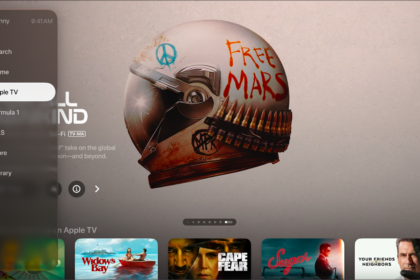
- Start playing a song, or open the sidebar and select Now Playing.
- Show playback controls, swipe down on the clickpad or touch surface, and select the SharePlay button.
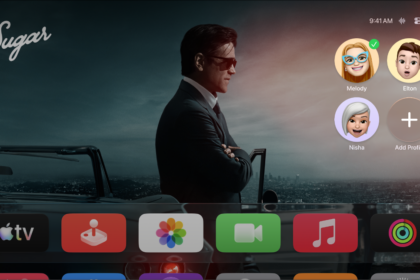
- If you haven’t used SharePlay on Apple TV 4K before, use the onscreen keyboard and profile icon picker to choose how you’ll appear in playlists in shared sessions. When you’re finished, select Done.
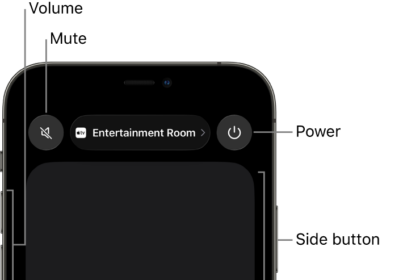
- On your iPhone or iPad, open the camera app, scan the QR code that appears on your TV screen, and tap Connect on the device.
- On Apple TV 4K, select the SharePlay request notification. Select SharePlay Confirm button next to a participant.
SharePlay participants can now see what’s playing on Apple TV 4K, control playback, and add songs from their devices.
- While listening together, do any of the following:
- Control the playback (pause the music, go to the next song, and more): Use the playback controls on Apple TV 4K or on a participating device. See Control music playback in Now Playing.
- Manage the shared Playing Next queue: Add songs, albums, and playlists to the queue, remove music, and more. See Use the Now Playing queue.
- View lyrics: Make sure the Lyrics button at the bottom of the screen is selected. See View a song’s lyrics.
Note: If lyrics aren’t available for the song, lyrics do not appear when you select the Lyrics button.
- Invite another person to the session: Select the SharePlay button and then share the QR code with another person.
Note: The number in the SharePlay button indicates how many people are listening together.
- To leave the SharePlay session, do either of the following:
- In the Music app, select the SharePlay button, then select Remove Guests, or select SharePlay Remove button next to a single guest to remove just that person.
- Tap Pause or Disconnect on a participating device.
Not all features and content are available in all countries or regions or on all Apple TV hardware models.
See also