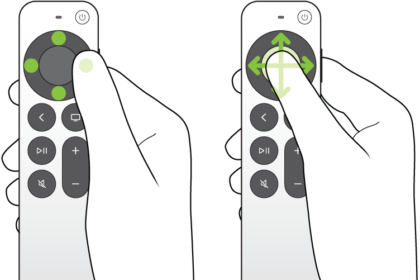
You can use a few remotes with Apple TV 4K (2nd generation or later), and each has buttons to go back to the previous screen, play or pause, and increase or decrease volume. The TV button is there to open the Apple TV app or open Control Center, while the Siri/Search button can activate Siri (if available), open Search, or dictate text.
On the 2nd and 3rd generation remotes, there’s also a Power button to turn on Apple TV 4K and a Mute button to mute or unmute audio.
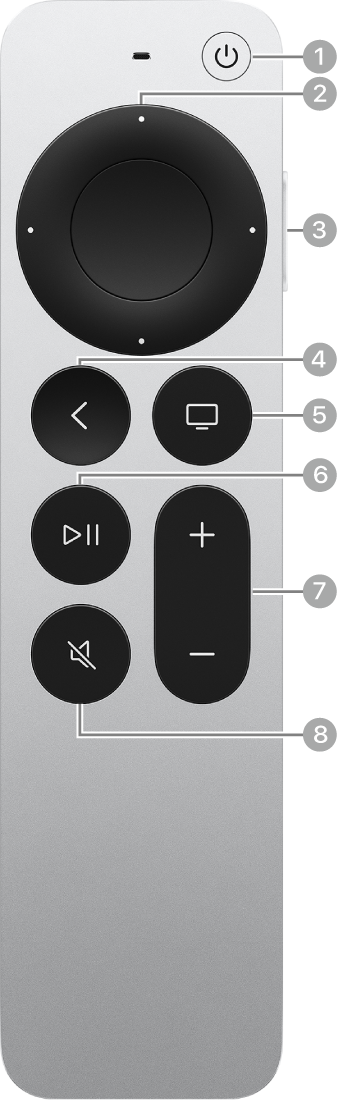
- Press the Power button to turn on Apple TV 4K. Press and hold to turn off Apple TV 4K.
- Swipe on the clickpad, or press up, down, left, or right on the clickpad ring to navigate Apple TV 4K.
- Press and hold the Siri/Search button to activate Siri (if available), open Search, or dictate text.
- Press the Back button to go back to the previous screen. Press and hold to go to the Home Screen.
- Press the TV button to open the Apple TV app. Press and hold to open Control Center.
- Press the Play/Pause button to play or pause.
- Press the Volume Up button or the Volume Down button to increase or decrease volume. Press and hold to increase or decrease volume rapidly.
- Press the Mute button to mute or unmute audio.
Siri Remote or Apple TV Remote (1st generation)
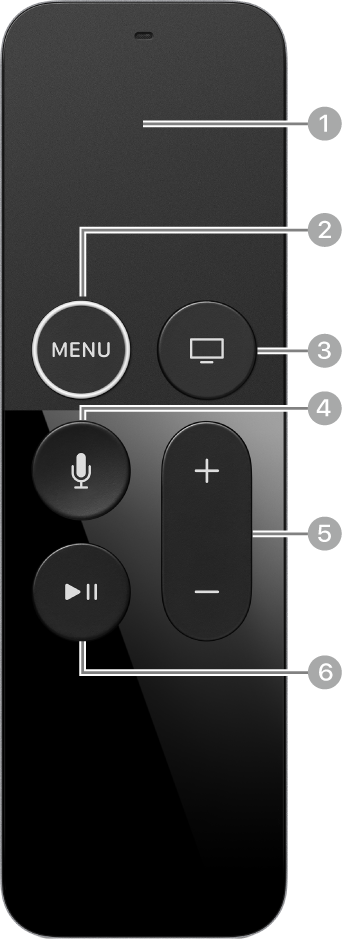
- Swipe or tap up, down, left, or right on the touch surface to navigate Apple TV 4K.
- Press the Menu button to go back to the previous screen. Press and hold to go to the Home Screen.
- Press the TV button to open the Apple TV app. Press and hold to open Control Center.
- Press and hold the Siri/Search button to activate Siri (if available), open Search, or dictate text.
- Press the Volume Up button or the Volume Down button to increase or decrease volume. Press and hold to increase or decrease volume rapidly.
- Press the Play/Pause button to play or pause.
Not all features and content are available in all countries or regions or on all Apple TV hardware models.
See also