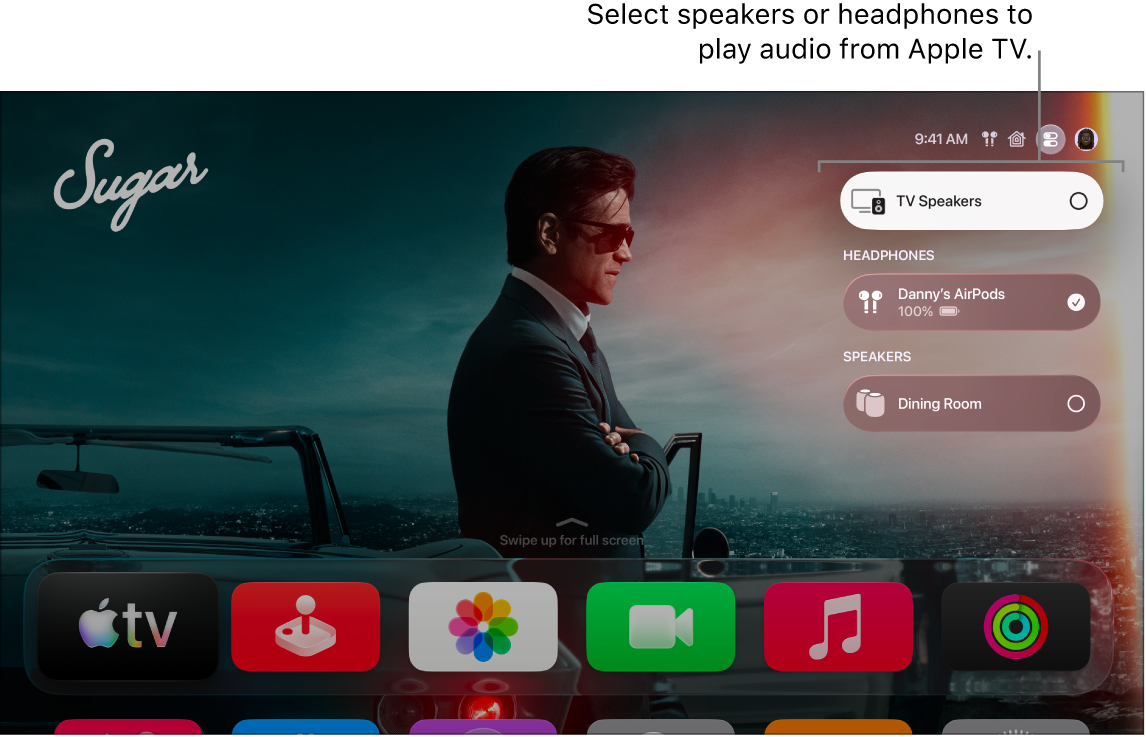
You can send audio from your Apple TV 4K to compatible AirPods or Beats headphones when you’re signed in on Apple TV 4K with the same Apple Account associated with the headphones. When you connect them, any other device speakers are turned off. You can then open audio controls like Noise Control and Spatial Audio from Control Center.
Connect AirPods or Beats to Apple TV 4K
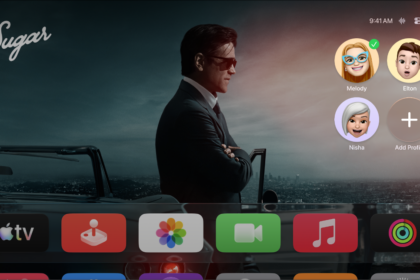
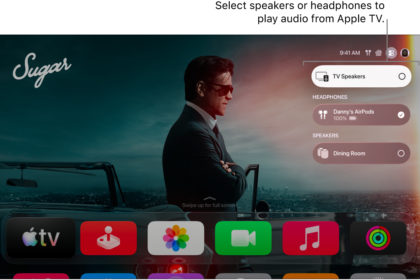
- On your remote, press and hold the TV button to open Control Center and then select the Audio Controls button.
- Select the headphones you want to use.
When you connect headphones to Apple TV 4K, any other device speakers are turned off.
Quick tip: If you put on your headphones while Apple TV 4K is on and your profile is active, an alert appears onscreen prompting you to connect your headphones by pressing the TV button. You can disable this prompt in Settings by going to Remotes and Devices > Bluetooth and turning off Suggest Nearby AirPods.
Bluetooth® headphones can connect to Apple TV 4K, too. To pair them, check out our article, Connect Bluetooth devices to Apple TV 4K.
Adjust AirPods or Beats controls from Control Center
You can open audio controls from Control Center once your AirPods or Beats headphones are connected.
- On your remote, press and hold the TV button to open Control Center and then go to the headphones icon (such as the AirPods Pro icon or the AirPods Max icon) at the top.
- Select one or more of the available options and choose a suboption from the menu.
- Noise Control: Choose Noise Cancellation to tune outside noises out, Transparency to hear sounds around you, Adaptive to automatically adjust noise levels in your environment, or Off to turn off noise control.
- Conversation Awareness: Choose Loud Sound Reduction to automatically reduce loud sounds around you, or Conversation Awareness to automatically lower the volume during a conversation and enhance voices in front of you, all while reducing background noise.
- Spatial Audio: Turn on spatial audio features. See Experience Spatial Audio on Apple TV 4K.
- Share Audio: Share audio with a second pair of headphones. See Listen together with two pairs of headphones on Apple TV 4K.
Note: Not all options are available for all AirPods and Beats models.
Not all features and content are available in all countries or regions or on all Apple TV hardware models.
See also