You may want to connect a Bluetooth® device to your Apple TV 4K, such as a game controller, headphones, a wireless keyboard, or another accessory. Before you start, check the device’s instructions to set it to discoverable. You can use Control Center to connect a game controller, while Settings is where you connect other Bluetooth devices. And if you’ve connected your AirPods or Beats headphones before, they’ll connect automatically the next time you put them on.
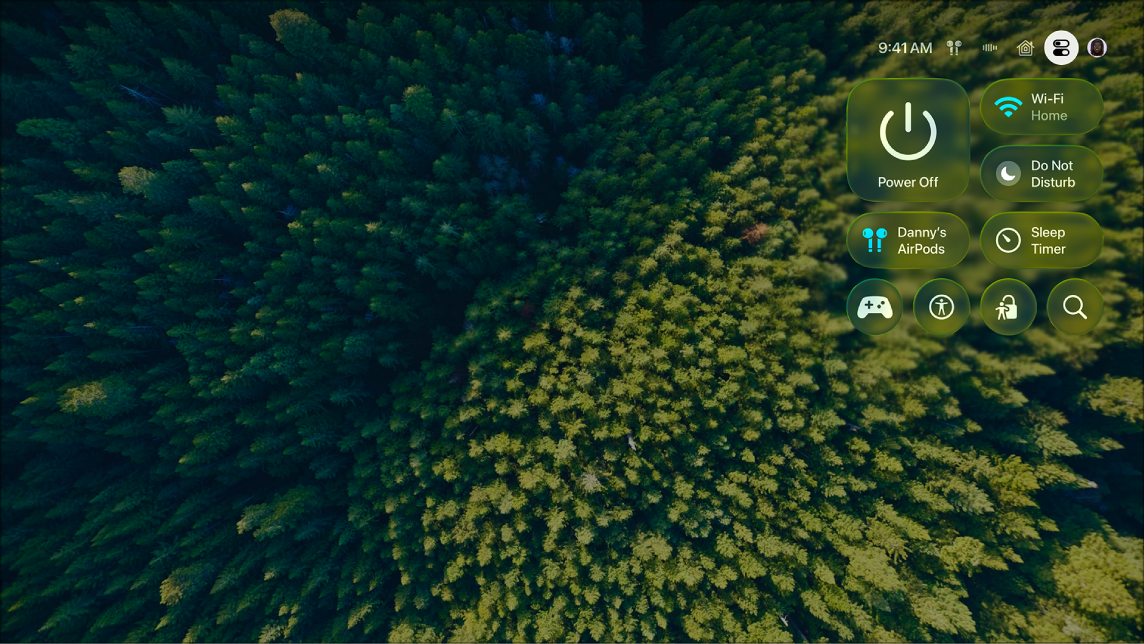
- To connect a game controller: Press and hold the TV button on the remote to open Control Center, select the Game Controllers button, then select a game controller from the list.
- To connect other Bluetooth devices: Go to Settings on Apple TV 4K, go to Remotes and Devices > Bluetooth, then select the device in the Other Devices list.
Note: If you’ve connected AirPods or Beats headphones to Apple TV 4K before, they connect automatically the next time you put them on. Check out our article, Use AirPods or Beats with Apple TV 4K, for more.
Not all features and content are available in all countries or regions or on all Apple TV hardware models.
See also