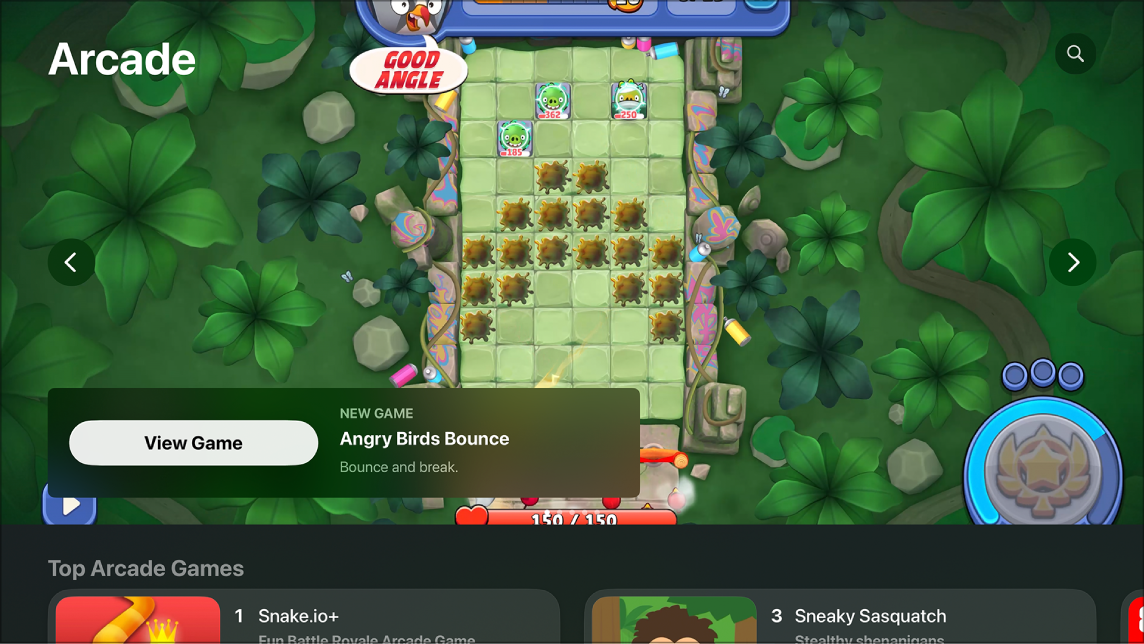
You can subscribe to Apple Arcade right on Apple TV 4K, or bundle your Apple Arcade subscription with other Apple services by subscribing to Apple One. With Family Sharing, you can share your subscription with up to five other family members.
They don’t need to do anything, either, since Apple Arcade is available to them the first time they open it after your subscription begins. You can change or cancel your subscription in Settings.
Subscribe to Apple Arcade
- Open the Arcade app on Apple TV 4K.
- Sign in to your Apple Account and follow the onscreen instructions.
Cancel your subscription
- Go to Settings on Apple TV 4K.
- Go to Profiles and Accounts > [profile] > Subscriptions and select a subscription.
- Follow the onscreen instructions to change or cancel your subscription.
Share Apple Arcade with Family Sharing
Subscribe to Apple Arcade or Apple One, and Family Sharing lets you share it with up to five other family members. They don’t have to do anything. Once your subscription begins, Apple Arcade is available to them as soon as they open Apple Arcade.
Already subscribe, then join a family group that has Apple Arcade or Apple One? On your next billing date, your subscription isn’t renewed, and you use the group’s subscription instead. A family group that doesn’t subscribe uses yours.
You can stop sharing your subscription with a family group in three ways: leave the family group, cancel the subscription, or stop using Family Sharing if you’re the family group organizer.
Note: Apple Arcade and Apple One aren’t available in all countries or regions.
Not all features and content are available in all countries or regions or on all Apple TV hardware models.