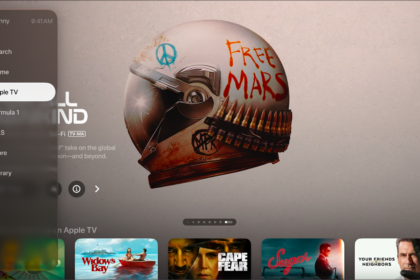
Group Workouts, powered by SharePlay, let you and up to 32 of your favorite people work out together on Apple TV 4K. You can start a FaceTime call on your iPhone or iPad, then start a Group Workout in the Fitness app.
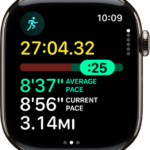
The workout plays in sync for everyone on the call, and everyone can control playback from their own devices. You can cheer each other on, see when someone closes an Activity ring, and get notifications when someone moves ahead of the pack on the Burn Bar during HIIT, Treadmill, Cycling, and Rowing workouts.
Group Workouts work a little differently depending on which model of Apple TV you have. Started a workout on your iPhone or iPad? You can send it to Apple TV 4K, too.
Note: Apple Fitness+ workouts require a subscription and an Apple Watch or iPhone connected to the Fitness app on Apple TV 4K.
Join a Group Workout on Apple TV 4K (2nd generation or later)
- Start a FaceTime call, or hand off a FaceTime call from an iPhone or iPad to Apple TV 4K.
- Open the Fitness app on Apple TV 4K and connect your Apple Watch or iPhone.
- Select a workout, then select Let’s Go.
The workout plays in sync on Apple TV 4K and on all the devices on the FaceTime call.
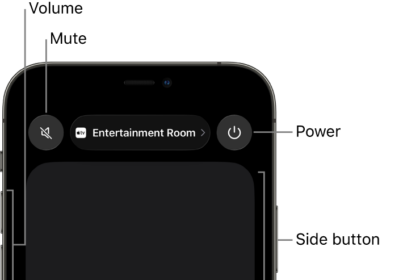
Tip: To activate additional SharePlay controls, press and hold the TV button on the remote to open Control Center, then navigate to the SharePlay tab.
- To end the workout while continuing the FaceTime call, press the Back button or the Menu button on your remote. Then select End for Everyone or End Only for Me.
Send your workout from another device to Apple TV 4K
During SharePlay, you can send a Fitness+ workout you start on an iPhone or iPad to Apple TV 4K and enjoy it on the big screen.
Quick tip: This option sends a Group Workout to Apple TV 4K when the current profile on Apple TV 4K isn’t yours.
- Start a FaceTime call on an iPhone or iPad.
- During the call, go to the Home Screen of your device and open the Fitness app (if you’re on iPhone, also tap Fitness+).
- In the Fitness app on iPhone or iPad, browse to a workout and then start it.
- On the iPhone or iPad, do either of the following:
- Tap the AirPlay icon, then tap the Apple TV 4K you want to watch the workout on.
- Open Control Center, tap the AirPlay icon, then choose the Apple TV 4K in the list of AirPlay devices.
Stop a Group Workout on Apple TV 4K
- Press and hold the TV button on the remote to open Control Center. Then go to the SharePlay tab.
- Select Stop SharePlay to stop, or Move to [device name] to continue watching on the device with the active FaceTime call.
Note: Group Workouts with Apple Fitness+ require Apple Watch Series 3 or later with watchOS 8.1 or later and one of the following Apple devices: iPhone 6s or later with iOS 15.1 or later, or iPad with iPadOS 15.1 or later. Playback on Apple TV 4K requires tvOS 15.1 or later. Group Workouts using FaceTime on an Apple TV 4K (2nd generation or later) requires tvOS 17 or later and one of the following: iPhone XR or later (including iPhone SE 2nd generation) with iOS 17; iPad (8th generation or later), iPad mini (5th generation or later), iPad Air (3rd generation or later), iPad Pro 11-inch (1st generation or later), or iPad Pro 12.9-inch (3rd generation or later) with iPadOS 17. FaceTime, some FaceTime features, and other Apple services may not be available in all countries or regions, and features may vary by area.
Not all features and content are available in all countries or regions or on all Apple TV hardware models.
See also