The person who set up HomePod can change its settings using the Home app on their iPhone or iPad. Some settings are for each HomePod you have, and others apply to all of the HomePod speakers in your home. For a single HomePod, you can assign it to a different room, reduce the bass, change how Siri listens to you, or choose which speakers chime when someone rings the doorbell.
For everyone in your home, you can block explicit content for a specific user, turn off listening history, turn on sound check, and turn automatic software updates on or off.
Change settings for a HomePod or Siri-enabled accessory
- Start the Home app on your iPhone or iPad.
- Tap a HomePod or Siri-enabled accessory.
- Tap the Settings button and then do any of the following:
- Assign HomePod to a different room: Tap Room and then choose a new room.
- Change the default account for music and podcasts: Tap Primary User and choose which account should be used when someone’s voice isn’t recognized.
Note: Siri-enabled accessories do not have a device account option for the primary user.
- Reduce the bass: Turn on Reduce Bass to reduce the low frequency output of HomePod.
- Allow access to Personal Content: Tap Personal Content and turn on each HomePod or Siri-enabled accessory you want to use Personal Content on. To learn how to enable voice commands that use info from apps on your iPhone or iPad, like Messages or Calendar, see Set up voice recognition and personal content.
- Change how Siri listens to you: Select Siri or Hey Siri to choose which phrases to use for requests. Or select Turn off to prevent “Siri” and “Hey Siri” requests.
- Prevent activating Siri using HomePod touch controls: Turn off Touch and Hold for Siri.
- Turn off the indicator light when Siri is activated: Turn off Light When Using Siri.
- Play a chime when Siri is activated: Turn on Sound When Using Siri.
- Change the Siri language or voice on HomePod: Tap Language or Siri Voice, then tap an option.
- View network information: Tap Wi-Fi Network to switch between viewing the Wi-Fi network HomePod is connected to and the HomePod network identifier. HomePod automatically connects to the same Wi-Fi network as your iPhone or iPad.
- Allow speaker access: For information about letting others send audio to your HomePod, see Allow others to control audio.
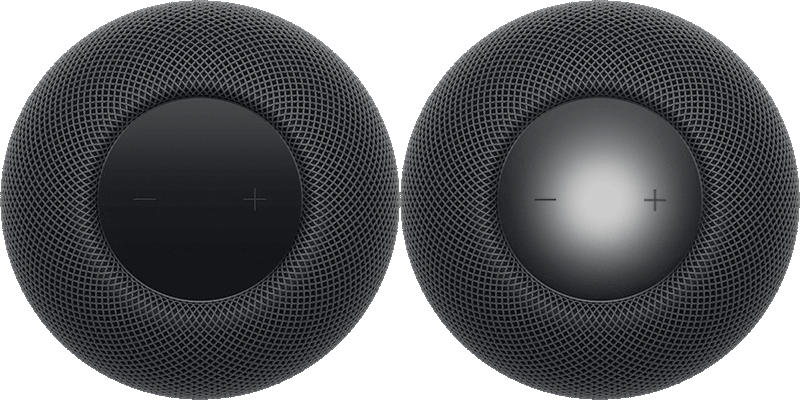
- Turn on VoiceOver: Tap Accessibility to access settings for VoiceOver and for Touch Accommodations. See Use the HomePod touch controls.
- Use HomePod with a doorbell: If you have a HomeKit accessory that you use for a doorbell, tap Doorbell Chime on HomePod and then choose which HomePod speakers should chime when someone rings the doorbell. And, if you have HomeKit Secure Video with Face Recognition turned on, HomePod will announce who’s there.
Block explicit content
You can block explicit content for a specific HomePod user in your home. That way, when the person makes a request, HomePod won’t play songs, albums, or podcast episodes that contain explicit content.
- Start the Home app on your iPhone or iPad.
- Tap the More button, then tap Home Settings.
Note: If you have more than one home, you see settings for your current home (based on your location). To edit a different home, tap Homes, then tap the home you want to edit.
- Tap a user, then turn off Allow Explicit Content.
Turn off listening history
When Apple Music is the default music service for your HomePod, the songs you play on HomePod shape how Apple Music identifies music you like, and your followers on Apple Music can see your listening history. You can turn off your listening history to prevent this, but your podcast history and subscriptions turn off, too, until you turn the setting back on.
- Start the Home app on your iPhone or iPad.
- Tap the More button, then tap Home Settings.
Note: If you have more than one home, you see settings for your current home (based on your location). To edit a different home, tap Homes, then tap the home you want to edit.
- Tap a user, then turn off Update Listening History.
Turn on sound check
Sound check keeps the volume level consistent for the music and podcasts you play from HomePod.
- Start the Home app on your iPhone or iPad.
- Tap the More button, then tap Home Settings.
- Scroll down and turn on Sound Check.
Turn automatic HomePod software updates on or off
- Start the Home app on your iPhone or iPad.
- Tap the More button, then tap Home Settings.
- Tap Software Update and then turn on or off HomePod.
This guide is for HomePod software version 27 or later.
See also