KEY TAKEAWAYS
If your iPhone 16 isn’t ringing when you get a call, first make sure your phone is not muted and that the ringtone volume is loud enough. It’s also worth exploring whether you have Focus enabled, if you have reception, and if your mobile plan is working. You can further diagnose by disabling features like forwarding, filtering, handoff, and blocking. If all else fails, restart your iPhone.
Your iPhone can do a lot more than take calls, but good old-fashioned phone calls are central to the smartphone experience. If your iPhone 16, iPhone 16 Plus, iPhone 16 Pro or iPhone Pro Max is not ringing when someone calls you, you can miss important calls. This article explains how you can troubleshoot when your iPhone 16, iPhone 16 Plus, iPhone 16 Pro or iPhone 16 Pro Max does not ring when you get a call.
Check Your iPhone 16 Isn’t on silent mode
If your iPhone 16 is set to Silent mode, it won’t ring when you get a call. To fix this, put your phone back in Ring mode using the Action button on the left-hand side of the device.
To check if your iPhone 16 is silenced, short press the Action Button. A "Silent" icon will appear in the Dynamic Island to signal the change.
If your iPhone 16 is muted, long press the Action Button to unmute your device. You should feel a single haptic pulse and see a "Ring" icon appear in the Dynamic Island.
Turn the Ringtone Volume Up
If your ringtone volume is too low, you may not hear a call coming in if your iPhone is in your bag. So, it may appear that your iPhone 16 didn’t ring at all. You can quickly fix this by increasing the ring volume. The ring volume is different from your iPhone volume, which by default is controlled using the two buttons on the left side of the device. You can change your ring volume by going to Settings > Sounds & Haptics. Drag the sound Volume slider to the right. The further right it is, the louder your ringtone will be.
Below that, you might also want to toggle off Change with Buttons. Doing so will prevent you from accidentally lowering the ringtone volume when you’re changing the volume in gaming or video apps. When this option is disabled, the volume buttons only change the volume for media, not your ringtone.
Turn off Focus Modes like Do Not Disturb
If your iPhone 16 is in Do Not Disturb mode, incoming calls will go straight to voicemail without ringing. The same is true if you have a Focus mode enabled that’s set to block calls. Focus can be set up under Settings > Focus and controlled using the "Focus" button in Control Center (swipe down from the top-right-hand corner of your iPhone’s screen).
Depending on the Focus mode you have enabled and how you have set the feature up, only certain contacts may be able to contact you when Focus is enabled. Head to Settings > Focus to customize your settings, whitelist contacts, or allow all calls. You specifically want to change the "Allow Calls From" setting within a Focus mode’s settings.
Some Focus modes can be triggered automatically whenever you start a certain activity. For example, if you have set up the Fitness profile within Focus settings calls may be silenced whenever you start any type of workout on your Apple Watch. You can disable a mode, or set specific parameters to avoid it blocking your calls.
Check You’re Reachable via Cellular or Wi-Fi Calls
Not having cellular reception will prevent people from being able to reach you, so consider that a possibility if you’re not receiving calls. You can see your cellular reception in the top-left corner of the screen.
In areas of poor or no signal where you have Wi-Fi reception, you may also be able to use iPhone Wi-Fi calling. This will route standard cellular calls through the internet instead. For this to work you’ll need to enable Wi-Fi calling under Settings > Phone > Wi-Fi Calling.
Make Sure Your Mobile Plan is Active
If you have a pre-paid mobile plan that rolls over month-to-month, you could find yourself without service if a payment bounces or fails. This could be due to not having money in your account or not updating payment and contact details with your carrier.
If everything else seems normal, it’s probably worth checking with your provider that your mobile plan is still active. You can usually do this using your carrier’s iPhone app or by logging in on the web wherever you have Wi-Fi. Once you’ve paid your service should return to normal.
Disable Calls on Other Devices
Your iPhone 16 can pass calls on to your other devices whenever you’re in range. For example, if your iPhone is locked in your pocket but you’re using your Mac, the call should be passed on to your Mac. To prevent a chaotic scenario where all of your connected devices ring at once, your iPhone should remain silent while your Mac rings.
This feature doesn’t always work properly and might be something you’re not interested in using. Head to Settings > Apps > Phone > Calls on Other Devices and disable the feature entirely if you only want to use your iPhone for calls. If you have any specific devices that you want to prevent receiving calls, you can turn them off here too.
Check the Caller Isn’t Blocked by Mistake
Apple gives you the ability to block specific phone numbers, which is handy if you get a lot of telemarketing and other spam phone calls.
To make sure you didn’t accidentally block an important number by accident, you can check which numbers you’ve blocked. You can do this under the Phone app by tapping the "Contacts" tab and finding the person in question.
Scroll down to the very bottom of the contact card to see if they are blocked. You’ll be invited to "Unblock this Caller" if they are blocked. If you see "Block this Caller" instead then they aren’t on your list of blocked contacts.
You can also review your full list of blocked contacts by going to Settings > Apps > Phone > Blocked Contacts.
Disable the "Silence Unknown Callers" Option
If you want to minimize interruptions from spam callers and phone calls from people you don’t know, you might have enabled the Silence Unknown Callers feature on your iPhone 16. It’s a handy way to avoid unwanted calls, but you might discover that it sometimes prevents calls you actually need to receive – if an unknown caller tries to reach you, the phone won’t ring and the call goes directly to voicemail.
You can turn this feature off by going to Settings > Apps > Phone > Silence Unknown Callers.
Disable Any Call Filtering Apps
Call filtering apps like Truecaller and Hiya can help identify mystery numbers and automatically block spam callers. They may also block legitimate callers, so you might want to try disabling them or using in-app whitelisting tools for certain numbers. Instructions and features will differ on a per-app basis, depending on what you have installed.
Turn off Call Forwarding
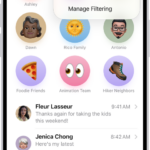
Call forwarding is handy if you need to temporarily send all incoming calls to another phone. That means that if you aren’t getting any calls on your iPhone at all, there’s a chance you had previously set up call forwarding and all calls are being redirected to another number. Check your call forwarding preferences under Settings > Apps > Phone > Call Forwarding.
Check a Contact’s Custom Ringtone
If the iPhone 16 won’t ring for a specific caller and that person isn’t blocked, then check to see if a custom ringtone you assigned to them isn’t working. You can do this under the Phone app on the "Contacts" tab by finding the contact in question. If you see the Ringtone section, you have added a custom tone for this person. Tap Ringtone, choose a different tone for them, and tap Done when satisfied.
Your iPhone 16 Won’t Ring when CarPlay is Connected
Your iPhone 16 won’t ring when it’s connected to CarPlay – the ring will be sent to your car’s speakers instead. This is to prevent you from having to touch your phone or answer it manually when it rings.
If you’re having trouble accepting phone calls via CarPlay you should look into restarting your car’s head unit or entertainment system. This could be as simple as stopping the engine, turning off the ignition, then starting everything up again. Some cars may require a manual restart instead.
Try Restarting Your iPhone
Sometimes, your iPhone may get "stuck" in headphones mode, meaning that it’s sending your ringtone to a device that’s not actually connected. This might include earbuds that aren’t plugged in or a Bluetooth device that isn’t turned on. This prevents your iPhone 16 from audibly ringing. Other times, iOS can simply crash and stop working properly. You can try fixing this by restarting your iPhone.
The easiest way to do this is to ask Siri to restart your iPhone for you.
Update Your iPhone and Reset All Settings
By this point, one or more of the above solutions should work if your iPhone 16 has been receiving calls but not ringing. But in case you’re still having problems, make sure you update your iPhone.
Head to Settings > General > Software Update to see if a new iOS version is available for your device. Additionally, launch the App Store and update your communication apps like WhatsApp, Messenger, Skype, and Zoom to ensure app-specific bugs aren’t causing the issue.
Finally, if you are still experiencing this problem, head to Settings > General > Transfer or Reset iPhone > Reset > Reset All Settings. This won’t erase personal data like music, photos, and apps. However, all the settings you’ve changed, like Wi-Fi, your Home Screen layout, notifications, and more, will return to default.
This can be a pain, but it confirms that no settings prevent your iPhone 16 from ringing when you get a call or text.
Get your iPhone 16 serviced
If none of the other troubleshooting tricks solved your iPhone 16 ringer problem, you probably have a hardware problem such as a damaged speaker.
It might be time to take your iPhone to a professional. On the Apple support webpage, you can choose options such as sending your phone to an Apple Repair Center, finding an authorized service provider, or scheduling an appointment to get support from a Genius at an Apple Store.