Facebook-f Twitter
GeeksChalk Logo GeeksChalk Logo
Notification
  • Home
  • iPhone
  • iPad
  • Mac
  • Apple Watch
  • Pages
    • About Us
    • Contact Us
    • Advertise With Us
  • 🤩 Trending:
  • 100 new iOS 26 features for iPhone
  • 10 Best iOS 26 Tips & Tricks
  • iPhone 16: Everything We Know
  • iPhone 16 Pro: Everything We Know

GeeksChalk is the leading source for all things iPhone, Mac, iPad, Apple Watch, Vision Pro, and more

GeeksChalkGeeksChalk
  • Home
  • iPhone
  • iPad
  • Mac
  • Apple Watch
Search

Popular Post

iPhone 15 Pro in black titanium, white titanium, blue titanium, and natural titanium finishes.
iPhone

Apple CarPlay GPS Not Working, Showing Wrong Location: Fix

iPhone 14 Pro and iPhone 14 Pro Max are shown in gold.
iPhone

How to Fix iPhone not sending text messages to Android

Connect an iPhone to car Bluetooth
Troubleshooting

How to fix Bluetooth not working on iPhone after iOS 26 update

iPhone outline with an Apple logo
iPhone

Need to restore an iPhone backup? Here’s how

Follow US
Copyright © 2026 www.GeeksChalk.com
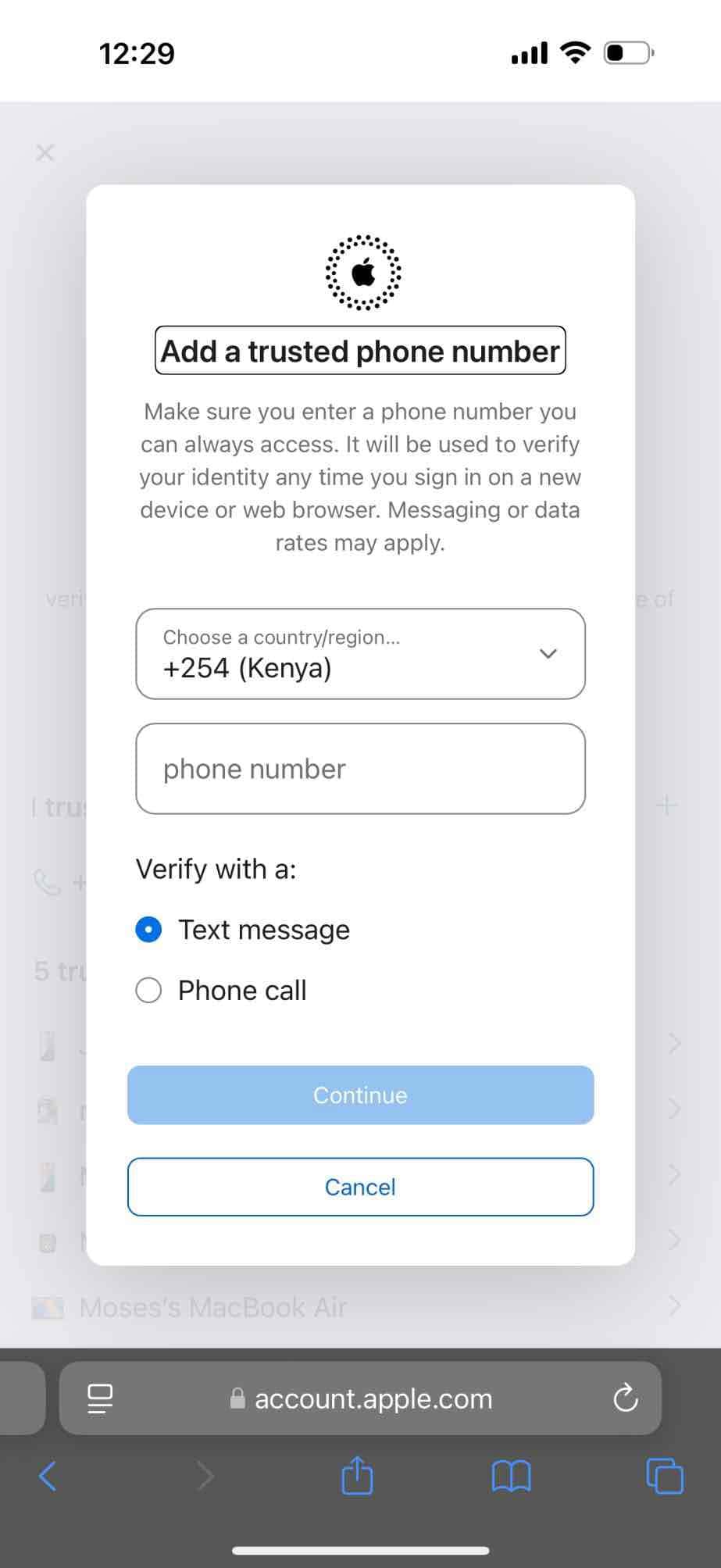
Add a trusted phone number
GeeksChalk > How To > How to Change Apple Account Phone Number

How to Change Apple Account Phone Number

Learn how to change your Apple Account number using the Apple Account site

Last updated: November 12, 2024 12:38 am
By Dave Johnson - Senior Staff Writer
Share
2 Min Read

Your Apple Account is connected to a phone number. This number is very important. You should always ensure that this number is up to date. This phone number may get verification text messages that allow you to log in to various Apple services like iCloud, App Store and more. Furthermore, this phone number may be used to verify your identity when you need to recover your account.

Your phone number will be used for two-factor authentication. Your Apple Account phone number may get a verification code when you sign in on a new device or browser. This phone number is called your trusted phone number.

You can update this phone number. If you have changed your phone number, you should add this number to your Apple Account and remove the old number. There are multiple ways to do this.

You should note that you can have multiple Apple Accounts, and you can use the same number for each account.

Change your Apple Account number using the Apple Account site

  1. Open a browser and visit the Apple Account page then sign in.
  2. Tap Account Security.
  3. You will be shown your current trusted phone number. We will change this.
  4. First, we will add a new phone number. Click the plus ( ) button to add a trusted phone number.
  5. A new popup will appear saying, “Add a trusted phone number. Be sure to enter a phone number you can always access. It will be used to verify your identity any time you sign in on a new device or web browser. Messaging or data rates may apply.”
  6. This number will need to be verified to ensure it belongs to you. Select Text Message or Phone Call, depending on your preferred verification method. Then click Continue.
  7. You may be asked to enter your Apple Account password again for extra security.
  8. Then the new number will receive a message or call, depending on your choice. I picked the Text Message option. You will need to enter the verification code on the next screen and then click Continue.
  9. After successfully verifying the new number, it will be added to your Trusted Numbers. Now you can remove the old one by clicking the minus (–) button. If you no longer use it, make sure to remove it from your account.

You will also receive an email from Apple confirming that your Apple Account information has been updated.

You should also note that it is possible that your new phone may be verified without receiving the verification code. Sometimes, Apple may be able to verify the new number in the background automatically.

Lastly, if the new number was added as a contact phone number for the Messages app, the verification code won’t be sent, and thus, you won’t need to verify it.

TAGGED:Apple Account
ByDave Johnson
Senior Staff Writer
Follow:
Dave Johnson is a staff writer for GeeksChalk based in New Jersey. He covers news, how-tos, and user guides for iPhone, iPad, Mac, and Apple Watch.
Leave a Comment Leave a Comment

Leave a Reply Cancel reply

Your email address will not be published. Required fields are marked *

Recent News Flash

A close-up view of the back of iPhone 17 Pro.

How to Use FaceTime Using Dual Camera on iPhone]

Incoming Call on an iPhone

How to fix iPhone not ringing after iOS 27 update

iPhone 17 Pro, cosmic orange finish, partial back exterior, pro camera system in top left corner, 3 lenses, microphone, flash  

AirPrint Not Working after iOS 27 Update? Here’s How to Fix it

New iOS 27 Features You Should Know About Feature 1

30 New iOS 27 Features You Should Know About

Trending Now

Siri AI dynamic island

How to Turn On Siri AI on Your iPhone

How to use an iPhone keyboard

How to type ©, ™, and ® symbols on iPhone, iPad, and Mac

iOS 27

Where Did Spotlight Search Go in iOS 27?

Explore More

Recommended For You

Siri AI On screen awareness

How to Use Siri’s Onscreen Contextual Awareness in iOS 27

Ask Siri AI prompt on the screen

Siri AI tips and tricks: 14 things to try in iOS 27

iOS 27 Siri app

How to Set Up and Use the New Siri AI on iPhone, iPad, Mac, and Apple Watch

In Settings on iPhone, tap "Software Update"

How to Turn Off iOS 27 Beta Updates Without Erasing Your iPhone

GeeksChalk Logo GeeksChalk Logo
  • Home
  • Contact Us
  • Advertise
  • Our Staff
  • Editorial Guidelines
  • Terms
  • Privacy
  • Accessibility
  • Copyright
  • About Us
  • Fact Checking Policy
  • Correction Policy
  • Ethics Policy
  • Ownership Policy
Copyright © 2026 www.GeeksChalk.com
Welcome Back!

Sign in to your account

Username or Email Address
Password

Lost your password?