Facebook-f Twitter
GeeksChalk Logo GeeksChalk Logo
Notification
  • Home
  • iPhone
  • iPad
  • Mac
  • Apple Watch
  • Pages
    • About Us
    • Contact Us
    • Advertise With Us
  • 🤩 Trending:
  • 100 new iOS 26 features for iPhone
  • 10 Best iOS 26 Tips & Tricks
  • iPhone 16: Everything We Know
  • iPhone 16 Pro: Everything We Know

GeeksChalk is the leading source for all things iPhone, Mac, iPad, Apple Watch, Vision Pro, and more

GeeksChalkGeeksChalk
  • Home
  • iPhone
  • iPad
  • Mac
  • Apple Watch
Search

Popular Post

iPhone 15 Pro in black titanium, white titanium, blue titanium, and natural titanium finishes.
iPhone

Apple CarPlay GPS Not Working, Showing Wrong Location: Fix

iPhone 14 Pro and iPhone 14 Pro Max are shown in gold.
iPhone

How to Fix iPhone not sending text messages to Android

Connect an iPhone to car Bluetooth
Troubleshooting

How to fix Bluetooth not working on iPhone after iOS 26 update

iPhone outline with an Apple logo
iPhone

Need to restore an iPhone backup? Here’s how

Follow US
Copyright © 2026 www.GeeksChalk.com
iPhone 18 Pro Max, iPhone 18 Pro, a hand holds each model
GeeksChalk > Troubleshooting > Credit Card About to Expire Error on iPhone 18 Pro? Fix

Credit Card About to Expire Error on iPhone 18 Pro? Fix

Remove the card in Wallet and add it again if your iPhone 18 Pro or iPhone 18 Pro Max says your credit card is about to expire when it isn't.

Last updated: September 28, 2026 4:39 pm
By Kristina Terech - Staff Writer
Share
2 Min Read

An issue may occur where you can not use your valid credit card payment method and get an error message saying, “Your credit card is about to expire,” when you want to make purchases from the App Store and use subscriptions. The message further tells you to sign in and update the billing info with the new card details. If you run into this issue, you won’t be able to use your card for the App Store, iCloud+, Apple Music purchases and subscriptions. See App Store Keeps Asking For Credit Card Info on iPhone 18 Pro.

If your credit card has expired or is about to expire, then fixing this problem is easy. You will simply update your payment method for your Apple Account and enter the new card details. Credit cards generally expire somewhere between two to eight years. Your credit card issuer usually mails the new card long before your actual expiration date. Even after your credit card expires, your account attached to it will still be active.

But what if you get this credit card expiring notice even if your card is not expiring any time soon (like years away) and your card is perfectly valid and nothing needs to be updated? Obviously, Apple’s system mistakenly thinks that your card is going to expire soon and won’t charge it for the purchase. In this article, I explain what you can do to fix this problem.

Fixing the credit card expiring notification

This is an important problem for two main reasons:

  • Obviously, you won’t be able to buy new apps, games or other content from the App Store, iTunes Store and more.
  • Your active subscriptions may be canceled. This can create severe issues like service interruptions or cancellations if you have important subscriptions, like iCloud+ and such.

If you are experiencing this issue and have active subscriptions, you may receive emails from Apple telling you upcoming charges for your subscriptions will fail and that you should update your payment details. Until you fix this problem, your subscriptions will fail to renew.

There are two suggested fixes for this issue. Try the first one first, and then if your problem continues, try the second one.

Fix 1:

It seems that removing the credit card and then re-adding it fixed the problem for many. Here is how you can do this:

  1. On your iPhone 18 Pro, tap Settings > Wallet & Apple Pay.
  2. Tap your credit card.
  3. Scroll down and tap Remove Card.
  4. After removing the card, now tap Add Card and add the same card again.

Fix 2:

It seems that Apple Pay is causing this problem where a limited number of users are having an issue with credit cards that are linked to Apple Pay. Here is how you can fix this:

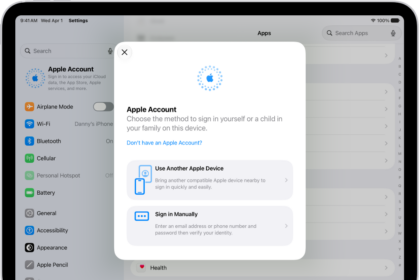
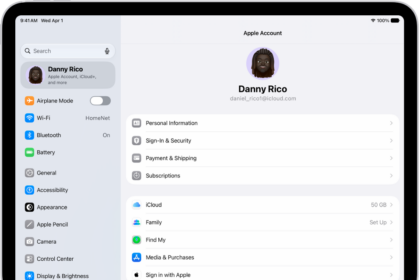
  1. Go to Settings > Your Name (Apple Account) > Payment & Shipping. You may be asked to enter your Apple Account password to continue.
  2. Tap the payment method that is linked to your Apple Account.
  3. Tap Remove Payment Method.
  4. Tap Add Payment Method and enter your credit card details. Do not link this payment method to Apple Pay.

Now you can start downloading apps, and your subscriptions will renew.

TAGGED:Apple AccountiPhone 18 ProWallet & Apple Pay
ByKristina Terech
Staff Writer
Follow:
Kristina is a staff writer at GeeksChalk, and is interested in all things Apple. This includes its best products such as the iPad, iPhone, Mac, AirPods, and Apple Watch. When she's not tinkering with the latest Apple gear, you’ll find her watching movies, taking pictures and exploring the great outdoors.
Leave a Comment Leave a Comment

Leave a Reply Cancel reply

Your email address will not be published. Required fields are marked *

Recent News Flash

The front of a burgundy iPhone 18 Pro is displayed next to a rear-facing burgundy iPhone 18 Pro Max.

iPhone 18 Pro Not Showing Up in Finder on Mac? Here’s Why

A burgundy iPhone 18 Pro with coordinating case is paired with a magenta Crossbody Strap.

Notes Disappeared on iPhone 18 Pro? How to Recover Them

iPhone 18 Pro in glacier is paired with the Clear Case.

Wordle Shows a Blank Page on iPhone 18 Pro? Here’s the Fix

iPhone 18 Pro Max, iPhone 18 Pro, a hand holds each model

Can’t Transfer Photos From iPhone 18 Pro to Windows? Fix

Trending Now

The front of a burgundy iPhone 18 Pro is displayed next to a rear-facing burgundy iPhone 18 Pro Max.

iPhone 18 Pro is eSIM-Only in These Countries

iOS 27

How to prep your iPhone for iOS 27 Public Beta

ios 27 siri animation

The Apple Intelligence Features to Skip in iOS 27

Explore More

Recommended For You

iPhone 18 Pro is displayed in black, silver, glacier, and burgundy.

Notifications Disappearing From iPhone 18 Pro Lock Screen

The front of a burgundy iPhone 18 Pro is displayed next to a rear-facing burgundy iPhone 18 Pro Max.

Google Unusual Traffic Error on iPhone 18 Pro? How to Fix

iPhone 18 Pro and iPhone 18 Pro Ma iPhone 18 Pro, back exterior, burgundy color (dark red)

iPhone 18 Pro Unable to Download App From The App Store? Fix

iPhone 18 Pro in glacier is paired with the Clear Case.

Can’t Search iPhone 18 Pro Settings After iOS Update? Fix

GeeksChalk Logo GeeksChalk Logo
  • Home
  • Contact Us
  • Advertise
  • Our Staff
  • Editorial Guidelines
  • Terms
  • Privacy
  • Accessibility
  • Copyright
  • About Us
  • Fact Checking Policy
  • Correction Policy
  • Ethics Policy
  • Ownership Policy
Copyright © 2026 www.GeeksChalk.com
Welcome Back!

Sign in to your account

Username or Email Address
Password

Lost your password?