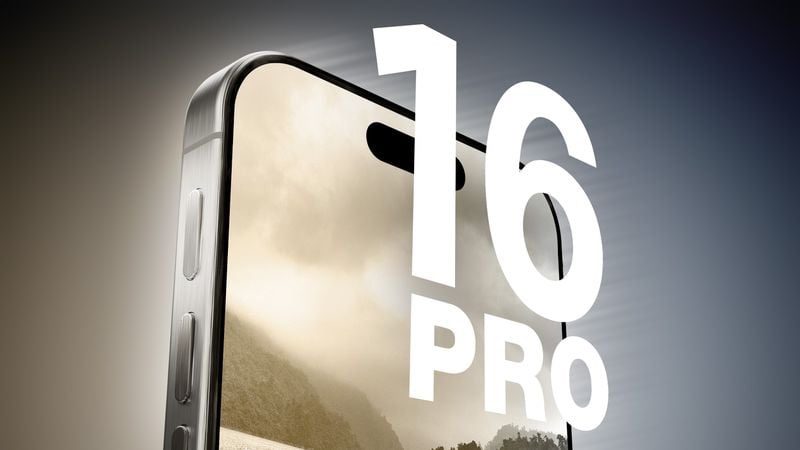
Are you unable to hear sound during phone calls or FaceTime calls on your iPhone 16 Pro? Sometimes you may notice the call on the other end’s voice breaks or is inaudible. If you’re having trouble hearing the person on the other end of your phone call, help is at hands. In this article, I’ll walk you through all the possible solutions to fix an iPhone 16 Pro no sound on calls issue.
Calling is one of the primary functions of your iPhone. However, sometimes you cant hear anything when making calls on your iPhone 16 Pro. This post will guide you through some simple solutions that will, hopefully, fix an iPhone 16 Pro no sound during phone calls issue. See this article if you’re iPhone 16 Pro isn’t ringing when called.
Note: information in this article apply to iPhone 16, iPhone 16 Plus, iPhone 16 Pro, and iPhone 16 Pro Max.
How to fix iPhone 16 Pro no sound on calls
If your iPhone 16 Pro has no sound during calls, try these steps:
1. Make sure your iPhone has service
The first step when you find sound is not working during phone call on iPhone 16 Pro is obvious. It’s entirely possible that there’s nothing wrong with your iPhone and that the network is to blame. You can try using your iPhone in an area within your operator’s network coverage to fix the problem.
You may also want to contact your service provider to check the network stability or if there have been any network interruptions in your area.
If your service provider confirms that there is currently an issue, you may need to wait until your service provider resolves the current network problems.
If your service provider confirms that there are no current issues with the service, proceed to the next step.
2. Maximize the Call volume
If you are still having this problem, try turning up the call volume on your phone, or if the caller is having trouble hearing you, suggest they do the same.
While the call is in progress, press the Volume Up button several times until you and your caller report that you can hear each other fine.
If you still can’t hear anything, please try to talk through speaker phone during phone call.
To turn on the speakerphone on your iPhone 16 Pro, tap the phone icon in the upper left corner while on an active phone call, and then tap the speaker icon. If the sound is still unclear, that could be a network issue.
3. Ensure the iPhone isn’t connected to a Bluetooth device
If you’ve paired the iPhone with wireless headphones, a speaker, or any other device via Bluetooth, the sound will come out from the accessory instead of the receiver. To fix this, disconnect the wireless device. You can also turn off Bluetooth entirely by going to Settings > Bluetooth. If the issue persists, please proceed to the next step.
4. Make Sure Nothing Is Blocking The earpiece
Make sure the earpiece is not blocked by the protective case or screen protector. If you use a rugged case, waterproof case, or screen protector that covers the top earpiece, microphone, or speakers, remove them! In addition, check whether the receiver is being blocked or dirty. If so, please use a soft dry cloth or a small soft brush to clean it. If you’re still having trouble hearing the person on the other end of your phone call, please check the next solution.
5. Clean the USB-C port
As you can imagine, a lot of dust, as well as lint and other debris, can make its way into the USB-C port over time. This might cause the problem, as dirt can “trick” your iPhone into thinking headphones are plugged in.
First, look into the port to see just how dirty it is. A flashlight might come in handy for this. Next, try and clean it and hope that solves the issue. There are many ways to do this, and some work better than others. One option is to blow into the USB-C port, which should take care of at least some of the dust and lint found inside. You can also use a can of compressed air if you have one nearby.
Another great option is to use a cotton swab. Push it into the port and swirl it around to get the dust and lint out. Be very careful when doing this, as the last thing you want to do is cause more damage to the device. You can also damp the cotton swab with rubbing alcohol but make sure you don’t use too much of it.
6. Restart Your iPhone
If everything seems to be in order, but you can’t hear sound during call on your iPhone 16 Pro, there’s another simple fix you can try, which is restarting your device. This can sometimes solve sound related problems and takes less than a minute. Go to Settings > General > Shut Down. Drag the power off slider to turn off your device. Wait for a minute and power your iPhone back on.
If the issue persists, please proceed to the next step.
7. Update your iPhone
Keeping your iPhone updated is a good way to overcome minor software issues, probably even the sound ones. To update your iPhone, go to Settings > General > Software Update.
8. Connect a headset and see if sound works
If you can’t hear anything with the built-in speakers after trying all of the above steps, but are able to hear sounds via the headset when a headset is connected, there could be a problem with your built-in speaker(s).
If you believe an issue is tied to the built-in speakers, then you will most likely have to visit an Apple Store to have your speaker serviced. If the device is under warranty, it should be replaced for free. Otherwise, you may be facing a bench and labor charge.
9. Reset Network Settings
The problem of iPhone 16 Pro no sound on phone calls can also be caused by a glitch in network settings. If none of the above solutions work to fix the issue, consider resetting the network settings of your iPhone. Go to Settings > General > Transfer or Reset iPhone > Reset > Reset Network Settings.
10. Factory-reset an iPhone
If you still can’t hear calls on your iPhone 16 Pro, there is one last thing you can do before seeking professional help. A factory reset will completely wipe your iPhone, and the complete operating system will be set to its default settings. If the problem isn’t hardware, a factory reset should fix any software bugs that might be preventing you from hearing calls on your iPhone 16 Pro. Go to Settings > General > Transfer or Reset iPhone > Erase all Content & Settings.
11. Contact Apple Support
If none of the fixes above work, the problem isn’t as minor as hoped. contactingApple Support is the last thing to do when you can’t hear calls on your iPhone 16 Pro. . There could be a hardware issue with your iPhone! Apple provides support over-the-phone, online, through the mail, and in-person. Explain the problem to the company, and send it in for repair or replacement.
Fixed iPhone 16 Pro no sound during calls
These are the best solutions to successfully fix an iPhone 16 Pro sound not working issue during calls. Please let us know which tips worked for you in the comments. Do you know of any other tips to fix the problem? We’d love to hear about it as well.