Sometimes it becomes necessary to change your iCloud email address. Maybe you no longer use the primary email address that’s associated with your Apple Account, or you no longer have access to it, you can change it. You won’t lose access to your contacts, purchases, or other account information.
Your iCloud email is linked to your Apple Account on all your devices. So if you want to change your iCloud email, you have to change the email associated with your Apple Account.
The easiest way to change your iCloud email address is with your iPhone or other trusted device. A trusted device is a device that you’re already signed in to with your Apple Account.
Keep in mind that you can’t use an email address that’s already in use by another Apple Account.
Apple ID is now Apple Account. You can still sign in to iCloud with the same email address or phone number and password.
Change your iCloud email address on your iPhone or iPad
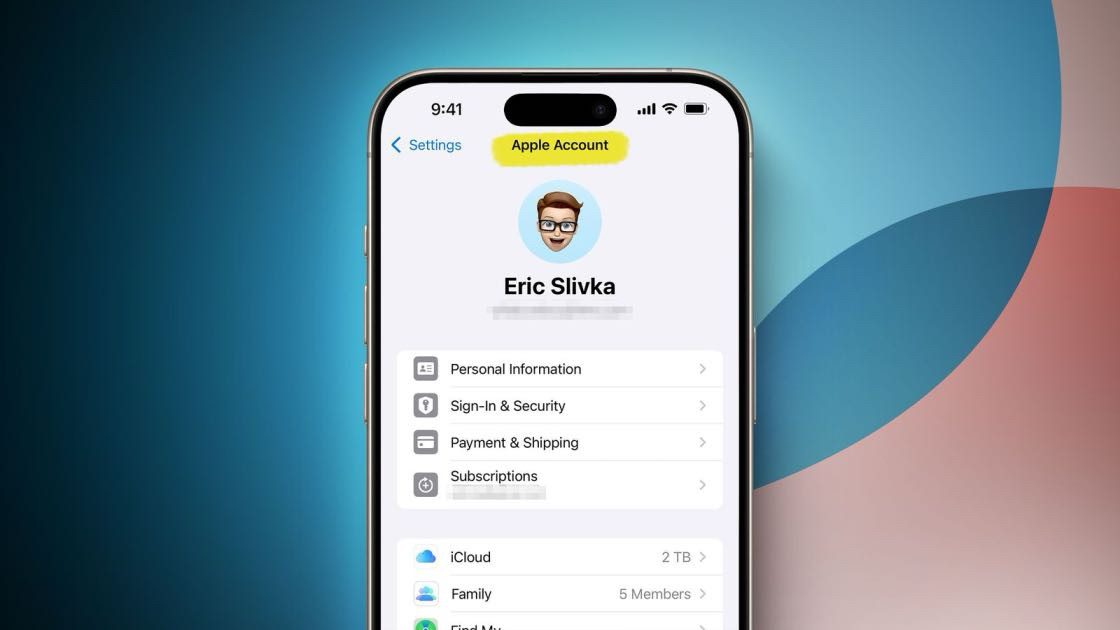
- Open the Settings app, then tap [your name].
- Tap Sign-In & Security.
- Tap your primary email address to make changes.
- To remove this email address from your account, tap Remove from Account. If you want to keep the current email address associated with your Apple Account but change to a different primary email address, turn off Primary Email.
- You’re prompted to choose another primary email address. You can either choose one of your other email addresses associated with your account as the new primary, or add a new primary email address.
- Follow the onscreen steps to enter and verify your new primary email address.
- Once it’s verified, just go to the iCloud websiteand sign in with your new email address.
If you remove an email address that isn’t an iCloud email address from your Apple Account, it can’t be associated with another Apple Account for 30 days for security reasons.
If you only have an iCloud email address associated with your Apple Account
You can change your iCloud email address using a device with iOS 18.1 or later, and iPadOS 18.1 or later.
If your only email address associated with your account is an iCloud email address, you won’t see an option to Remove from Account. Instead, you’ll see an option to Change Email Address.
Choosing this option changes only your existing iCloud email address. You’ll continue to be able to use your iCloud Mail and the messages sent to it. Your new iCloud email address replaces the old email address.
How to change your iCloud email address on the web
When possible, the Apple Account website redirects you to a trusted device to manage your Apple Account. If you’re not using a trusted device, you can still change your iCloud email address on the web. If you want to change your iCloud email address, use your iPhone with iOS 18.1 or later or iPad with iPadOS 18.1 or later.
- Head over to account.apple.com and sign in to your Apple Account.
- Go to Sign-In and Security, then choose Email & Phone Numbers.
- Click the Remove button next to primary email.
- Enter the email address that you want to use, then hit Change Primary Email.
- Check your email for a verification code, then enter the code.
- Once it’s verified, just go to the iCloud websiteand sign in with your new email address.
If you remove an email address that isn’t an iCloud email address from your Apple Account, it can’t be associated with another Apple Account for 30 days for security reasons.
If you can’t change your iCloud email address
If you see a message that the email address you want to use isn’t available or is already in use, check that you or a family member aren’t already using that email address with a different Apple Account. If a family member is using that email address, ask them to remove it from their account, then try to use it.
If you remove an email address that isn’t an iCloud email address from your Apple Account, it can’t be associated with another Apple Account for 30 days for security reasons.
Update Your Devices
Once you have your Apple Account switched to a new email, you’re also going to need to update your devices. Here’s how:
On an iPhone or iPad
- Open the Settings app, then tap your name.
- Scroll down to the bottom.
- Tap Sign Out.
- Enter your Apple Account password and tap Turn Off.
- Turn on the data that you want to keep a copy of on your device.
- Tap Sign Out.
- Tap Sign Out again to confirm that you want to sign out of iCloud.
- Go to Settings .
- Tap Apple Account.
- Enter your new Apple Account email address then enter your password
- If prompted, enter the six-digit verification code sent to your trusted device or phone number to complete sign-in.
On a Mac
If you need to change your Apple Account from a Mac, then follow these steps:
- Choose Apple menu > System Settings.
- Click your name, then click Sign Out.
- If you want to keep a copy of your iCloud data on your Mac before you sign out, make sure that you select the appropriate checkboxes. Then click Keep a Copy
- In macOS Ventura or earlier, if you want to keep a copy of your Safari passwords on your Mac, click Keep on This Mac.
- Choose Apple menu > System Settings.
- From the sidebar, click Sign in.
- Enter your new Apple Account email address and your password.
- If prompted, enter the six-digit verification code sent to your trusted device or phone number and complete sign in