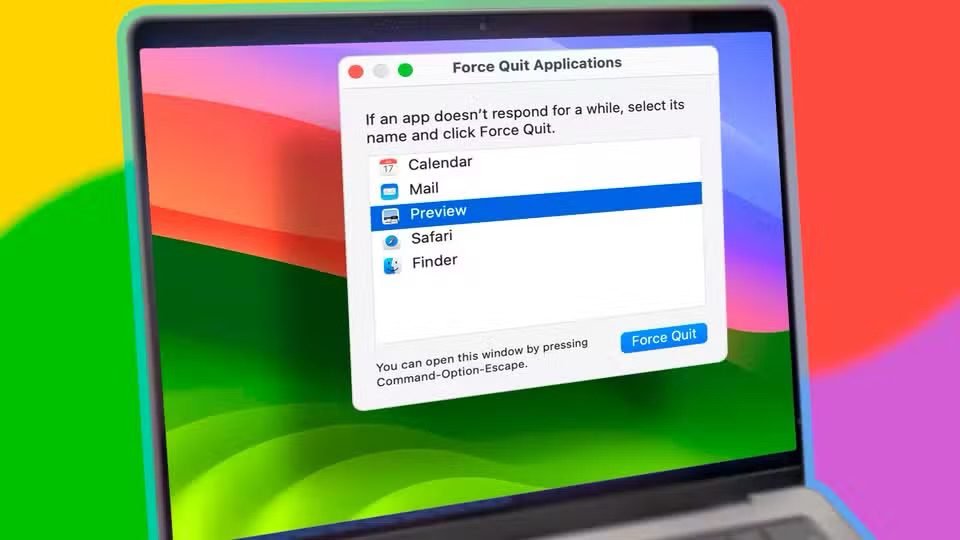
If you’re having trouble with an app on your Mac, force quitting can help fix the issue. macOS gives you many different ways to do this. Here are all the ways to force quit an app on Mac. The steps in this article will work on Mac, MacBook Pro, MacBook Air, Mac mini, and iMac
To begin with, note that macOS sometimes keeps apps active on the dock even if you press the close button on the window. This is because although Windows mostly treats the close button as the quit button, that’s not the case with macOS. Close and quit are separate actions on a Mac, and then there’s force quit for unresponsive apps.
The 6 Best Ways to Force Quit a Mac App
How to close or quit an app on Mac the regular way
If you have an open window on a Mac, you can close it by pressing the close button on the top left corner of the window. It’s a circular red button with a cross inside it. You can also sometimes find the close option in the File menu on the menu bar. Alternatively, you can use the close app keyboard shortcut on Mac, by pressing the Command key (⌘)and W.
If you want to quit the app entirely, you can use the quit app shortcut on Mac, by pressing the Command key (⌘) and Q. You can also find this option in the App menu on the menu bar.
- Click the app name on the menu bar, typically next to the Apple logo. For example, Google Chrome will say ‘Chrome’.
- Click Quit App.
The word App here is a placeholder, so if you’re trying to quit the Passwords app, you’ll see “Quit Passwords” in the App menu.
Lastly, you can quit the app from your Mac’s Dock by Control-clicking and picking Quit in the menu that appears. It may take a few seconds in some cases.
Force quit an app on Mac with the dock menu
What we discussed above are ways to quit an app that’s been working perfectly fine. If you have a frozen app on Mac, force quitting is the way to deal with it. Here’s how to force quit an app from the Dock.
- When you Control-click the app, hold down the Option (⌥) (or Alt) key so the Quitmenu option changes to Force Quit.
- Select Force Quit.
Force Quit an App on Mac From the Menu Bar
The next easiest way to force quit an app on Mac is by using your menu bar.
- Click the Apple menu button at the top left of your screen (the Apple logo).
- select Force Quit…
- Select the app from the list.
- Click the Force Quit button.
Force Quit an App on Mac With a Keyboard Shortcut
Rather than using the menu bar, you can use a keyboard shortcut to open the Force Quit Applications window.
- Press Command (⌘) – Option (⌥) – Esc keyboard shortcut.
- Select the app and click Force Quit.
Using the Activity Monitor to kill an unresponsive app
Sometimes a menu bar app can hang or otherwise give you problems. You may not find the app listed in the Force Quit window. In such instances, you will need to use Activity Monitor to kill the menu app. If you’ve used a Windows machine before, Activity Monitor in macOS is like Task Manager on Windows.
- Open Launchpad from the dock or the four-finger pinch gesture.
- Open Activity Monitor. You can use the search function to find it quickly.
- Find the app listed or search for it using the search bar in the upper-right corner.
- Click on the app to highlight it.
- Click the Force a process to quit button, which is located in the upper-left corner and has a stop sign with an X on it.
- Click Quit to quit the app, and if that doesn’t do it, follow the same steps and choose Force Quit.
Force quit an app on Mac with Terminal
You can also use the Terminal to close unresponsive apps on macOS. There’s usually no need to use this command line method, but if you’ve got a rogue freezing app that just won’t budge, try these steps.
- Open Launchpad from the dock or the four-finger pinch gesture.
- Open Terminal from the Other folder or by via Search.
- Type: killall [app name]. For example: killall Music. Make sure the name is spelled right and the program name is written in title case. If the program name has multiple words, put it in quotes. For example: killall “Google Chrome”.
- Press Return.
If you can’t force the app to quit
If you can’t force the app to quit, try restarting your Mac: Choose Apple menu > Restart.
If your Mac won’t restart, force your Mac to turn off:
- Press and hold the power button on your Mac for up to 10 seconds, until your Mac turns off.2
- Turn your Mac back on.