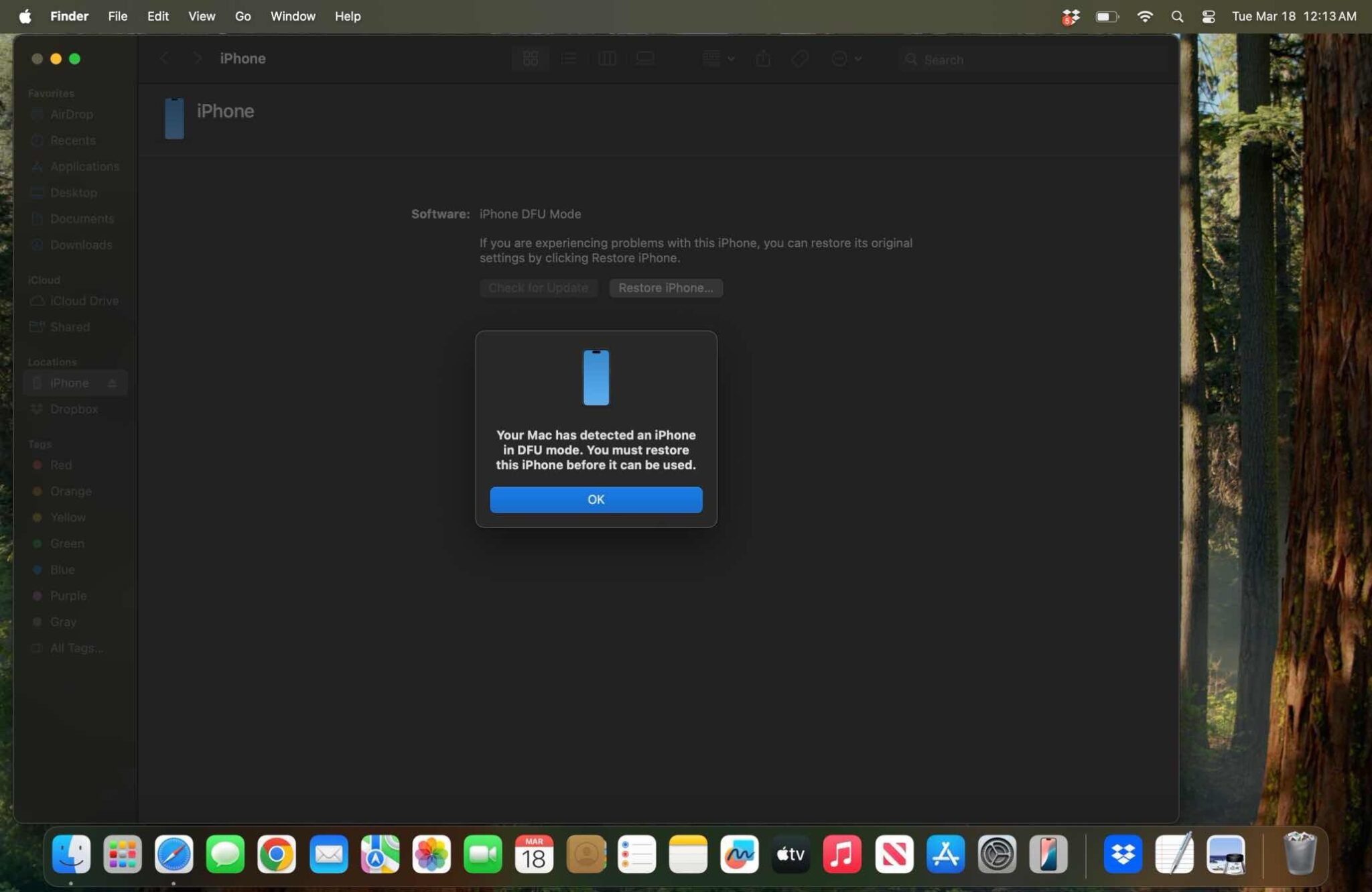
Most of the faults your iPhone software will develop can be solved with a few tricks or by resetting it using Recovery mode. On rare occasions, however, those options may not work. Before you search for the nearest Apple repair center, you should try to restore your iPhone using DFU mode instead.
. In this article, I’ll explain what DFU mode is, show you step-by-step how to DFU restore your iPhone, and how to exit DFU mode.
What Is DFU Mode?
DFU stands for Device Firmware Update, , and it’s the deepest type of restore you can do on an iPhone. It is an advanced recovery mode, as it fixes problems that are found in the firmware as well as the software.
In this mode, your iOS device is powered on, but your operating system isn’t booted up, so you can alter the operating system. Here, your device will interact with Finder or iTunes on a Mac or Windows computer without it automatically updating your iOS version.
Using DFU mode, you can upgrade or downgrade your iOS version, update from a beta version, and jailbreak your iPhone—or un-jailbreak your iPhone.
This is a useful last-resort fix to rule out software problems, and it’s an effective way to restore a device that is stuck on Apple’s logo, buggy, or unresponsive. Entering this mode is tricky, though, as it requires precise timing and multiple steps.
But don’t fret. If you follow the detailed instructions in the sections below, you’ll be able to use DFU mode successfully.
Does DFU Mode Delete iPhone Data?
When you restore your iPhone using DFU mode, it erases all the content on your iPhone. This works similarly to the iTunes restore method, which also deletes all of your data.
It completely erases your iPhone, deleting all of your photos, videos, messages, apps, and even the previously configured settings. When you’re finished with this mode, you’ll have to reset your device to use it. We recommend backing up your files before entering DFU mode, then restoring them after the process.
How to Put Your iPhone in DFU Mode
The process for putting your iPhone into DFU mode depend on which model iPhone you have. You’ll know you got it right if your computer recognizes the device but nothing shows up on the iPhone screen.
Before you begin:
- Back up your iPhone if possible, as a DFU restore will erase your iPhone data.
- Install the latest version of iTunes or macOS on your Windows or Mac.
- Macs running macOS Catalina 10.15 or newer use Finder to DFU restore an iPhone.
- Do not disconnect your iPhone when iTunes or Finder is actively reinstalling the system software and firmware.
- Do not try to use DFU mode to restore an iPhone that is water damaged, as this can make your device totally unusable.
- You’ll need a timer to count seconds (or you can do it in your head).
It is necessary to note that using DFU mode to downgrade iOS or jailbreak your device can cause damage and void the warranty.
Entering DFU mode involves a combination of pressing, holding, and releasing different buttons on your iPhone:
- The Home Button is the circular button below your iPhone’s display.
- The Sleep / Wake Button is Apple’s name for the power button.
You will also need a compatible USB cable to connect the device to a Mac or a Windows PC running the latest version of macOS or iTunes.
The key combinations for entering DFU mode differ depending on your iPhone model. Rest assured, no matter which iPhone you’ve got, we have specific instructions for you to activate DFU mode on your device.
How To Put An iPhone 8 Or Newer In DFU Mode
Follow these steps to enter DFU mode on an iPhone 8 or newer:
- Connect your iPhone to your computer and open iTunes if you have a Mac running macOS Mojave 10.14 or a PC. Open Finder if you have a Mac running macOS Catalina 10.15 or newer. It doesn’t matter if your iPhone is on or off.
- Quick-press the Volume up button and release, then quick-press the Volume down button and release, and then long-press the side button until the screen goes black.
- As soon as the screen turns black, long-press the volume down button while continuing to long-press the side button.
- After 5 seconds, release the side button while continuing to long-press the volume down button until your iPhone shows up in iTunes or Finder.
- As soon as it appears in iTunes or Finder, release the volume button. Voilà! Your iPhone is in DFU mode.
After entering DFU mode, your iPhone display will remain black. Keep in mind that if the Apple logo appears during the above steps, the process was not performed correctly. Start the process over from the beginning and try again.
How To Put An iPhone 7 In DFU Mode
Follow these steps to enter DFU mode on an iPhone 7:
- Connect your iPhone to your computer and open iTunes if you have a Mac running macOS Mojave 10.14 or a PC. Open Finder if you have a Mac running macOS Catalina 10.15 or newer. It doesn’t matter if your iPhone is on or off.
- Long-press the Sleep / Wake Button and the volume down button together for 8 seconds.
- After 8 seconds, release the Sleep / Wake Button while continuing to long-press the volume down button until your iPhone appears in iTunes or Finder.
- Release the volume down button. The iPhone 7 screen will remain blank while in DFU mode. If it’s not, try again from the beginning.
- Restore your iPhone using iTunes or Finder.
How To Put An iPhone 6S Or Earlier In DFU Mode
Follow these steps to enter DFU mode on an iPhone 6S or earlier:
- Connect your iPhone to your computer and open iTunes if you have a Mac running macOS Mojave 10.14 or a PC. Open Finder if you have a Mac running macOS Catalina 10.15 or newer. It doesn’t matter if your iPhone is on or off.
- Long-press the Sleep / Wake Button and the Home Button together for 8 seconds.
- After 8 seconds, release the Sleep / Wake Button while continuing to long-press the Home Button until your iPhone appears in iTunes or Finder.
- Release the Home Button. The iPhone screen will remain blank while in DFU mode. If it’s not, try again from the beginning.
- Restore your iPhone using iTunes or Finder.
How to Exit DFU Mode
If you are done with your update, or you mistakenly entered DFU mode on your iPhone, here’s how to exit it.
How to exit DFU mode on iPhone 8 or newer
- Quick-press the Volume up button and release.
- Quick-press the Volume down button and release.
- Long-press the Side button until the Apple logo appears. Your iPhone will boot back to the Lock screen.
How to exit DFU mode on iPhone 7
Long-press the Sleep / Wake Button and the volume down button together until you see the Apple logo appear. Your iPhone should boot back to the Lock screen.
How to exit DFU mode on iPhone 6S or Earlier
Long-press the Sleep / Wake Button and the Home Button together until you see the Apple logo appear. Your iPhone should boot back to the Lock screen.
DFU Is Powerful, But Not Perfect
A DFU restore is not the ultimate fix for all iPhone problems Some issues may be plain hardware faults and cannot be fixed with system software or firmware restore. If your iPhone stubbornly refuses to enter DFU mode, or the issues persist after performing a reset, consider seeking a professional repair instead.