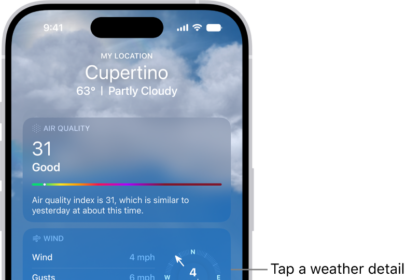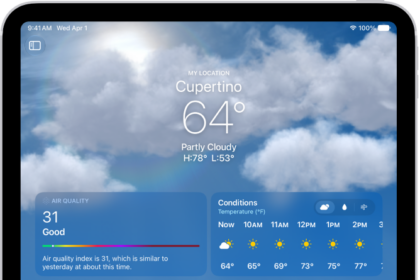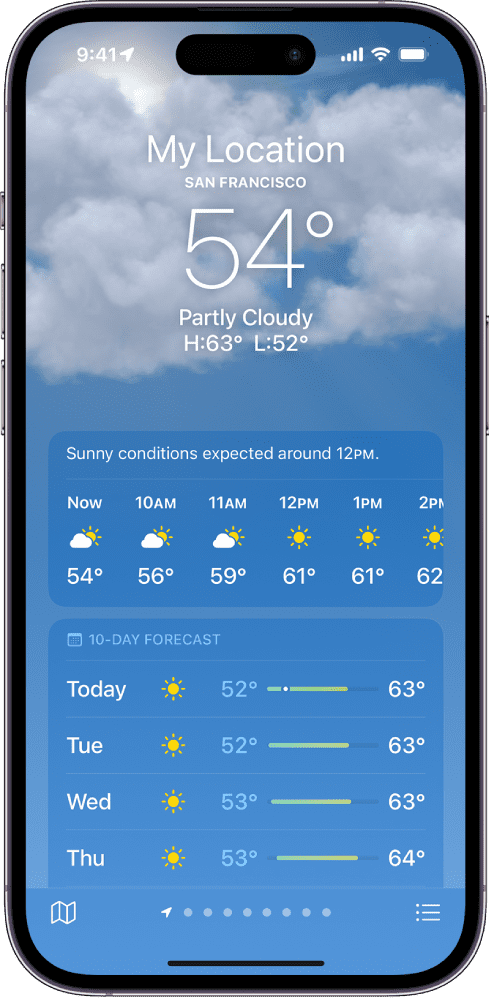
The Weather app allows you to check the weather conditions on your iPhone. If the Weather app stopped working on your iPhone after iOS 26 update, here’s how you can fix it.
Why is the Weather app not working on my iPhone after iOS 26 update?
The weather app may not be working on your iPhone after iOS 26 update due to an iOS glitch, trouble with your internet connection, or else background app refresh failing to occur. There are other possibilities. The app is highly dependent on iOS Location Services, so if there’s a problem with them, Weather data will fail.
How to fix the iPhone Weather ap problems in iOS 26
You’ve got a variety of options available, but it’s best to run through these troubleshooting steps one-by-one to help diagnose what’s going on. We’ve saved the more complicated and/or time-consuming options for last. Thankfully, most people will never need those.
Let’s jump into it:
Force-close the Weather app and reopen it. It’s possible that there’s a temporary glitch that can be solved by giving the app a fresh start. If nothing else, this forces Weather to fetch the latest data again, and you may have better luck the second time around.
Check if Weather is allowed to use Location Services. The Weather app need to know your location. Some apps, including Weather, will not work otherwise. It is a good idea to check your location services settings and ensure that Weather is permitted to access the location data. Go to Settings > Privacy and Security > Location Services and make sure the Location Services toggle is switched on.
Make sure the app has access to location data. Weather still needs permission to access Location Services, so head to Settings > Apps > Weather and set Location to Always, or at least While Using the App. The former is preferable, especially if you want time-sensitive notifications. In fact it’s a good idea to toggle on Precise Location too so you get Dark Sky-style hyperlocal forecasts — letting you know if it’s raining in your neighborhood, for instance, and not just the city in general. Back at the main Weather menu, check that the Cellular Data toggle is on.
See also: How to Fix iPhone Cellular Data Not Working After iOS 26 Update
Improve your Wi-Fi or cellular connection. The Weather app require an Internet connection to reach Apple’s weather servers to display the latest weather updates. Ensure that you’ve got a strong Wi-Fi or 4G/5G cellular signal. If you don’t, try switching from one connection method to the other when possible. Otherwise you may have to wait until you’ve relocated somewhere with better reception.
See also: How to fix iPhone not connecting to Wi-Fi after iOS 26 update
Check if Weather servers are up and running. Your iPhone may have a working Internet connection, but Apple’s weather servers may be experiencing outages. Related to this, Apple uses other service data providers to provide you with the weather content. They may also be having issues. This will cause the Weather app to stop working. If you see a blank page, this may be the issue. Further, if you have had intermittent issues with Weather, this again could be the cause. The good news is that you can check if this is the problem easily. Visit the System Status page (direct link). If the system status page indicates problems, wait for Apple to fix it.
Confirm that Background App Refresh is active, and disable Low Power Mode. It might seem trivial at first, but if background refresh is disabled, Weather can’t fetch any data until you open it. Navigate to Settings > General > Background App Refresh. Tap Background App Refresh and choose Wi-Fi and Cellular Data. If Low Power Mode is on and you don’t need it, disable it by tapping the yellow battery icon in Control Center or going to Settings > Battery. The mode limits background sync, which could impact Weather.
Scan for iOS updates. Although you can’t update the iPhone’s Weather app directly, Apple does sometimes make fixes or upgrades to the app via iOS releases. To update your iPhone, go to Settings > General > Software Update. Assuming a new iOS 26 version is available, make sure your iPhone is backed up, well-charged, and connected to Wi-Fi before you begin. Set aside 15 to 30 minutes or more as well. The download will probably take a while, and once installation is underway, your iPhone will be temporarily out of commission. You may want to enable Automatic Updates, which will update iOS whenever your iPhone is locked, charging, and connected to Wi-Fi. Usually that translates to overnight.
Delete the Weather app and reinstall it. Ironically, while you can’t update Weather separately, you can delete it from your iPhone and reinstall it via the App Store. Tap and hold its icon, choose Remove App from the pop-up menu, tap Delete App, then Delete to confirm. To get the app back, open the App Store, search for Weather, then tap the cloud icon to re-download it. You’ll probably have to relocate the app on your homescreen and/or re-add any Weather widgets you had active.