Wi-Fi is typically the fastest connection for your iPhone, so you’ll want to stay connected. In this article, I’ll show you how to connect your iPhone to a Wi-Fi network, including open, hidden, secure, public networks, and networks that you’ve connected with in the past.
Connect iPhone to a Wi-Fi network
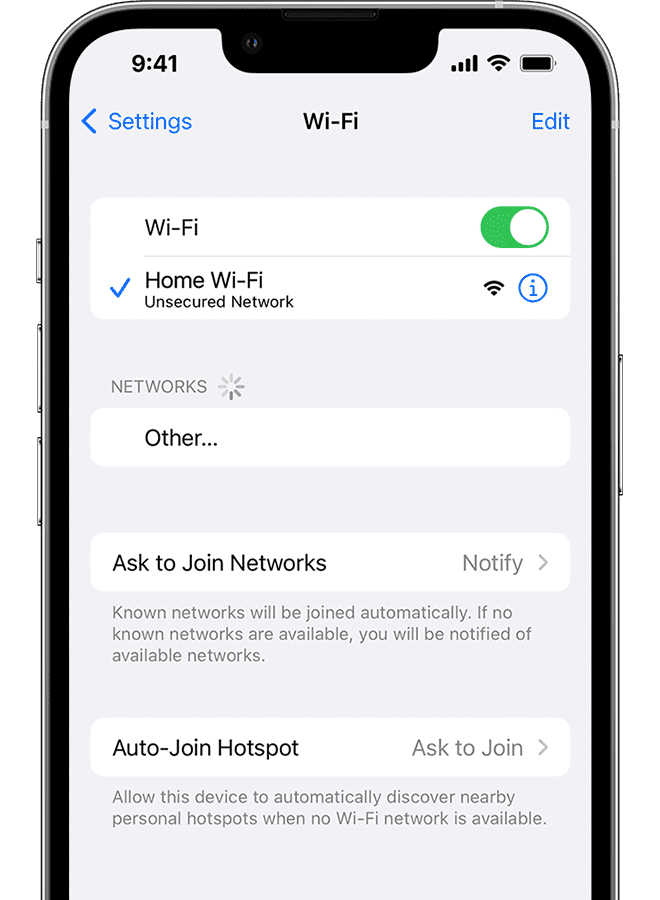
Head to Settings ⇒ Wi-Fi to display the Wi-Fi screen, and then make sure the Wi-Fi switch at the top is set on (green). You’ll then see the Wi-Fi networks that are available.
Tap the name of the Wi-Fi network that you want to join. Before you can join the network, you might be asked to enter the network’s password or agree to terms and conditions.
Once your iPhone is connected to a Wi-Fi network, that network’s name will appear below the Wi-Fi switch, with a blue check mark to the left of its name.
See also: How to fix iPhone not connecting to Wi-Fi
The Networks box shows other available Wi-Fi networks to which your iPhone has previously connected and for which it knows the password. Your iPhone connects automatically to these networks without consulting you, unless you’ve set the Auto-Join switch off (white) for a particular network. To connect to a different network, tap it.
Tip: To stop your iPhone using one of your networks, tap the i -in-a-circle next to the network, and then tap Forget This Network.
The Other Networks box shows available networks to which your iPhone has not previously connected (or which you’ve told it to forget). To connect, tap a network, and then jump through any security hoops that appear, such as typing the password.
The little arcs indicate the signal strength — the more black arcs, the stronger the signal. The lock icons indicate that the network uses security, such as a password you must enter.
At the bottom of the Wi-Fi screen lurk these two settings:
- Ask to Join Networks: Tap this button, and then tap Off, Notify, or Ask. Tapping Off means you’ll need to join networks in the Other Networks list manually. Tapping Notify makes iOS tell you other networks are available. Tapping Ask makes iOS prompt you to join other networks that are available.
- Auto-Join Hotspot: Tap this button, and then tap Never, Ask to Join, or Automatic to control how your iPhone treats available Wi-Fi hotspots.
To reduce the likelihood that your iPhone is being tracked, Apple may serve up a privacy warning if it detects a potential problem with your Wi-Fi network, such as if you’re not using a private Wi-Fi address. You can set the Private Wi-Fi Address switch on (green) to use a private address, at least for the networks that support this privacy feature.
Join a hidden network on iPhone
Sometimes you may need to connect to a network that doesn’t broadcast its name. Such networks are called hidden networks or closed networks. To connect to a hidden network on you’re iPhone, head to Settings ⇒ Wi-Fi. Tap Other, and then type the network’s name. On the Security screen, set the Private Wi-Fi Address switch on (green) and tap the network’s security type — try WPA2/WPA3 first if you don’t know which. Type the password and then tap Join.
For safety, avoid connecting to unknown Wi-Fi networks, even if they use security.