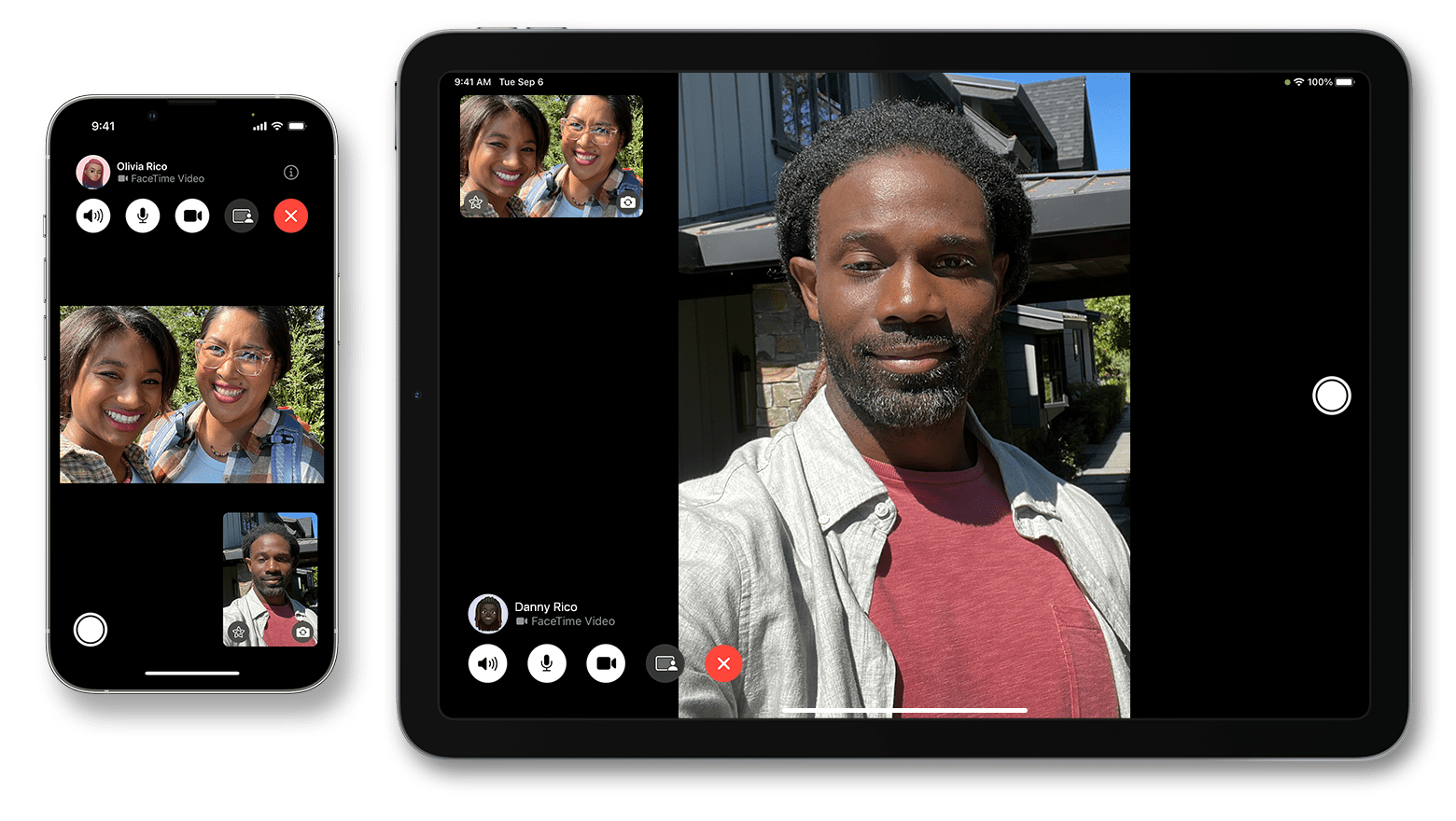
In this guide, we will show you how to put a Memoji or Animoji over your face during a FaceTime video call to change your appearance. You can use it to make the call fun or conceal your face.
Memojis and Animojis are spicier versions of emojis that you can use in places like iMessage chat, photos, and FaceTime calls. They use your iPhone or iPad’s TrueDepth camera to capture your facial movements and expressions.
You can superimpose a chosen Memoji over your face during a FaceTime call, and then what you say and the expressions you make are conveyed through that Memoji. For instance, if you raise your eyebrows, the Memoji character will mimic that. If you close your eyes, Memoji’s eyes will close. If you stick your tongue out, the Memoji will copy that, and so on.
Some might call the FaceTime camera effects gimmicky, and in a sense, they are. Nonetheless, it’s certainly a fun thing to try if you have an Apple device with Face ID.
Add a Memoji over your face during FaceTime video calls
- Open the FaceTime app on your iPhone or iPad and make a call or join one.
- Tap your tile (your own image in the call).
You can do this while the call is being placed or during an ongoing video call. If you don’t see the call controls, tap once on the screen to reveal them. - Tap Memoji. On iPhone 17, iPhone 17 Pro, iPhone 17 Pro Max, and iPhone Air, tap Camera Effects first, then tap Memoji.
Extra info: If you’d rather add Memoji or Emoji stickers to the call instead of becoming a Memoji, tap the screen during the call, tap the effects button, then choose the stickers option and tap a sticker to place it.
- Swipe through the characters at the bottom and tap the one you’d like to use. You can choose from being a monkey, panda, lion, dragon, chicken, ghost, snake, owl, and more. If you have created your own Memoji, you can choose that as well, and it will somewhat resemble a cartoonish version of your face or how you want to present yourself.
Note: You can put a Memoji over your face on FaceTime calls only when using the front-facing camera.
- With the Memoji selected, you’ll see the character over your face on the video call screen. Start speaking, and it will mimic your facial expressions. However, your voice will remain unchanged.
You can repeat the above steps to change your Memoji mid-call.
Important: While the Memoji character should stay over your face even if you move slightly or turn your head, it won’t remain superimposed if you move too much or move quickly. So, it may not be the best option if your goal is to hide your face completely during the video call.
Secondly, the Memoji will only appear over your face. If your face is not in the video call frame, the Memoji will disappear, and it will return when you re-position your face in the front-facing camera frame.
Remove Memoji from FaceTime call
Once you’re done goofing around, tap your tile again (on iPhone 17, iPhone 17 Pro, iPhone 17 Pro Max, and iPhone Air, tap Camera Effects), tap Memoji, then tap the None option at the start of the character row to return to your normal camera view.