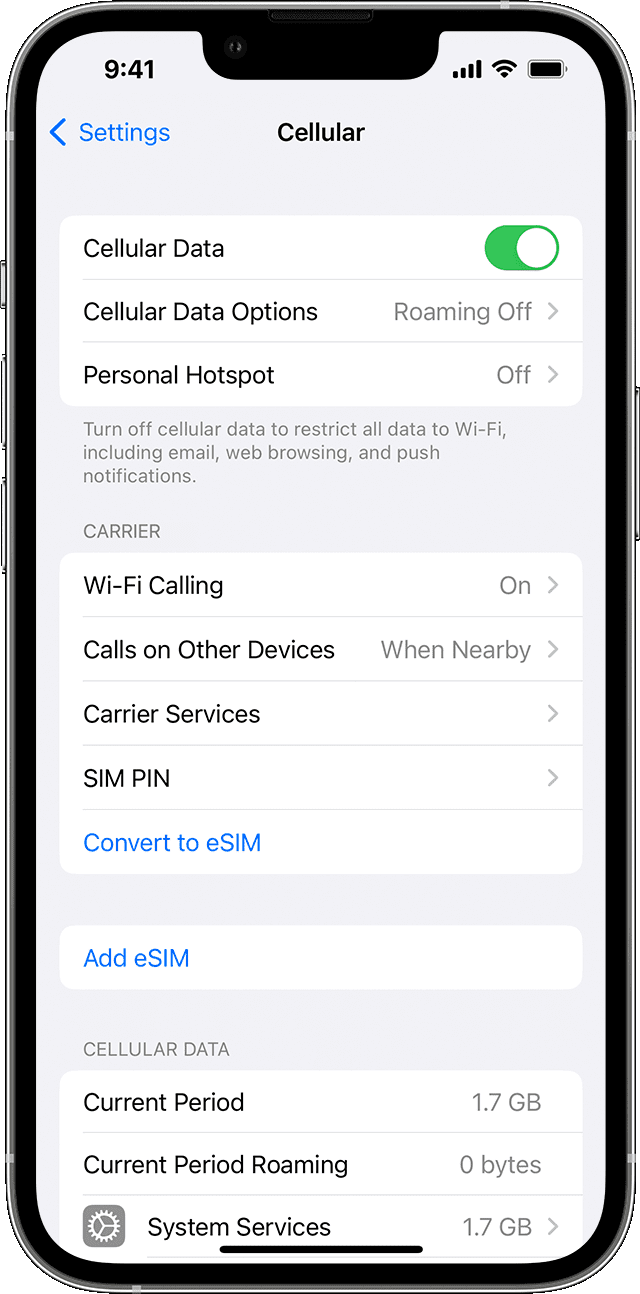
The Cellular settings enables you to control your iPhone’s cellular connection. The settings vary somewhat depending on your iPhone’s model and its carrier. These are the key settings:
- Cellular Data: Set this switch on (green) to allow the iPhone to transfer data across the cellular connection.
- Cellular Data Options: Tap this button to display the Cellular Data screen. Here, set the Data Roaming switch off (white) to avoid extra charges from connecting to another carrier’s network when outside your regular carrier’s area. Tap Voice & Data to specify the connection technology to use, such as 5G Auto, 5G On, or 4G. Tap Data mode and select the data mode, such as Allow More Data on 5G, Standard, or Low Data Mode. Set the Limit IP Address Tracking switch on (green) to hide your iPhone’s IP address from known trackers when you’re using Mail and Safari.
- Personal Hotspot: If your carrier plan includes sharing your iPhone’s internet connection, tap this button and choose settings on the Personal Hotspot screen. Set the Allow Others to Join switch on (green) to enable others to join the hotspot, and then type in the Wi-Fi password field the password they must enter to join. If you use Family Sharing, tap Family Sharing and specify which family members can join automatically and which need your approval. Set the Maximize Compatibility switch on (green) if PCs running Windows or Linux or devices running Android will need to connect.
- Carrier Services: Tap this button to display information about your carrier, such as phone numbers for contacting them.
- Wi-Fi Calling: Tap this button to enable or disable phone calls via Wi-Fi connections if your carrier supports them. Wi-Fi calling can help you avoid running over your cellular call allowance and racking up extra fees.
- Calls on Other Devices: Tap this button to specify which of your non-iPhone Apple devices, such as iPads and Macs, can make phone calls via your iPhone. Apple calls this feature Continuity. Each device must be signed into the same iCloud account.
- Cellular Data box: The Current Period readout shows the amount of data you’ve used in your current billing period. The Current Period Roaming readout shows roaming usage. The apps list shows which apps are allowed to use cellular data and how much they’ve used. If the list is headed Apps by Usage, you can tap Sort by Name to switch to Apps by Name order, and tap Sort by Usage to switch back. Typically, each app’s switch is set initially to the on position; set the switch off (white) for each app that you don’t want using cellular data.
- Wi-Fi Assist: Set this switch on (green) if you want your iPhone to automatically use cellular data when its Wi-Fi connection is flaky. This feature can chew through your data allowance, so set the switch off (white) unless your allowance is generous or unlimited.
- Call Time: The readouts let you know how many hours and minutes you’ve spent on the phone for the current period and for all the time you’ve used this iPhone.