If you need help turning on your iPhone Air, you’re in the right place. Powering on an iPhone Air can sometimes be tricky, especially if you’re a beginner or if you’ve recently upgraded from an older iPhone model. In this article, I’ll show you how to turn on an iPhone Air!
Is My iPhone Air Asleep or Powered Off?
If the screen on your iPhone Air is black, it’s possible that the iPhone is in sleep mode. To check, first try tapping the screen. If enabled, a feature called “Tap to Wake” will turn on the screen.
Also, try physically lifting the phone—some have “Raise to Wake” turned on. If that doesn’t work, press the Side or volume buttons on the edge of the device. If the screen turns on, the iPhone was just asleep. If not, you’ll need to power it on.
How to Power On an iPhone Air
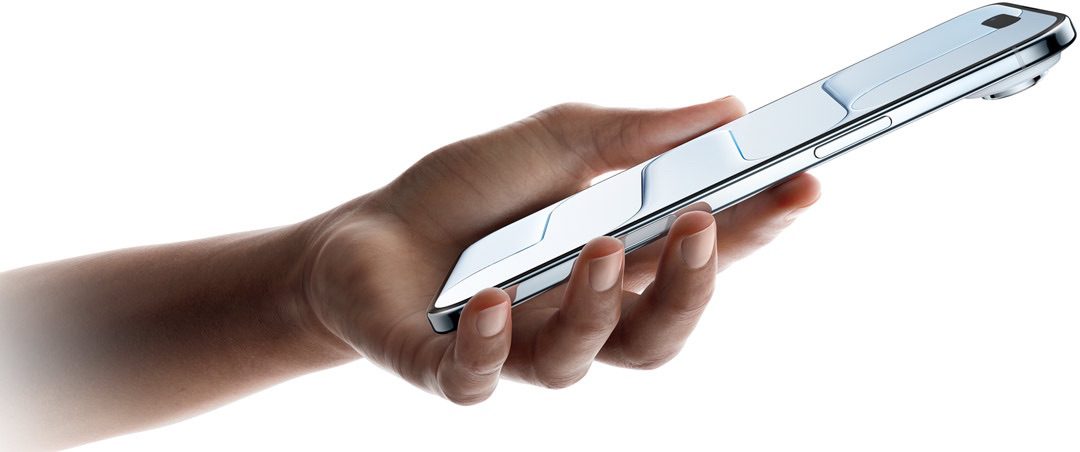
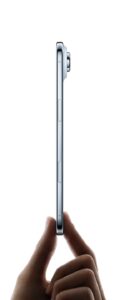
To turn on an iPhone Air, first locate the Side button. With the screen facing toward you, the Side button is positioned on the right edge of the device.
Press and hold the side button until you see an Apple logo in the center of the screen.
The iPhone Air has turned on and will begin to start up, which can take a minute or so. When it’s ready to use, you’ll see a greeting screen (if it’s a new iPhone that hasn’t been set up yet) or a lock screen, which is where you unlock your iPhone Air using a PIN, Face ID. From here, you can use your iPhone as you normally would.
My iPhone Air Isn’t Turning On
If you’ve pressed and held the side button on your iPhone Air, but no Apple logo shows up, it’s most likely that your iPhone’s battery is completely discharged. Plug your iPhone into a charger using a USB-C cable. Shortly after, the Apple logo will flash on the screen and your iPhone will turn on.
If your iPhone Air still won’t power on, there might be something wrong with the way it’s charging. Check the phone’s USB-C port to make sure it isn’t filled with lint or debris, and inspect your charging cable for kinks, breaks, or frays. If necessary, swap the cable for another.
See also: iPhone Air Won’t Turn on? Here’s How to Fix it
Charge the iPhone again. Be sure to plug the phone directly into a wall socket rather than a computer’s USB port, to make sure that the phone is receiving sufficient power supply.
It’s entirely possible that the USB-C port or your laptop’s USB port has failed, and since it wasn’t charging, you couldn’t turn it on. If so, this should solve your problem.
If it still doesn’t work, it’s probably best to contact Apple to have your phone serviced or replaced.
Turning On iPhone Air: Made Easy!
You now know how to turn on the iPhone Air! Make sure to share this article on social media with iPhone Air owners that you know. If you have any other iPhone questions, leave them below in the comments section!
All the best,
See also: How to turn off your iPhone Aire