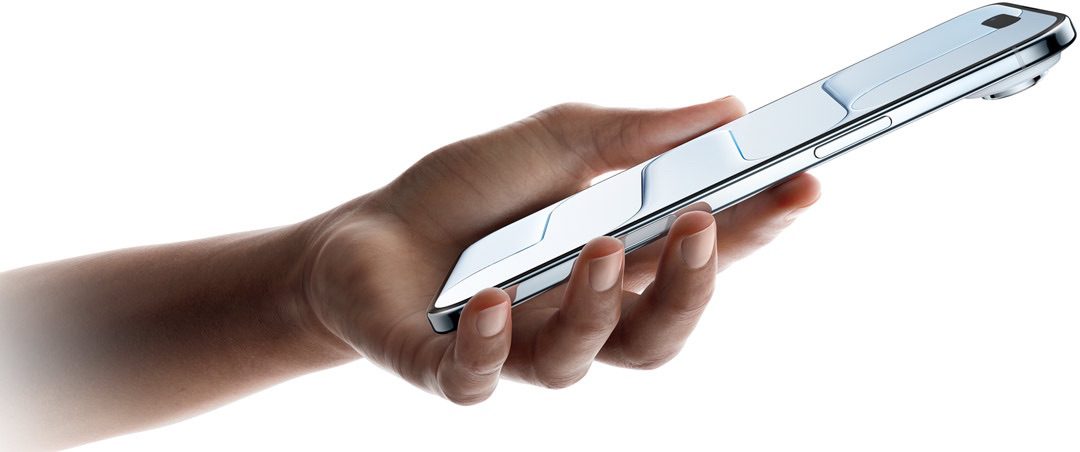
- If your iPhone Air won’t turn on, make sure you’re switching it on the right way first.
- You can fix an iPhone Air that won’t turn on by restarting it or checking for charging or hardware issues.
- If all else fails, plug your iPhone into a computer to see if you can back it up before sending it for repairs.
It can be terrifying if your new iPhone Air won’t turn on — especially if you’re not a tech guru. It might seem like there could be a million things wrong, and who knows where to start? Is it even fixable?
In general, you can narrow it down to one of three key issues: a software glitch, a charging malfunction, or a serious hardware problem.
Here’s how to figure out why your iPhone Air won’t turn on and how to fix it.
How to turn on an iPhone Air
You need to make sure you’re turning on your iPhone Air the right way before trying any of the troubleshooting steps mentioned below.
Press and hold the Power button (which is on the right side. After a few seconds, an Apple logo should appear on the screen.
What to do if your iPhone Air won’t turn on
Once you’re sure that you can switch on your iPhone Air properly, you can try to get to the bottom of why it’s not turning on.
1. Check to see if you can restart the phone
You probably know that your iPhone is turned on all the time, even when the screen is off, unless you deliberately shut it down via the Settings app. When the screen is dark, the phone is powered on — albeit “sleeping” — and a software glitch in an app could be preventing the phone from waking when you press the Power button, tap the screen, raise it to your face, or however you try to wake it up.
The simplest remedy is to force restart your iPhone Air and see if it will turn on.
- Quickly press and let go of the volume up button.
- Quickly press and let go of the volume down button.
- Press and hold the side button until the Apple logo appears on the screen. Then let go.
If your phone restarts successfully, your problem is probably solved. This problem can happen occasionally without suggesting a serious underlying issue. But if your phone won’t turn on frequently enough that it’s a nuisance, that suggests you have a misbehaving app or some corrupted data on your phone.
In that case, you might need to reset your phone to its factory settings and then manually reinstall apps from the App Store to see which one is bugged.
Quick tip: Since a factory reset will wipe all your data and settings, make sure you back up your iPhone with iCloud or your computer before resetting it. That way you can restore what you need later.
2. Try charging your phone
If it doesn’t appear that you can restart your iPhone Air, then it’s likely that your phone is already powered off, and the battery might be dead. Here’s what you should do:
Attempt to charge your iPhone17 Air — connect your phone however you usually charge it and let it charge for an hour or two.
If the iPhone Air still won’t start, there might be something wrong with the way it’s charging. Check the phone’s USB-C port to make sure it isn’t filled with lint or debris, and check your charging cable and USB adapter for signs of damage, like breakage or bent prongs. Don’t use damaged accessories. If necessary, swap the cable and USB adapter for another.
Charge the iPhone again. Be sure to plug the phone directly into a wall outlet rather than a computer’s USB port, to make sure the the phone is receiving enough power supply.
It’s entirely possible that the USB-C port or your laptop’s USB port has failed, and since it wasn’t charging, you couldn’t turn it on. If so, this should solve your problem.
Quick tip: if the problem still persists, there are more troubleshooting steps you can try to fix an iPhone Air that won’t charge.
3. My iPhone Air can’t turn on past the Apple logo
If your iPhone Air turns on but gets stuck on the Apple logo screen, connect your device to a computer, then put your device into recovery mode with these steps:
- Quickly press and let go of the Volume Up button. Quickly press and let go of the Volume Down button. Press and hold the Side button. Keep holding the Side button until you see the recovery mode screen.
- On a Mac with macOS Catalina 10.15 or later, open the Finder. On a Mac with macOS Mojave 10.14 or earlier, or on a PC, open iTunes. When asked to update or restore, choose Update. This will update your device to the latest version of iOS. If you choose Restore, it will erase your iPhone.
4. Troubleshoot a hardware problem
If your iPhone Air still won’t turn on, you might be dealing with a hardware issue. Some of the most likely issues include:
- Water damage. You might have gotten your phone wet and it has caused some components to fail.
- Drop damage. If you’ve dropped the phone, it might have damaged the screen (most likely) or internal components (less likely), preventing it from working.
- Component failure. As reliable as iPhones are, it’s always possible that one can fail due to a manufacturing defect. It’s rare, but it can happen.
To see if your iPhone Air has any life in it at all, try this:
- Connect your iPhone Air to a USB-C cable and plug it into a computer.
- Start iTunes or Finder on the computer.
- Check to see if iTunes or Finder recognizes the phone. You should see the icon for the phone appear in the iTunes or Finder window. If so, you’re in luck — the phone is actually powered on, and you can probably back it up.
- If you see the iPhone icon appear, click it and then click Back Up Now to try to ensure you have a good backup of your phone’s apps and data. You can later use this backup to restore your phone after it’s serviced or replaced.
- Contact Apple to have your phone serviced or replaced.