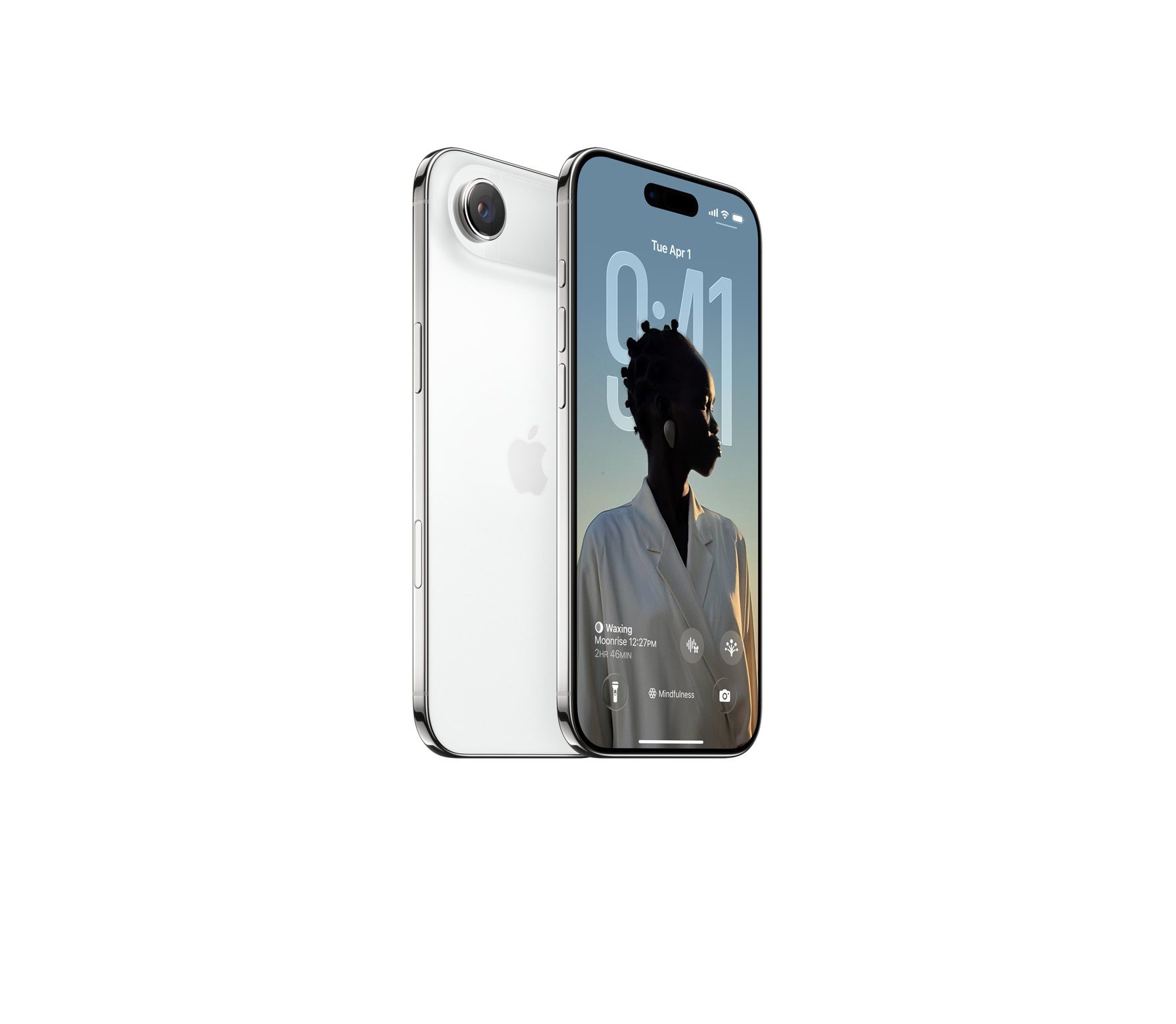
- Black screens might appear if your iPhone Air overheats, encounters a major error, or the screen itself breaks.
- To fix iPhone Air black screen, you should first plug your phone into a charger to make sure that it isn’t simply out of battery.
- If you’re lucky, a force restart may be all you need to fix your iPhone Air black screen issue. Otherwise, you’ll need a computer.
- If Find My is enabled, or you’re connecting your iPhone Air to a computer for the first time, you cannot restore it using Finder or the Apple Devices app.
- If software fixes fail, physical damage might be the culprit. Take your iPhone Air to Apple or an authorized service provider to diagnose and resolve hardware issues.
The black screen of death occurs when an iPhone is completely unresponsive. Sometimes, you’ll hear alerts and feel vibrations, but you won’t be able to interact with your phone. Although physical damage is often the culprit, you shouldn’t rule out system glitches.
Luckily, there are ways to fix nearly every “Black Screen of Death” glitch on your iPhone Air. Depending on the problem, you might just need to leave the iPhone alone for a while, or plug it into your computer.
Here’s what to do if your iPhone Air has the black screen of death, and some tips for preventing black screens in the future.
How to fix a black screen on your iPhone Air
1. Charge your phone
The first thing you should do if your iPhone Air has the black screen of death is to check that your phone’s battery isn’t dead. When you try to interact with an uncharged iPhone, it’ll usually flash an empty battery icon. But if the battery’s been totally drained, the screen might go completely blank.
Plug your iPhone Air into a working charger and leave it for at least an hour. If you come back and it still showing a black screen, then you can move onto the next steps.
Quick tip: You should also feel the back of your iPhone, without its case. If it’s incredibly hot, your iPhone might be overheating and will need to cool down before you can use it again. Leave it in a cool area for a while.
2. Force Restart Your iPhone
The next thing you should do when encountering the black screen of death issue is force restarting your iPhone Air. This is different from a regular reboot, and it’s useful when you can’t shut your iPhone down normally.
Force restarting requires a combination of button presses and can take a few tries since you’ll need to press each button quickly. Quickly press the volume up button, then the volume down button, and then press and hold the side button until you see the Apple logo appear.
3. Restore Your iPhone Air With Apple Devices or Finder
If your iPhone Air screen is still black even after you’ve tried force restarting it, you’ll need to factory reset it. You can do this using the Apple Devices app for Windows or Finder on macOS.
Restoring your iPhone Air with the Apple Devices app or Finder will erase all its data and bring it to factory settings. So, only try this if you have a recent backup so that you don’t lose all your data.
Note that this method will only work if you’ve connected your iPhone to Apple Devices or Finder before. That’s because when you connect your iPhone to a computer for the first time, you’ll get an alert on your iPhone (and your computer), prompting you to trust the device.
You can’t tap Trust on an iPhone Air showing a black screen, so you’ll have to hard reset your iPhone using the recovery or DFU mode, which we’ll discuss later.
Additionally, you can only proceed with these steps if you have Find My disabled on your iPhone. Otherwise, you’ll get an alert message prompting you to turn off Find My during the process. In this case, you’ll need to disable the Find My feature from iCloud and erase your iPhone remotely.
As long as you meet the above requirements, you’re all set. Simply connect your iPhone to your PC or Mac using a USB cable. Launch the Apple Devices app or Finder, and follow the steps mentioned below:
- Click [Your Name]’s iPhone under the Locations header on the sidebar. You can skip this step if you’re using Apple Devices.
- Head to the General tab and click Restore iPhone on the right.
- When prompted to back up your settings before restoring your iPhone, click Back Up.
- Next, click Restore when you get a confirmation pop-up.
The process may take several minutes to complete. So, be patient. Once it’s done, you can restore your iPhone from a backup.
4. Use Recovery Mode to Factory Reset Your iPhone
Recovery mode is a feature that lets you connect your iPhone to a computer so the computer can repair it. It usually does this by installing a fresh version of iOS, the software that your phone runs on.
Entering recovery mode on your iPhone Air requires you to force restart your device once you connect it to your computer and launch Apple Devices or Finder.
Quickly press and release the Volume Up button. Then, repeat the same with the Volume Down button. Finally, press and hold the Side button until you see the Recovery Mode screen.
The Apple Devices app or Finder will now show a pop-up message indicating that it has detected an iPhone in recovery mode, after which you can choose to Update or Restore your device.
5. Take Your iPhone to Apple
If none of these solutions work, the black screen of death is likely due to physical damage or other hardware issues. In that case, you must contact Apple Support or take your iPhone to a nearby Apple Store or an Apple Authorized Service Provider. It’s easy to make an Apple Store appointment at a Genius Bar.
Remember that Apple’s standard one-year warranty doesn’t cover replacements or repairs for damaged screens. So, unless you’ve spent money on an AppleCare extended warranty plan, you’ll have to pay a fee to get your iPhone serviced.
How to prevent black screens on your iPhone Air in the future
Hitting an unresponsive black screen can be scary, especially if your iPhone plays a critical role in your job or social life. So once you’ve fixed the black screen on your iPhone Air, take steps to make sure that it doesn’t come back.
Uninstall glitchy apps
If the black screens started appearing on your iPhone Air after you installed a certain app, the two might be connected.
Uninstall any apps you’ve downloaded recently and continue using your phone. If the black screens stop happening, you know what caused it.
Keep your iPhone Air at a normal temperature
Despite its price, the iPhone Air is a delicate device that needs to be handled carefully. Obviously, this means that you shouldn’t drop it or smother it in honey. But it also means that you need to keep track of its temperature.
An iPhone Air that gets too hot or too cold will shut down and give you a black screen — worst case scenario, your battery might short out permanently. This can be a big problem if you’re trying to run multiple high-performance apps at once, or have your iPhone Air in a thick case that traps heat.
Apple recommends storing your iPhone in areas where the temperature ranges from -4º to 113º F (or -20º and 45º C).
In some cases, your iPhone Air might freeze and show a warning message telling you to let it cool down. If you see this, move to a cooler area and leave your iPhone alone for a while.
Factory reset your iPhone Air
If you keep hitting black screens despite uninstalling recent apps, there might be an issue with your version of iOS. You can put the iPhone Air into recovery mode, like we described earlier, or you can factory reset it.
Factory resetting an iPhone Air will erase all of its data, and return the phone to the state it was in when you bought it. It’s an extreme but incredibly useful way to fix major glitches.
Important: Be sure to back up your personal data before performing a factory reset.
To factory reset your iPhone Air, open the Settings app and tap General, then Transfer or Reset iPhone. On the screen that appears, select Erase All Content and Settings.
Although the black screen of death on an iPhone Air can be an immediate cause for concern, it’s worth trying a few software fixes before seeking professional help, especially if you haven’t physically damaged your iPhone. However, in case of hardware issues, you have no choice but to contact Apple or a third-party service provider for expert assistance.