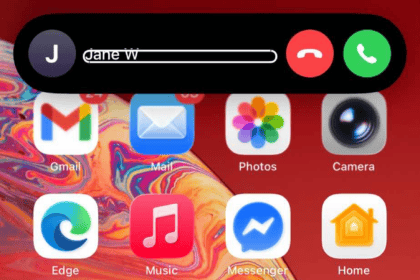
After installing the latest iOS 26 update on my iPhone, I started seeing the ‘Call Failed‘ error when trying to make calls. It seems that a lot of users also mention this on various iPhone models. Calls fail, mobile data may stop, and some apps like Mail or Calendar don’t work. Here are the fixes that people say really helped.
Many iPhone users say outgoing calls show Call Failed right away, while incoming calls may still work. Others lost mobile data or noticed options like Personal Hotspot missing. On certain iPhone models like the iPhone 16 Pro Max, the iOS 26.1 update even caused Mail, Calendar, Contacts, and Messages to stop working right after updating.
1) Turn Off Lockdown Mode (then restart), if it is on
The first thing you should do when you encounter “Call Failed” error in iOS 26 is to turn off lockdown mode, and then restart your device. It appears that some users find Lockdown Mode is turned on during iOS 26 update. Head to Settings > Privacy & Security > Lockdown Mode > Turn Off and then Restart. After reboot, test calls again.
2) Toggle Voice & Data Modes
Switching between different network modes can refresh the connection thereby resolving iOS 26 “Call Failed” issue. Head to Settings > Cellular > Voice & Data. Change to another option (for example LTE), wait a few seconds, then switch back.
3) Force Restart iPhone
One of the most common reasons a call fails in iOS 26 is because of a glitch with the software. You can generally fix this by force restarting your iPhone. To do this:
- Quickly press & release Volume Up.
- Quickly press & release Volume Down.
- Press & hold Side Button until the Apple logo shows. Release.
- Test calls once the phone restarts.
4) iPhone 14 SIM-Tray Workaround (physical SIM)
- Some iPhone 14 owners fixed iOS 26 “Call Failed” issue by moving the SIM to the other slot/position (commonly the lower one).
- Power off iPhone.
- Eject tray. If your tray has two distinct seats, move the SIM to the other one.
- Reinsert and power on.
- Wait up to 10 minutes.
- IMPORTANT Warning: Do not force your SIM. If your tray only supports one seat, skip this step.
5) Carrier Settings Update
- Connect to Wi-Fi.
- Go to Settings > General > About.
- If prompted, tap Update. If there is no prompt, this means there is no update.
6) Reset Network Settings
If you’ve tried everything else and you can’t complete any phone calls due to the Call Failed error, you might need to reset your iPhone’s network settings.
Save this as a last resort, because this troubleshooting step will erase all your network settings, including saved Wi-Fi network passwords and paired Bluetooth devices, so in some ways it’ll be like you have a new iPhone again.
Go to Settings > General > Transfer or Reset iPhone > Reset > Reset Network Settings.
You should note that this clears cellular, Wi-Fi, VPN, and APN profiles. You’ll need to re-enter Wi-Fi passwords.
7) eSIM: Turn Line Off/On or Re-provision
In Settings > Cellular, tap your line, toggle Turn On This Line off, then on. If no improvement, ask your carrier to re-issue the eSIM.