You can use your AirPods with any Bluetooth device, including an Android device, to listen to music, take calls, and more.
We’ll show you how to automatically or manually connect your AirPods to an iPhone and how to connect them to an Android device.
How to connect AirPods to your iPhone
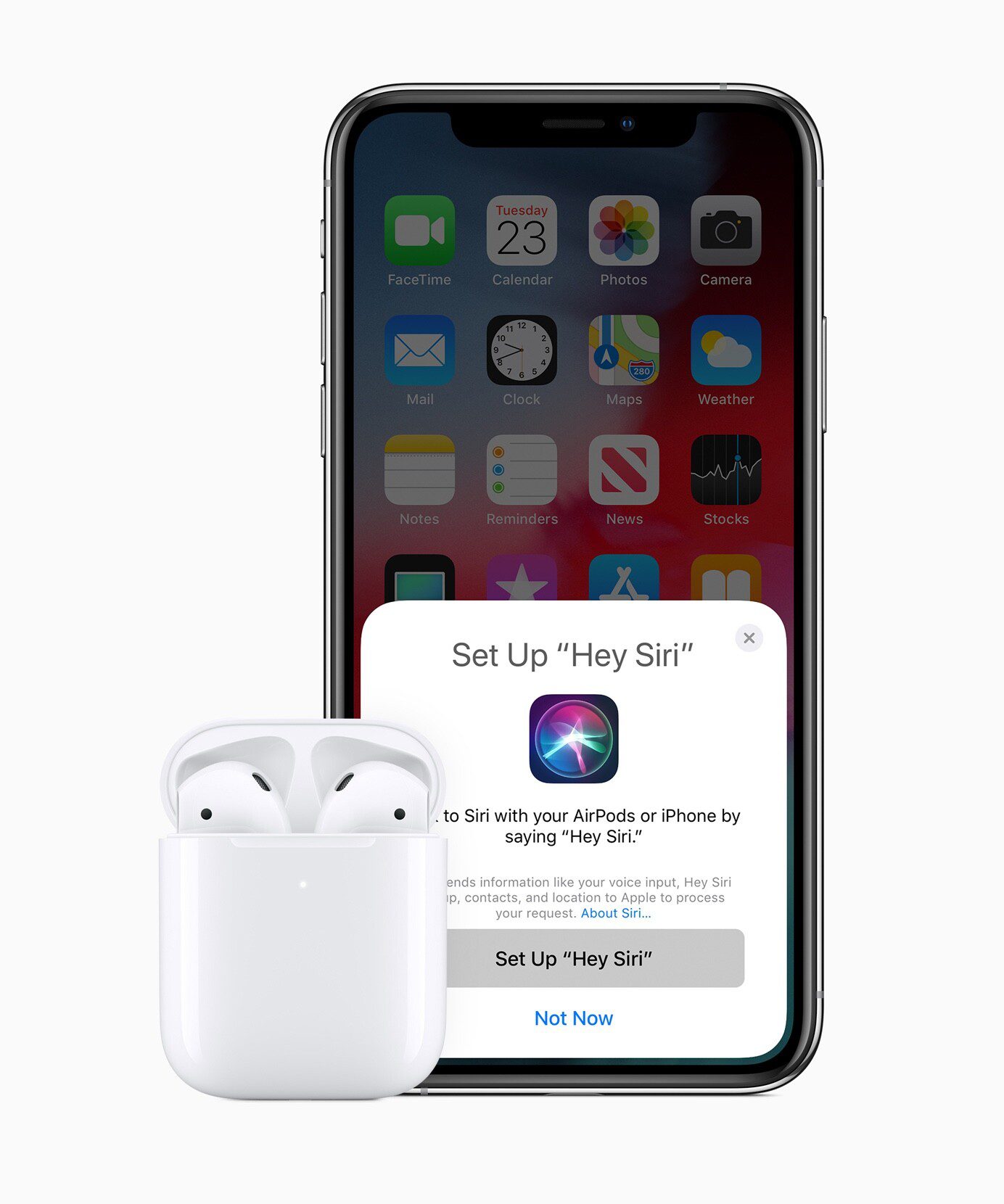
To set up your AirPods with your iPhone, make sure you have Bluetooth turned on and they’ll connect automatically.
Just bring them near your iPhone and open your charging case.
If you’re connecting AirPods Max, take them out of the smart case.
When the prompt appears, tap Connect and follow the steps to finish setting them up.
Tap Done when you’re finished, and your AirPods are automatically set up with all of your supported devices that are signed into iCloud with the same Apple account.
To customize your AirPods, just open Settings, and then tap your connected AirPods to view your options.
If the Setup animation doesn’t appear when trying to connect your AirPods or AirPods Pro, you can connect them manually.
For AirPods with a charging case that doesn’t have a Setup button on the back, make sure they’re in their case and bring them near your iPhone.
Open the lid and double tap the front of your charging case while the status light is on.
The status light then flashes.
For AirPods with a charging case that has a Setup button on the back, make sure they’re in their case and bring them near your iPhone.
Open the lid, then press and hold the Setup button on the back of the case until the status light flashes white.
For AirPods Max, take them out of the smart case and press and hold the Noise Control button, which is on top of the right earphone.
Once your AirPods are ready to connect, in Settings on your iPhone, tap Bluetooth.
Your AirPods appear in the list of Bluetooth devices.
Just select them and follow the prompts to finish connecting them to your iPhone.
Tap Done when you’re finished, and your AirPods are automatically set up with all of your supported devices that are signed into iCloud with the same Apple account.
How to connect AirPods to your Android device
If you use an Android device, you can connect your AirPods using Bluetooth.
In your Android settings, tap Connected Devices and tap Pair New Device.
For AirPods with a charging case that doesn’t have a Setup button on the back, make sure they’re in their case and bring them near your Android device.
Then open the lid and double tap the front of your charging case while the status light is on.
The status light then flashes.
For AirPods with a charging case that has a Setup button on the back, make sure they’re in their case and bring them near your Android device.
Open the lid, then press and hold the Setup button on the back of your charging case until the status light flashes white.
For AirPods Max, take them out of the smart case and press and hold the Noise Control button, which is on top of the right earphone.
Your AirPods appear in the list of Bluetooth devices.
Just select them and follow the prompts to connect them with your Android device.
Now you can make calls, listen to a podcast, or play your favorite song on repeat with your AirPods.