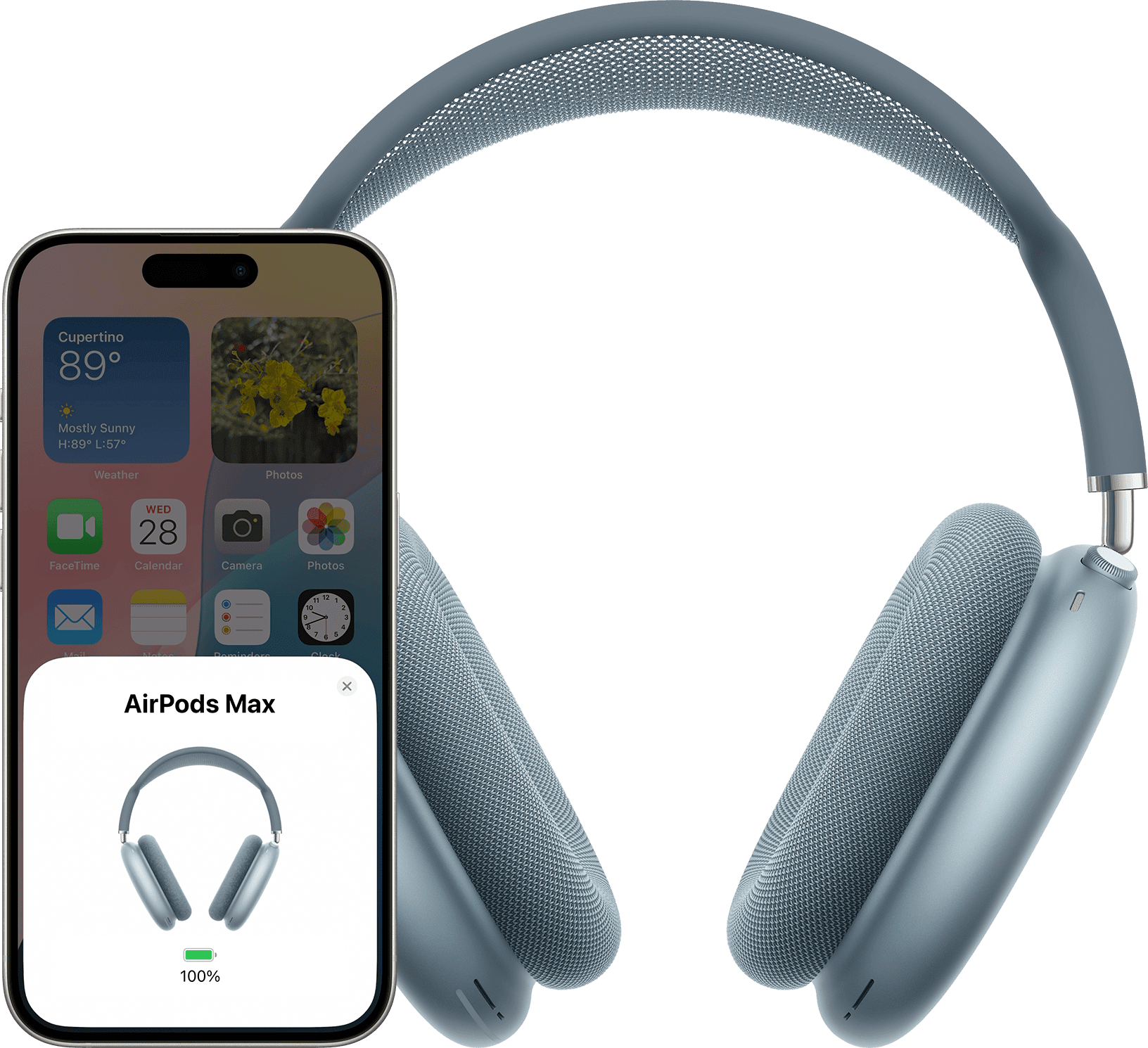
Wondering how to put AirPods Max in pairing mode? You’ve landed in the right place. In this article, I’ll show you how to put your AirPods Max in pairing mode so that you can connect them to your Apple devices or non Apple devices to listen to music, movies, messages, and more. You can also use your AirPods to make and answer phone calls and FaceTime calls with compatible devices.
After you set up your AirPods Max with one Apple device (like your iPhone), your AirPods connect automatically to your other Apple devices where you’re signed in to the same Apple Account.
AirPods Max are usually pretty easy to pair with most Bluetooth devices, but sometimes they just won’t go into pairing mode. I’ll show you what to do in the event your AirPods Max won’t go into pairing mode.
Can You Connect AirPods Max to Two Devices?
AirPods Max, as well as other versions, are capable of connecting to multiple devices at the same time and automatically switching between them using a technology called Automatic Device Switching.
If you are signed in on all of your devices with the same Apple account, your AirPods will automatically switch from one device to another, depending on new activity. For instance, if you are listening to music on your iPad, they will switch to answering a phone call on your iPhone as soon as the call registers on the device.
How to Pair AirPods Max with iPhone or iPad
- Make sure your iPhone or iPad is running the latest version of iOS or iPadOS.
- Go to the Home screen.
- Take your AirPods Max out of the Smart Case, and within 60 seconds, hold them next to the iPhone or iPad that you want to pair with your AirPods Max until you see a setup animation on the device.
- If you don’t see the animation, you can pair your AirPods Max manually.
- If you don’t see the status light flashing white on AirPods Max, press and hold the noise control button until the light flashes white.
- Tap Connect to pair your AirPods Max with your iPhone or iPad, or to set up features such as Hey Siri if you haven’t yet set it up.
- If you want to experience spatial audio, tap See & Hear How It Works to start the setup.
- Tap Done. If you’re signed in to iCloud, your AirPods Max are set up automatically with any of your supported devices that are signed in to iCloud with the same Apple Account.
How to Pair AirPods Max with Your Mac
- Make sure your Mac is running the latest version of macOS.
- Place your AirPods Max on your ears, then click Control Center in the menu bar.
- Click Bluetooth, then choose your AirPods Max from the list.
- If your AirPods Max don’t appear in Control Center, pair your AirPods Max with your Mac:
- On your Mac, choose System Settings from the Apple menu (), then click Bluetooth.
- Make sure that Bluetooth is on.
- Press and hold the noise control button on your AirPods Max until the status light flashes white.
- Click Connect next to your AirPods Max in the Nearby Devices list.
If sound still plays from your Mac speakers, click Control Center in the menu bar and make sure that your AirPods Max are selected as the output device.
How to Pair AirPods Max with Apple Watch
- Make sure your Apple Watch is running the latest version of watchOS.
- On Apple Watch, open the Settings app , then tap Bluetooth.
- Tap your AirPods Max on the Bluetooth screen to connect.
If you don’t see your AirPods Max in the list, press and hold the noise control button for about 5 seconds, or until the light flashes white.
How to Pair AirPods Max with Apple TV
- Make sure your Apple TV is running the latest version of tvOS.
- On Apple TV, press the TV Control Center button on the Siri Remote, then select Settings.
- Scroll down, select Remotes and Devices > Bluetooth.
- Press and hold the noise control button on your AirPods Max for about 5 seconds, or until the light flashes white.
- Below Other Devices, select your AirPods Max.
How to pair your AirPods Max with Apple Vision Pro
- Make sure your Apple Vision Pro is running the latest version of visionOS.
- On Apple Vision Pro, go to Settings > Bluetooth.
- Take your AirPods Max out of the Smart Case, press and hold the noise control button on AirPods Max for about 5 seconds, or until the light flashes white.
- Below Other Devices, tap your AirPods Max.
How to Pair AirPods Max with a Non-Apple Device
You can pair and use AirPods Max as a Bluetooth headset with a non-Apple device. You can’t use Siri, but you can listen and talk and use Active Noise Cancellation and Transparency mode. To pair your AirPods Max with an Android phone or other non-Apple device, follow these steps:
- On your non-Apple device, go to the settings for Bluetooth and make sure that Bluetooth is on. If you have an Android device, go to Settings > Connections > Bluetooth.
- Press and hold the noise control button on your AirPods Max until the status light flashes white.
- When your AirPods Max appear in the list of Bluetooth devices, select them.
Why Won’t My AirPods Max Go into Pairing Mode?
There are many reasons why your AirPods Max might not go into pairing mode. These include:
- Distance
- Low battery
- Bluetooth problems
- Outdated software
- Hardware damage
How to Fix AirPods Max that Won’t Go Into Pairing Mode.
Move both devices closer to each other
There’s a limited distance that can remain between your iPhone (or whatever device you’re connecting to) and your AirPods Max. Place your devices next to each other to see if distance is the reason you can’t pair your AirPods Max.
Charge Your AirPods Max
If your AirPods Max have low battery, it may interfere with their ability to pair with your devices.
- To charge AirPods Max (Lightning): Connect AirPods Max to a power outlet using a Lightning to USB Cable and a compatible power adapter.
- To charge AirPods Max (USB-C): Connect AirPods Max to a power outlet using a USB-C cable and a compatible power adapter.
Restart your device
If you’re trying to pair your AirPods Max with your iPhone, for example, reboot your iPhone and then try to connect them again. Sometimes, a simple restart is all that’s needed to fix problems like this one.
Restart AirPods Max
If your AirPods Max won’t go to pairing mode, you can restart them. Press and hold the noise control button and the Digital Crown until the LED flashes amber.
Reset AirPods Max
If your AirPods Max won’t go to pairing mode and restarting them doesn’t resolve your issue, reset them to factory settings: Press and hold the noise control button and the Digital Crown for 15 seconds, until the LED flashes amber, then white.
After you reset your AirPods Max, connect them to your iOS or iPadOS device, or connect them to your Mac or other device.
AirPods Max can be associated with one Apple Account. If you want to use AirPods Max that someone else has used, they need to first remove them from their Apple Account.
If you’ve tried all of these tips and still can’t get your AirPods Max to go into pairing mode, it’s best to seek help from Apple because there could be a hardware issue at play. You can do this by making an appointment with Apple or visiting an authorized service provider.