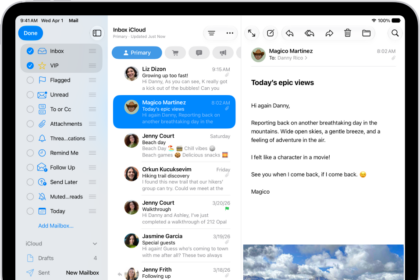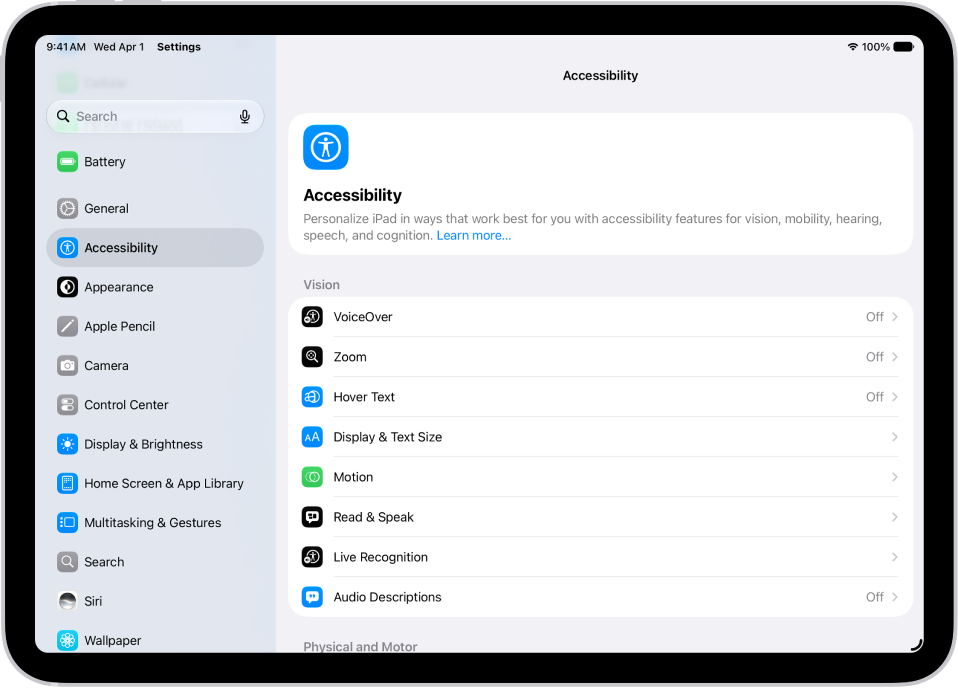
On iPad, you can turn on Reduce Motion to customize onscreen motion, and with it off, you’ll see even more motion, including the fluid morphing effects of Liquid Glass. Turning on Vehicle Motion Cues adds animated dots to the edges of the screen, which may help reduce motion sickness. It’s also possible to customize how some elements on the screen move, such as:
- Motion effects for wallpaper, apps, and alerts
- Screen transitions
- Siri animations
- Typing autocompletion
- Animated full-screen and bubble effects in the Messages app
- Animated images on the web and in apps
Customize onscreen motion
- Open the Settings app on your iPad.
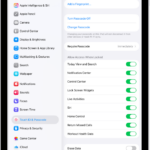
- Tap Accessibility, then tap Motion.
- Do any of the following:
- Reduce Motion: Turn on. (When off, you’ll see more motion, like the fluid morphing effects of Liquid Glass.)
- Vehicle Motion Cues: Turn on. You can also customize the appearance of the cues including the pattern, color, and visibility. (When on, animated dots appear on the edges of the screen and may help reduce motion sickness.)
- Auto-Play Animated Images: Turn off. (When on, rapid animated images and moving elements such as GIFs in Messages and Safari play automatically.)
- Auto-Play Video Previews: Turn off. (When on, it allows apps such as the App Store to automatically play video previews.)
- Auto-Play Message Effects: Turn off. (When on, the Messages app automatically plays full-screen effects. If you turn this setting off, you can still manually play effects by tapping Replay below the message bubble.)
- Prefer Non-Blinking Cursor: Turn on. (Stop the blinking of the vertical bar that appears at the insertion point where you’re typing. If you use a braille display with iPad, the cursor indicator on the display also stops blinking.)
- Limit Frame Rate: Turn on. (On models with ProMotion display technology, this limits the maximum frame rate of the display to 60 frames per second.)
Reduce flashing and strobing lights in videos
- Open the Settings app on your iPad.
- Tap Accessibility, then tap Display & Text Size.
- Turn on Dim Flashing Lights.
Reduce bright effects of onscreen elements
You can reduce highlighting and flashing effects that may appear when interacting with certain onscreen elements, like the keyboard.
- Open the Settings app on your iPad.
- Tap Accessibility, then tap Display & Text Size.
- Turn on Reduce Bright Effects.
To apply some of these effects to specific apps, read our guide, Customize visual accessibility settings for specific apps.
Important: Your iPad uses an on-device algorithm to detect flashing or strobing lights included in supported media and automatically dims them on your iPad in real time. Motion settings should not be relied upon in high-risk situations, or for the treatment of any medical condition.
See also